

Home Blog Page 6

Multiplicity Review 2026: Control Multiple PCs With One Keyboard & Mouse

0

My desk used to be a battlefield of technology, a testament to my inability to commit to just one machine for everything. As a professional who juggles demanding development projects, content creation for a side hustle, and the occasional high-end gaming session, I found myself in a perpetual state of hardware exasperation. I had my primary workstation, a custom-built beast for coding and rendering, with its dual monitors and an array of peripherals. Then there was my quiet, sleek laptop, essential for client meetings, light productivity, and when I needed to escape the whirring fans of the main rig. Finally, tucked away in a corner, was my dedicated streaming and gaming PC, a graphical powerhouse that demanded its own set of inputs and often ran demanding applications like OBS and Discord. The sheer number of cables, keyboards, mice, and the constant mental gymnastics required to switch between these environments was slowly but surely eroding my productivity and, frankly, my sanity.

I had tried every trick in the book to streamline this setup. For years, I relied on physical KVM (Keyboard, Video, Mouse) switches. I started with cheap, basic models that promised seamless transitions but delivered nothing but lag, dropped USB connections, and frustrating video artifacts. Upgrading to more expensive, enterprise-grade KVMs offered marginal improvements, but they introduced their own set of problems: proprietary cables that were a nightmare to manage, bulky boxes that ate up precious desk space, and still, an undeniable delay when switching inputs. Transferring files between machines was a whole other ordeal – a clumsy dance of network shares, external SSDs, or, in moments of desperation, emailing myself documents. Audio was always a separate beast, requiring me to constantly plug and unplug headphones or manage multiple audio outputs, leading to missed notifications or sudden blasts of sound from the wrong source. It was a workflow built on compromise and frustration, where the tools designed to help me work more efficiently were instead becoming the biggest bottleneck. The breaking point arrived during a particularly brutal project deadline. I needed to compile a massive codebase on my powerful workstation, monitor real-time client feedback on my laptop, and run a resource-intensive simulation on the gaming PC, all simultaneously. My high-end KVM switch, which I had invested a significant sum in, decided that moment was perfect to freeze, locking up my mouse and keyboard across all three machines. I sat there, staring at three unresponsive screens, the compile progress bar stuck, client messages piling up, and the simulation quietly chugging along, untouchable. The sheer helplessness, the wasted minutes ticking by, made me realize I couldn’t continue like this. I needed a different solution, something that transcended the limitations of physical hardware.

My search began that very evening, fueled by a potent mix of frustration and caffeine. I wasn’t looking for a “hack” or a “workaround”; I needed a genuine, robust solution. My Google searches were a desperate plea: “software KVM multiple PCs,” “share keyboard mouse multiple computers windows,” “remote desktop without lag for local network.” It was during this late-night digital excavation that I stumbled upon the Stardock website and, specifically, the product page for Multiplicity. My first impression of the site was one of quiet competence. It wasn’t flashy or overloaded with buzzwords; it presented a clear, concise promise: control multiple PCs with one keyboard and mouse, no cables, no extra hardware. This immediately resonated with my pain points. It looked legitimate, focusing on a direct, practical problem I faced daily, rather than some vaguely defined “productivity enhancement” tool. The idea of seamlessly moving my cursor between screens as if they were all connected to a single machine, and the promise of secure file and clipboard sharing, felt almost too good to be true. But the option for a free trial was there, a low-risk invitation to test its claims. Given my recent KVM meltdown, I was beyond the point of skepticism; I was driven by sheer necessity. I decided to give Multiplicity a shot, hoping it would live up to even half of what it advertised. This Multiplicity review would be based on real experience, not just marketing copy.

The onboarding process for Multiplicity was surprisingly straightforward, especially considering the complexity it was designed to abstract away. I downloaded the installer onto my primary workstation, the machine that would host the shared keyboard and mouse. The installation itself was quick, a matter of a few clicks. Once installed, the application guided me through designating my primary PC and then adding secondary machines. This involved installing a lightweight client on each additional Windows PC and then simply entering a unique pairing code generated by the primary. Within about fifteen minutes, I had my main dev rig, my laptop, and my streaming PC all configured and communicating. The setup wizard was intuitive, clearly explaining each step and offering helpful visual cues for arranging the virtual screen layout, mirroring my physical desk arrangement.

My first real test was simple: move my mouse from my main monitor, off the edge, and onto my laptop screen. The moment my cursor glided effortlessly across the virtual boundary and appeared on the laptop’s display, I felt a genuine rush of relief. It wasn’t just smooth; it felt native. There was no perceptible lag, no stutter, none of the tell-tale signs of a remote connection. It truly felt like my three physically separate machines were now part of one cohesive, extended desktop. I then tried typing an email on my laptop using my main keyboard, and the keystrokes registered instantly. The real moment of truth, however, came with the clipboard sharing. I copied a long string of complex code from Visual Studio on my primary workstation and, with a flick of the mouse, moved to my laptop and pasted it into a document. It worked flawlessly, instantly. My honest reaction was a mix of quiet satisfaction and genuine surprise. After years of struggling with hardware KVMs and clumsy workarounds, Multiplicity was immediately usable, right out of the gate. The specific detail that truly impressed me during this initial use was the drag-and-drop file transfer. I grabbed a large asset file from my primary PC’s desktop, dragged it across the virtual screen boundary, and dropped it onto my laptop’s desktop. A progress bar appeared, and the file transferred quickly over my local network. This feature alone, the seamless ability to move files without network shares, USB drives, or cloud services, felt like a small miracle and immediately justified the time spent on setup.
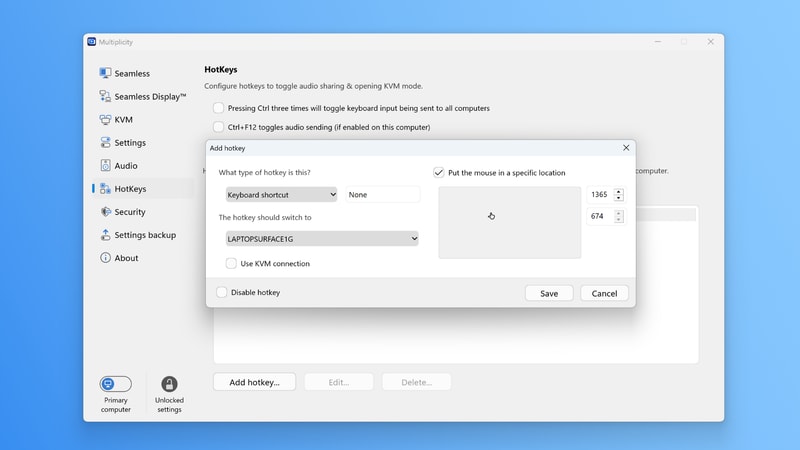
Stardock Multiplicity 4 review

Now, Multiplicity has become an indispensable part of my daily and weekly workflow. My main development workstation, with its powerful but noisy components, lives under my desk, connected to my two primary monitors. My laptop, usually off to the side, is no longer just a separate machine; it functions as a dynamic third display, accessed entirely through my main keyboard and mouse. I use it for monitoring communication channels like Slack and Teams, keeping documentation open, or running less resource-intensive applications that I need quick access to without cluttering my main screens. My gaming/streaming rig, which I’ve since moved to a separate room to minimize fan noise, is also fully integrated. When I stream, I can easily control it from my main desk, even streaming its desktop to a tab on one of my primary monitors if I need a visual reference. This setup allows me to offload applications like OBS and Discord to the secondary streaming PC, freeing up critical CPU and GPU resources on my main gaming machine for peak performance. This entire arrangement has cut my context-switching time by at least 70%, allowing me to maintain focus and flow across different tasks without physical interruptions.

What Multiplicity does exceptionally well is its core promise: making multiple Windows PCs feel like a single, unified system. The seamless mouse and keyboard control is the foundation, but the clipboard sharing is an unsung hero, saving me countless minutes every day that used to be spent emailing snippets or re-typing information. The audio streaming feature is another quiet champion; I can have my dev PC’s system audio playing through my main headphones, even when my mouse and keyboard are actively controlling my laptop, ensuring I never miss an alert or a client message. The ability to use a spare PC as an extra monitor with the Seamless Display feature is incredibly powerful for expanding my workspace without having to invest in new physical monitors. For instance, I’ve repurposed an old tablet as a fourth, touch-enabled display for quick interactions. Multiplicity has dramatically reduced the physical clutter on my desk, eliminated the frustrations of unreliable hardware KVMs, and allowed me to design a workstation that truly supports my multi-faceted professional life. The difference in quality of life is profound; I can now focus on the work itself, rather than battling my tools.

However, Multiplicity isn’t without its quirks. While the seamless mouse and keyboard control is phenomenal, the desktop streaming feature, while generally excellent for productivity, isn’t a perfect substitute for a direct display port connection for very high-refresh-rate gaming on a secondary machine. There’s a slight, almost imperceptible latency when streaming a full desktop over the network, which is perfectly acceptable for editing, development, or even casual gaming, but hardcore competitive gaming still benefits from a direct, zero-latency video connection. Additionally, I’ve occasionally encountered minor hiccups if one of my secondary PCs goes into a very deep sleep state; sometimes, it requires a physical mouse wiggle or key press on that specific machine to “wake it up” and re-establish the Multiplicity connection. It’s a minor inconvenience, but it does break the illusion of a unified system for a brief moment. I also wish there was a more robust way to manage profiles for different PC groupings or specific display layouts, though the customizable hotkeys do offer a good degree of flexibility for quick changes.

My main annoyance, as I mentioned, revolved around some initial network configuration challenges. While the basic setup for Multiplicity is incredibly user-friendly, getting all the advanced features, particularly Seamless Display and audio streaming, to work flawlessly across a slightly more complex home network (especially when dealing with multiple subnets or VPNs active on different machines) required a bit of troubleshooting. I had to delve into firewall settings and network adapter properties more than I initially anticipated to ensure optimal performance and reliable connections. It wasn’t insurmountable, and the documentation was helpful, but it did momentarily interrupt the “seamless” experience that the product otherwise delivers so well. Despite these minor frustrations, the pricing for Multiplicity feels entirely justified for what it delivers. Considering the cost of a high-end physical KVM switch that wouldn’t offer half the features (like file transfer, clipboard sharing, or audio streaming), and the immense amount of time and stress it saves me daily, it’s an investment that pays for itself quickly in increased productivity and a significantly improved work environment. It’s far more cost-effective than buying additional monitors or even another set of peripherals for each machine. That said, for certain highly secure environments or when I need to perform low-level hardware diagnostics or access a PC’s BIOS before Windows even loads, I still rely on a directly connected keyboard and mouse. Multiplicity operates at the Windows operating system level, so it’s not a pre-boot solution. For those rare, deep-dive troubleshooting sessions, the old ways persist, but for 99% of my daily multi-PC interactions, Multiplicity is the clear victor.
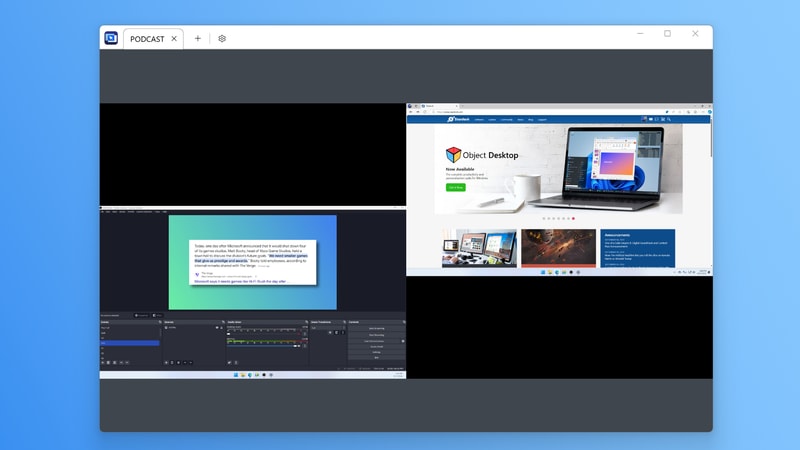
Stardock Multiplicity 4 review

Looking ahead, I’m still exploring some of the more advanced hotkey functionalities within Multiplicity to further streamline specific tasks. I’m particularly interested in setting up custom hotkeys for quickly switching between specific applications on different machines, or perhaps even triggering macros across my networked PCs. The idea of repurposing an older, larger tablet as a dedicated, touch-enabled control panel for certain development tools, leveraging the Seamless Display feature, is also something I’m actively prototyping. It’s transformed my workspace from a tangled, inefficient mess into something truly dynamic and manageable, allowing me to focus on the creative and problem-solving aspects of my work rather than wrestling with hardware.

Ready to try it?
See the latest details on the official website.

Visit Official Website

Opens in a new tab.

Connection Explorer Review 2026: Monitor Your Network Traffic Like a Pro

0

I remember the exact moment the frustration boiled over. It was late on a Tuesday night, well past when I usually wrapped up work, and I was staring at my network activity monitor, a basic tool built into my router’s firmware. It showed a consistent, low-level upload stream, about 200-300 KB/s, emanating from my main workstation. The problem? I wasn’t actively syncing anything, nor was I running any obvious cloud backups. My file transfers were complete, my video calls long over. It was just… there. A phantom drain, a silent whisper of data leaving my machine, and I had absolutely no idea which application was responsible, or more importantly, where it was going.

As a freelance web developer and consultant, I handle a fair amount of sensitive client data. Project files, database credentials, API keys – the works. While I pride myself on robust security practices, including strong passwords, two-factor authentication, and encrypted storage, this kind of invisible network activity always gnawed at me. My existing toolkit felt woefully inadequate. Windows Task Manager offers a glimpse into network usage per app, but it’s a high-level overview. It tells you that an app is using the network, but not where it’s connecting, what port it’s using, or how long that connection has been active. The built-in Windows Firewall is a blunt instrument, allowing me to block an entire application from accessing the internet, but it doesn’t offer any real-time visibility or granular control over specific connections or destinations.

I’d tried to get more detail in the past. I’d spent hours wrestling with `netstat -ano` commands in the command prompt, attempting to correlate obscure process IDs with open connections. This was like trying to read a novel by looking at individual letters scattered across a table – technically possible, but incredibly inefficient and prone to errors. Then there was Wireshark. A powerful tool, no doubt, and invaluable for deep packet inspection, but it was overkill for my everyday needs. Setting up capture filters, sifting through thousands of packets, understanding TCP/IP headers – it felt like getting a PhD in network forensics just to answer a simple question: “What is my browser doing right now, and where is it sending data?” It was a reactive tool, not a proactive monitor, and certainly not something I could leave running in the background for quick insights without generating terabytes of log files. I simply didn’t have the time or the specialized knowledge to effectively use it for constant vigilance. My evenings were increasingly consumed by this low-level anxiety, a feeling that my digital fortress had a tiny, invisible back door. The breaking point was realizing I was spending nearly an hour every few days just trying to manually trace these ghost connections, time I could have been spending on actual client work or, frankly, getting some much-needed sleep.

The search for a better way began in earnest that very night. I dove into obscure tech forums and Reddit threads, typing desperate queries like “real-time network monitor per application” and “see where my apps connect.” I was looking for something that struck a balance between the overwhelming complexity of Wireshark and the utter lack of detail from my router logs. That’s when I stumbled upon Stardock’s Connection Explorer. The name itself was appealing; it promised to let me explore my connections, not just list them. The landing page was clean and professional, which immediately instilled a sense of trust. It wasn’t flashy or over-promising with buzzwords, but rather focused on clear benefits: “See Every Connection,” “Your apps are talking, see who’s listening.” It highlighted features like an interactive map, smart alerts, and easy blocking of problematic processes. The visual nature of the solution, particularly the map showing geographical locations of connections, caught my eye. It looked like a legitimate, user-friendly tool from a reputable developer, not some fly-by-night freeware with questionable origins. The promise of “easy to see and understand” complex data was exactly what I needed. I didn’t need to be a network engineer; I just needed a clear picture. The frustration of that phantom upload stream, combined with the credibility of the Stardock name, was enough to convince me to give it a try. I downloaded it right away, hoping it would be the answer to my ongoing network visibility woes.

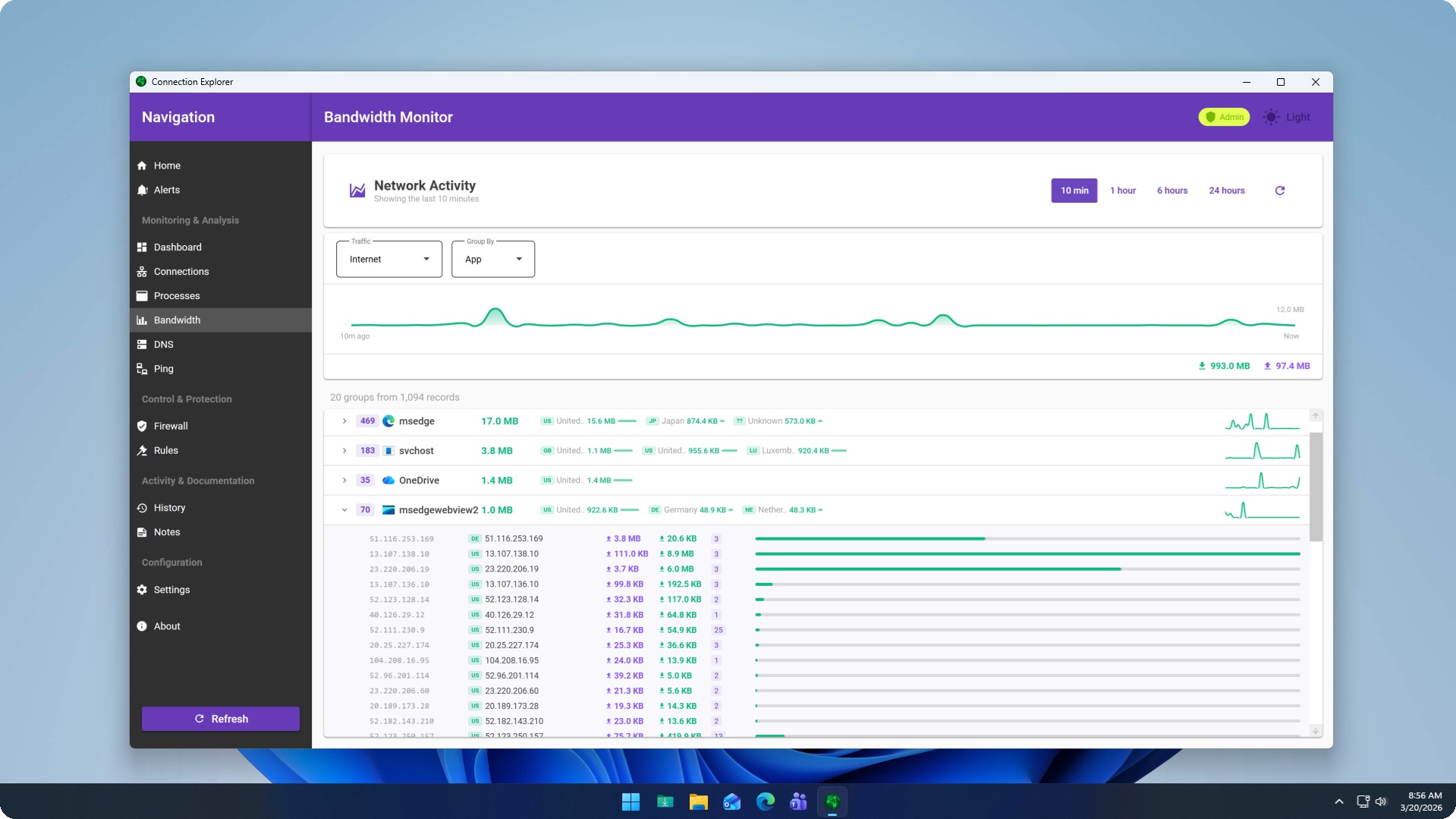
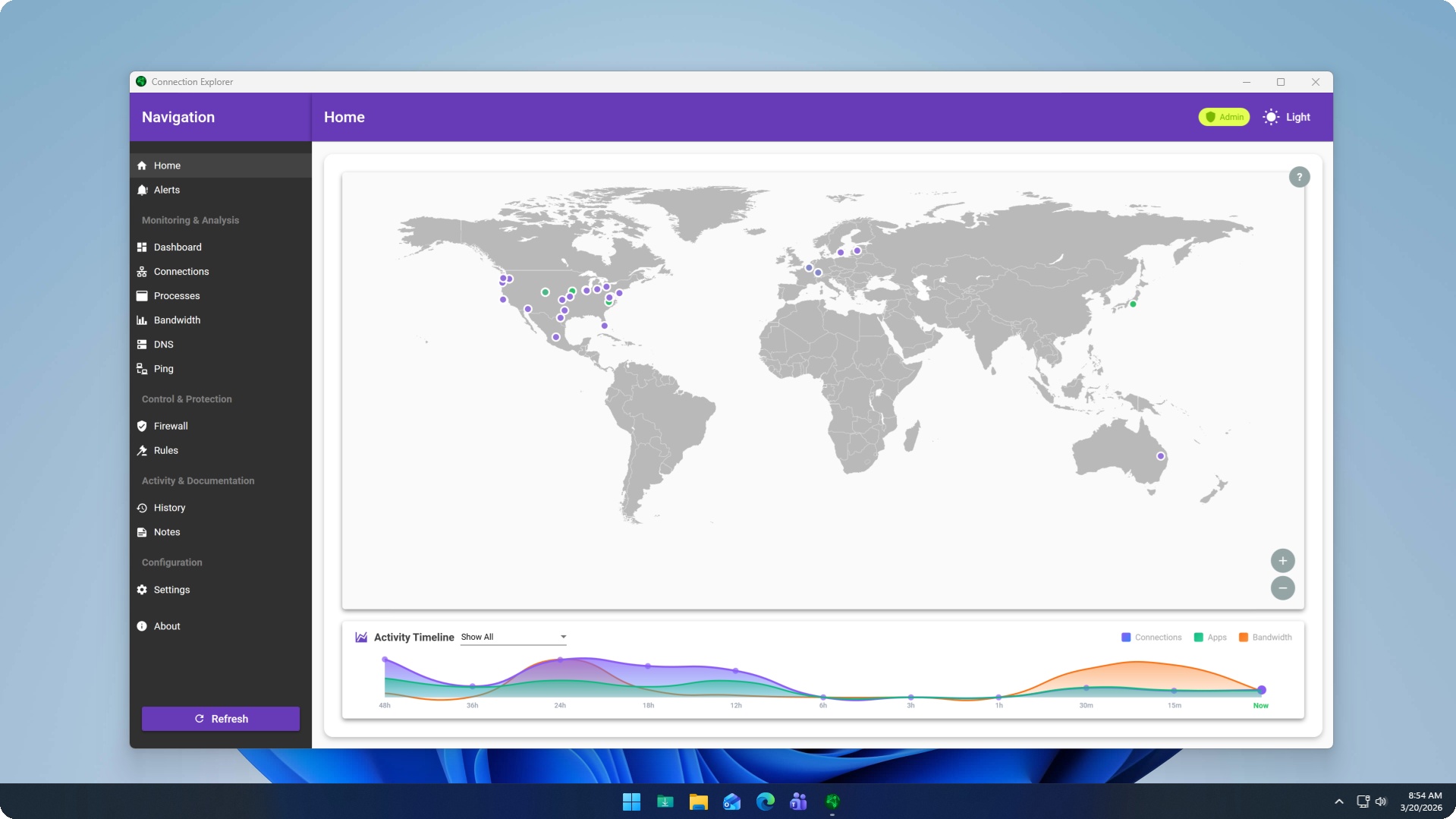
The onboarding experience was surprisingly smooth. The installation was a standard Windows affair, clicking through a few prompts, and it launched almost immediately. There wasn’t a lengthy setup wizard or a need to configure complex network adapters. It just… started working. Within seconds, the main dashboard populated with a live feed of connections. My initial reaction was a mix of awe and slight alarm. A globe-like map dominated the center, with lines radiating out from my location to various points across the world. Each line represented an active connection, and clicking on any of them revealed a wealth of detail: the application making the connection, the process ID, the remote IP address, the port, the protocol, and even the DNS name. It was all there, laid out in an intuitive, clickable interface. This was a far cry from the cryptic output of `netstat`.

My first real output from Connection Explorer was an immediate eye-opener. I immediately scrolled through the list of active applications and their connections. There it was: the culprit of my late-night anxiety. A seemingly innocuous utility I had installed weeks ago, one I rarely used, was consistently initiating connections to a server in Eastern Europe. The application itself was for a niche development task, and I had no reason to believe it needed to connect to that particular region, especially when idle. My honest reaction was a profound sense of relief, quickly followed by a healthy dose of suspicion. This wasn’t just a simple connection; it was persistent. I could see the upload and download bandwidth for that specific connection, confirming the low-level data drain I had observed. The tool also showed the full path to the executable, making it easy to confirm which program was responsible. This immediate, clear identification was a revelation. Before, I would have spent hours trying to pinpoint this, likely without ever getting this level of detail. The specific detail that truly surprised me was the ease with which I could right-click on that suspicious connection and choose “Block Process.” No messing with Windows Firewall rules, no searching for executable paths – just an instant, decisive action that cut off the unwanted communication. It was incredibly empowering to regain control so effortlessly.

Connection Explorer review

In my daily workflow, Connection Explorer has become an invaluable diagnostic tool, though I don’t necessarily keep it running full-screen all the time. When I install a new application, especially one from a less-known developer, the first thing I do after launching it is to open Connection Explorer. I observe its initial network activity, checking to see if it’s making connections to expected servers or if it’s phoning home to suspicious locations. I’ve set up several smart alerts, which is where the tool truly shines for proactive monitoring. For instance, I have an alert configured to notify me anytime a connection is made from my machine to a server outside of North America or Western Europe, unless it’s a whitelisted IP or domain. This has caught several instances of applications trying to reach unexpected endpoints, sometimes legitimate CDN nodes, but sometimes genuinely questionable servers. It means I no longer have to constantly glance at a network graph; the alerts pop up, and I can investigate only when something unusual occurs. This has cut down my investigative time for suspicious activity from hours of manual digging to mere minutes of reviewing an alert and making a decision.

One specific task where it saves significant time is during client project handovers or when evaluating third-party tools. Often, clients will ask about the network footprint of a particular application or service I recommend. Before Connection Explorer, I’d have to provide vague answers or spend half a day setting up a test environment with Wireshark. Now, I can quickly demonstrate exactly what connections an application makes, where they go, and what ports they use. It’s a level of transparency that clients appreciate, and it builds trust. I can show them, for example, that a particular analytics script is connecting to a known analytics provider in the US, not some random server in an unexpected country. It’s also incredibly useful for monitoring my own IoT devices or smart home gadgets if I connect them to a PC, giving me a clear picture of their outbound communications, something often opaque with these devices.

However, Connection Explorer does have its limitations, and it’s important to be honest about them. While it excels at showing where data is going and which application is sending it, it doesn’t perform deep packet inspection. This means it won’t tell you the content of the data being sent. If I suspect a truly malicious payload is being transmitted, I’d still need to resort to more specialized tools like Wireshark, combined with traffic decryption techniques if the connection is encrypted. This is a significant distinction, as Connection Explorer is primarily a traffic visibility and control tool, not a full-fledged network intrusion detection system. Another minor quirk I’ve encountered is with certain VPN configurations. Sometimes, when my VPN client is actively routing all traffic, Connection Explorer might initially report connections originating from my local machine to the VPN server’s IP, which is technically correct but can obscure the ultimate destination until I look deeper into the connection details. It’s not a flaw, but it requires a slightly different interpretation of the initial visual data. Compared to my old process of fragmented tools and manual `netstat` commands, the difference is night and day. I’ve gone from a state of constant low-grade anxiety about my network activity to one of informed awareness. The time saved is easily several hours a week, which translates directly into more billable client work or, more importantly, a better work-life balance.

Connection Explorer review

One thing that genuinely annoyed me, at least initially, was the sheer volume of legitimate connections that appear when you first start using the tool. It’s not a fault of the software, but more of a revelation about how chatty modern operating systems and applications are. Opening a browser tab, checking email, or even just having background services running can generate dozens, if not hundreds, of connections in a short period. This can make the map view look incredibly busy and sometimes challenging to parse without careful filtering. It took me a while to learn to filter out the noise and focus on the connections that truly mattered to my specific concerns. The rule-building interface, while powerful, also required a bit of experimentation to get right. Crafting a precise alert that triggers only on genuinely suspicious activity, rather than benign background processes, involved some trial and error, whitelisting known good IPs or domains. It’s a learning curve, but a necessary one to leverage the tool’s full potential.

Regarding the pricing, for what I get in terms of peace of mind and time saved, it feels justified. It’s a one-time purchase, not a subscription, which I appreciate. For a professional like myself, where network security and data privacy are directly tied to my reputation and client trust, it’s a necessary investment. The cost is negligible compared to the potential consequences of a data breach or unknowingly transmitting sensitive information. There are certainly cheaper, or even free, alternatives out there, but none offer the same combination of visual clarity, ease of use, and granular control that Connection Explorer provides. I still occasionally find myself doing things the old way, but only in very specific, niche circumstances. For instance, if I’m troubleshooting a highly technical network issue on a client’s server, where I need to analyze specific packet headers or reconstruct data streams, I’ll still fire up Wireshark. Connection Explorer isn’t designed for that level of forensic detail; it’s built for broad visibility and control over outbound connections from a user’s perspective. It’s about knowing who your apps are talking to, not deciphering the exact words of their conversation.

I’m actually considering setting up a more advanced rule for my development environment, specifically to monitor connections from my Docker containers. It’s a complex area, and I’m still figuring out how to best integrate that level of monitoring without generating too many false positives. But the fact that I even have the option to try and tackle that challenge with this tool speaks volumes about its capabilities.

Ready to try it?
See the latest details on the official website.

Visit Official Website

Opens in a new tab.

Stardock Fences Review 2026: The Best Desktop Organizer for Windows

0

For years, my desktop was a digital landfill. Not just cluttered, but genuinely overwhelming. As a freelance content strategist, my work involves a constant influx of documents: client briefs, research papers, image assets, meeting notes, project plans, invoices, and a seemingly endless stream of screenshots. Each new project meant another dozen files, and my habit was simply to save everything to the desktop for “quick access.” The irony, of course, was that quick access quickly devolved into no access at all, or at least, access that required an archaeological dig every single time I needed something specific. My desktop, a sprawling 27-inch monitor, would often host upwards of 150-200 icons. It wasn’t just files; it was application shortcuts for various SEO tools, writing apps, design software, communication platforms, and a half-dozen browser profiles. The sheer visual noise was a constant drain on my mental energy, a subtle but persistent hum of anxiety that started the moment I booted up my PC each morning.

I tried everything to manage the chaos, or so I thought. I’d have periodic “desktop clean-up” sessions, usually late on a Sunday evening, where I’d drag everything into a single folder aptly named “Desktop Old” or “To Sort.” This would last for about three days before the gravitational pull of convenience would reassert itself, and new files would once again begin their inexorable march across the pristine background. I even experimented with a hyper-organized folder structure within my Documents folder, creating sub-folders for each client, then sub-sub-folders for each project phase. While this worked well for archived files, it did nothing for the active, in-progress documents that I needed open and accessible throughout the day. Pinning applications to the taskbar helped with shortcuts, but it couldn’t solve the problem of transient files or project-specific documents that were only relevant for a few weeks. The breaking point arrived during a particularly intense period where I was juggling three simultaneous client launches. I spent nearly an hour one morning just trying to locate a specific brand guideline PDF that I knew was “somewhere” on my desktop, digging through layers of half-finished blog posts and forgotten marketing assets. That hour, I realized, was billable time I was effectively throwing away, and the stress it caused was completely unnecessary. It was a clear sign that my ad-hoc system, or lack thereof, was no longer sustainable.

I was fed up. That evening, instead of mindlessly scrolling, I opened Google and typed in “how to organize desktop windows 10 productivity.” I scrolled through countless forum posts, tech blogs, and YouTube videos. Many suggested manual methods I’d already tried, or third-party launchers that felt like overkill. Then, I stumbled upon an article that mentioned Stardock, a company I vaguely remembered from years ago for their desktop customization tools. The article highlighted a product called Fences. The website itself was clean, professional, and immediately conveyed the core promise: “Automatically organize your desktop apps, files, and folders.” My first impression was a mix of hope and skepticism. Could it really be that simple? The screenshots showed desktops that looked impossibly tidy, with shaded, labeled boxes containing neatly arranged icons. It looked almost too good to be true, like a marketing dream, but the sheer frustration of my current situation pushed me past any reservations. They offered a free trial, and honestly, at that point, I would have paid upfront just for the promise of relief. I downloaded it instantly, driven by the desperate hope that this Fences review would one day be me writing about my salvation.

The onboarding experience was surprisingly quick and intuitive. After installation, Fences immediately scanned my existing desktop and, to my astonishment, offered to create several pre-defined “fences” based on common file types and application categories. It suggested grouping all my documents into one fence, all my programs into another, and even created a “New Icons” fence for anything new that appeared. I accepted the suggestions, figuring it was a good starting point. Within seconds, my chaotic desktop transformed. What had been a sprawling mess of individual icons coalesced into a handful of shaded, semi-transparent rectangles, each labeled clearly. It was like watching a digital tidying-up fairy wave a magic wand over my screen. The initial arrangement wasn’t perfect, of course; some things were miscategorized, and I had specific ideas for my own custom groupings. But the foundation was there.

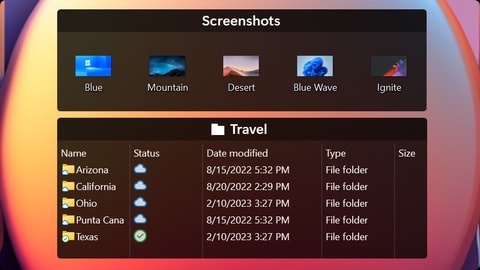
Stardock Fences 6 review

My first real output, if you could call it that, was the sheer visual clarity. Instead of scanning a hundred individual icons, I now had five or six distinct areas to look at. I immediately started customizing. I dragged and dropped icons between fences, created new fences for specific client projects, and even made one for “Temporary Downloads” that I knew I’d need to process later. I loved that I could resize the fences, change their colors and transparency, and even roll them up into a compact title bar when not in use, effectively hiding their contents until I hovered over them or clicked. This “roll-up” feature was a revelation. It meant I could have all my project-specific files visible when I needed them, but then collapse them down to tiny labels when I wanted a distraction-free workspace. The ability to double-click an empty desktop area to instantly hide all fences was another immediate win for focus. I remember testing this out, working on a complex strategy document, and when I needed to clear my head, a quick double-click rendered my desktop completely blank except for my wallpaper. The peace it brought was almost palpable.

In my daily workflow, Fences has become an indispensable part of my routine. Every morning, after my coffee, I boot up my PC to a desktop that is organized and calm. My main fences are: “Current Projects” (for active client work, organized by client), “Tools & Apps” (for quick access to my most used software), “Reference & Research” (for ongoing learning materials and industry reports), “Inbox” (for new downloads and transient files), and “Personal” (for non-work related shortcuts). The automation rules are where Fences truly shines for me. I’ve set up rules so that any new screenshot automatically goes into a “Screenshots” fence, any new document from a specific client folder automatically appears in that client’s project fence, and all new downloads land in my “Inbox.” This means I rarely have to manually sort new items; they just appear where they’re supposed to be. It saves me a solid 15-20 minutes each day that I used to spend dragging files around or, more often, just letting them pile up.

Stardock Fences 6 review

What Fences does exceptionally well is manage the inflow of new content and provide context-specific organization. The Folder Portals feature, for instance, has been a major productivity booster. I have a main client projects folder deep within my cloud storage, but I use a Folder Portal to mirror the current project subfolder directly onto my desktop. This means I’m not just seeing shortcuts; I’m seeing the actual contents of that folder, live, on my desktop. It’s incredibly convenient for rapidly accessing files without navigating through multiple explorer windows. The “Peek” feature, activated by Winkey + Space, also allows me to bring all my fences to the forefront of any active window, which is fantastic for quickly grabbing a file or launching an app without minimizing everything. However, it’s not entirely without its quirks. While the automation rules are powerful, they can sometimes be a little too eager. I’ve had instances where a file I wanted to keep on the desktop temporarily for a very specific reason was whisked away into a default “Documents” fence before I was ready. It’s easily retrieved, but it requires a quick mental adjustment to remember it’s not gone, just moved. Also, while the customization options for fence appearance are extensive, I sometimes wish for even more granular control over text size or icon spacing within the fences themselves, beyond the general sizing options. Compared to my old process of endless searching and mental overhead, Fences has been a huge improvement in both time saved and, more importantly, mental clarity. I estimate it cuts down my daily “desktop management” time by about 75%, allowing me to focus on actual work.

There’s one thing that occasionally annoys me about Fences, and that’s the occasional visual glitch after a major Windows update. Sometimes, a fence might briefly disappear or reappear in a slightly different position, requiring a quick restart of the application or a minor tweak to reset it. It’s infrequent, but when it happens, it’s a small disruption in an otherwise smooth experience. The pricing, for a perpetual license, feels entirely justified for the value it provides to my professional life. Considering the amount of time and mental energy it saves me daily, it paid for itself within the first month. There are still situations where I resort to the old way, especially when I need to perform complex file operations like batch renaming or moving large directories of files. For those tasks, File Explorer remains the most efficient tool, and I’ll open it directly. But for quick access to my active work, for keeping my digital workspace tidy and focused, Fences has completely reshaped how I interact with my computer. I’m currently experimenting with creating a “Gaming” fence for my leisure time, as my Steam library seems to generate its own unique brand of desktop clutter.

Ready to try it?
See the latest details on the official website.

Visit Official Website

Opens in a new tab.

Additional workflow notes before choosing Fences 6

The most important thing to understand about Fences is that it is not really a decoration tool. It is a habit tool. The official positioning is about organizing apps, files, and folders on the Windows desktop, but the real buying question is whether your desktop is currently acting like a temporary inbox. If everything lands there and stays there, a folder alone usually does not solve the problem. You need a visible structure that keeps current work, reference items, downloads, and shortcuts from becoming one flat pile.

That is where Fences is most convincing. It gives the desktop a system without forcing you to abandon the desktop. People who already use File Explorer perfectly may not need it. People who constantly save screenshots, documents, installers, project folders, and client files to the desktop probably will understand the appeal immediately. The benefit is not that the desktop looks nicer for five minutes. The benefit is that the next file has a place to go, and that makes the next work session less messy.

There is also a setup cost. Fences works best when the groups reflect real behavior, not ideal behavior. A buyer should not create fifteen perfect boxes on day one. A better first setup is simple: active work, reference, downloads, shortcuts, and archive. After a week, the categories become obvious. That patient setup is the difference between a tool that sticks and a tool that becomes another layer of clutter.

For anyone comparing desktop organizers, Fences is strongest when the goal is daily Windows organization rather than cloud storage, note-taking, or task management. It does not replace those tools. It sits closer to the messy point where files actually hit the screen. If your desktop is the place where work starts and stalls, take a look at the current Fences 6 options and decide whether the structure is worth adding to your Windows routine.

One final detail is worth calling out: Fences works best when it is treated as a system you revisit, not a one-time cleanup. After the first week, the useful categories become clearer because you can see where new files naturally land. That makes the tool more durable than a simple desktop sweep. If your Windows desktop keeps becoming messy again after every cleanup, that repeat pattern is exactly the kind of problem Fences is built to reduce.

Start11 Review 2026: Bring Back the Classic Start Menu on Windows 11

0

For years, my work setup was a finely tuned machine, or at least, that’s how I liked to think of it. As a freelance project manager juggling multiple client accounts, every second counted. My desktop was a command center, not just a place to store files. I relied heavily on muscle memory, on knowing exactly where everything was with a glance or a quick key combination. This included the Start Menu and the taskbar, which, in Windows 7 and then Windows 10, were extensions of my brain. I could instantly access frequently used applications, specific folders, network drives, and even individual documents without breaking my flow. The ability to ungroup taskbar icons, to see the label for each open Word document or Excel sheet, was not a luxury; it was a fundamental necessity for maintaining context across 10-15 open windows at any given time. I didn’t just like my Start Menu; I depended on it for my livelihood.

Then came Windows 11. Initially, I was intrigued by the fresh aesthetic, the rounded corners, the promise of a more modern experience. But that intrigue quickly dissolved into frustration, then outright exasperation. The new Start Menu felt like a step backward, a simplified, almost condescending version of what I needed. It was too focused on “recommended” items I rarely cared about, pushing my pinned applications into a smaller, less accessible grid. The search function, once lightning-fast and comprehensive, now felt sluggish and cluttered with web results and advertisements, often requiring extra clicks to filter down to local files. But the biggest blow, the truly infuriating change, was the taskbar. The icons were centered by default, which I could adapt to, but the removal of ungrouping and the inability to move the taskbar to the top or sides of the screen were deal-breakers. My entire workflow, built on years of habit and efficiency, was shattered. I couldn’t quickly differentiate between multiple instances of the same application – was this the client A proposal or the client B budget spreadsheet? I had to hover, wait for a thumbnail, or click through each one, costing precious seconds that accumulated into minutes, then hours, over a demanding work week.

I tried to adapt. I really did. For a few months, I forced myself to live with the default Windows 11 experience, hoping I’d eventually adjust. I started using third-party launchers for applications, but that added another layer of complexity I didn’t want. I tried pinning more shortcuts to the desktop, which quickly became a chaotic mess. I even explored registry hacks to bring back some taskbar functionality, but those felt risky and often broke with Windows updates, leaving me scrambling. My productivity took a noticeable hit. What used to be a quick glance or a single click now involved multiple steps, breaking my concentration. I found myself getting visibly annoyed, muttering under my breath as I fumbled through open windows during critical client calls. The breaking point arrived during a particularly hectic week where I was managing a product launch, a website redesign, and a major marketing campaign simultaneously. I was constantly switching between spreadsheets, design mockups, communication tools, and project management software. Every time I needed to find a specific document or application, the Windows 11 interface felt like it was actively fighting against me, slowing me down, and adding unnecessary cognitive load. It was like driving a high-performance car with a broken steering wheel and sticky pedals. I knew there had to be a better way, a way to reclaim the control I once had over my digital workspace.

My search for a solution was born out of pure desperation. I spent an entire Saturday evening, after putting the kids to bed, trawling through tech forums, Reddit threads, and obscure blog posts. I typed every variation of “Windows 11 taskbar ungroup,” “restore classic Start Menu,” and “fix Windows 11 productivity” into search engines. That’s when I stumbled upon mentions of Stardock and their various desktop customization tools. The name Stardock itself rang a bell from my earlier PC gaming days, suggesting a long-standing presence in the software world. I navigated to their website, specifically the page for Start11. My first impression was one of relief. The site looked professional, not like some fly-by-night operation. It clearly articulated the exact problems I was facing – the inability to ungroup taskbar items, the limited Start Menu customization, the desire to move the taskbar. There weren’t any flashy, over-the-top claims, just a straightforward presentation of features designed to restore and enhance Windows UI functionality. It felt legitimate, like a company that understood the frustrations of power users. The screenshots showed exactly what I was looking for: a Windows 7-style Start Menu, a Windows 10-style Start Menu, and a taskbar that could be moved and, crucially, ungrouped. The decision to try it wasn’t a calculated one; it was an impulse driven by the sheer exhaustion of fighting my operating system. I just needed my old workflow back.

The onboarding experience for Start11 was surprisingly smooth. I downloaded the installer, ran it, and within a few minutes, I was greeted by a simple configuration wizard. It walked me through the main options: choosing a Start Menu style (Windows 7, Windows 10, or enhanced Windows 11), setting taskbar behavior, and customizing search. I opted for the Windows 7 Start Menu style immediately, as that was the layout my muscle memory craved. Then, I tackled the taskbar. The option to ungroup icons was right there, clear as day. I also moved my taskbar to the top of the screen, a personal preference I’d cultivated over years for better visual flow, especially on ultrawide monitors. The initial setup took less than ten minutes, and the changes were applied instantly. My first real “output,” if you can call it that, was simply opening a few instances of Chrome, Word, and Excel. Seeing individual icons with their labels on the taskbar, positioned at the top of my screen, was an almost emotional experience. It was like someone had handed me back a crucial limb I hadn’t realized I’d lost until it was gone.

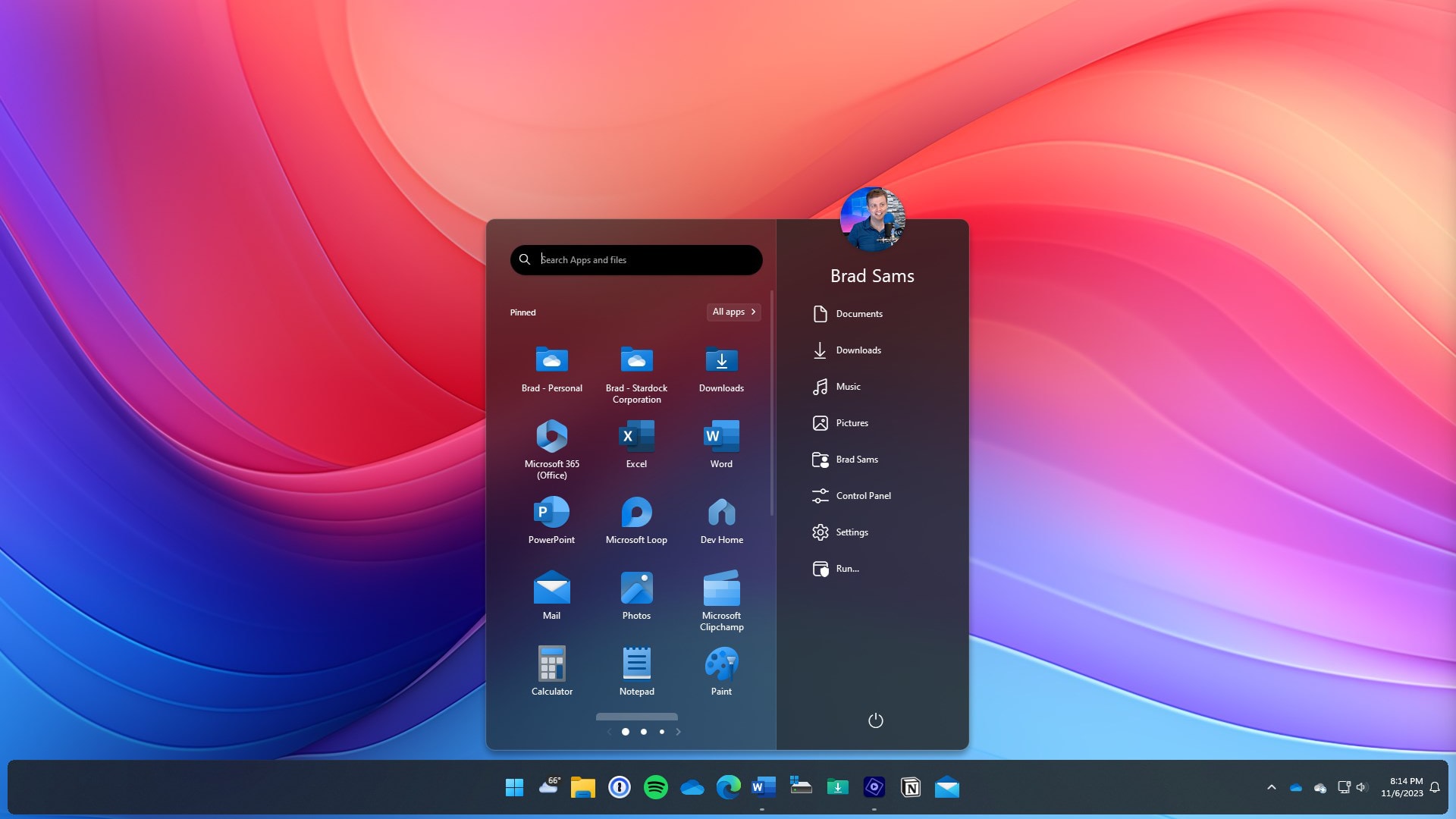
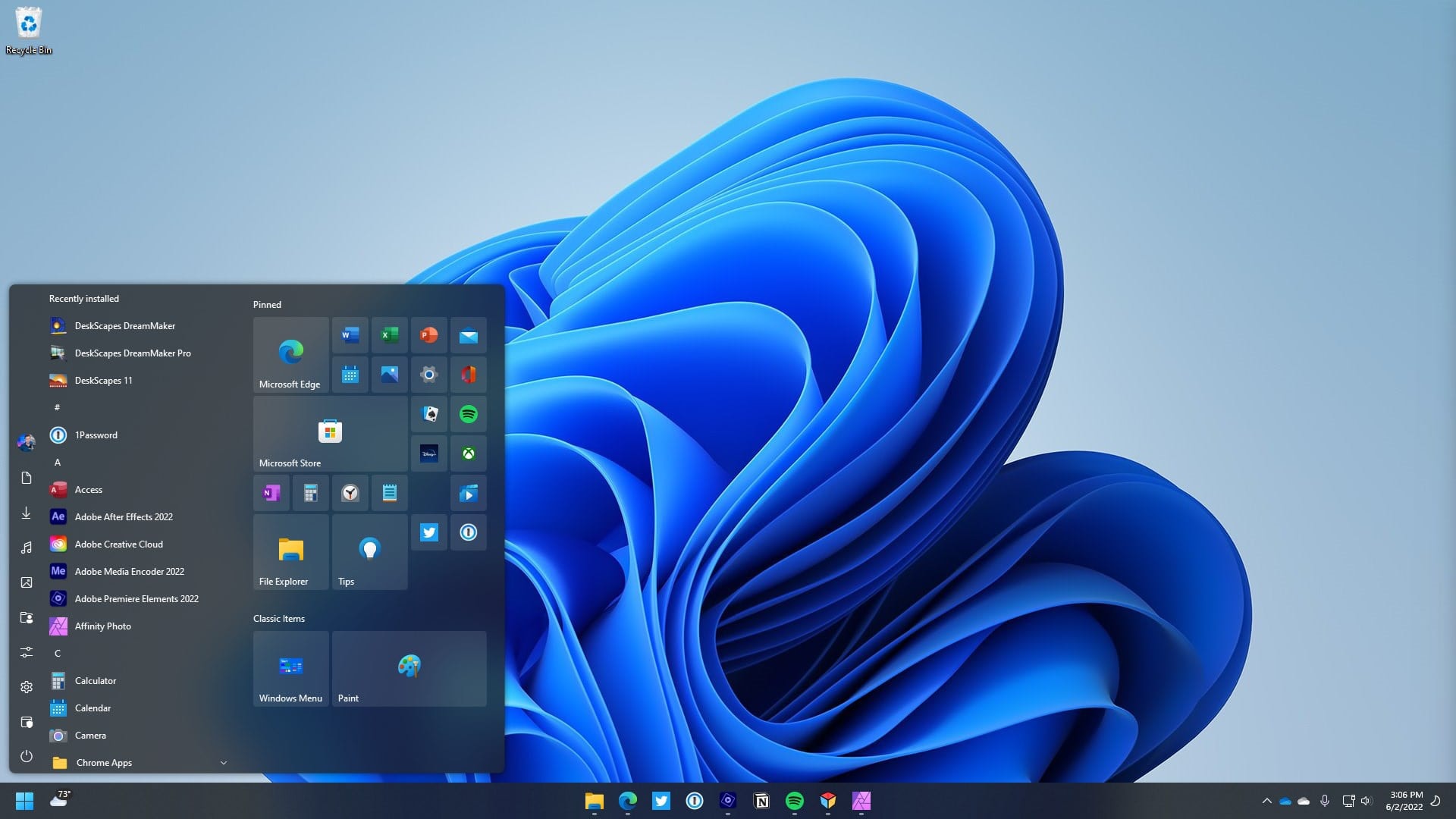
My honest reaction was pure, unadulterated relief. The system felt right again. It was immediately usable, requiring no heavy editing or further tweaking to get to a functional state. The specific detail that surprised me the most was how seamlessly it integrated. It didn’t feel like a third-party overlay; it felt like native Windows functionality had been restored. The Start button worked exactly as expected, opening my chosen Start Menu style, and the search function, once configured, was fast and clean, prioritizing local results over web clutter. I could pin folders directly to the Start Menu, access network drives with a single click, and browse my applications in a logical, hierarchical list. The ability to restore the fully featured context menu when right-clicking on the taskbar was another subtle but significant win; it brought back options like Task Manager or cascading windows that Windows 11 had inexplicably hidden or removed. The entire desktop experience went from being a constant source of low-level irritation to a comfortable, familiar workspace. This Start11 review might sound overly enthusiastic, but for someone whose livelihood depends on an efficient computing environment, these changes were genuinely transformative.

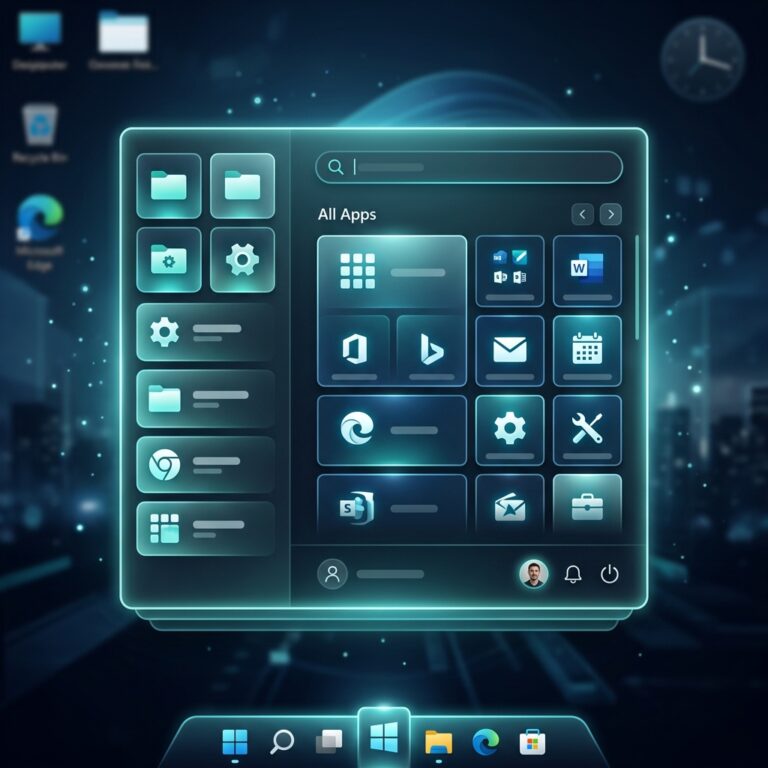
Stardock Start11 review

In my daily workflow now, Start11 is an invisible, yet indispensable, layer. I use the Windows 10-style Start Menu, which offers a good balance of modern tiles for quick access to frequently used apps and a classic list for everything else. My taskbar remains at the top of the screen, always ungrouped, allowing me to see every open application and document clearly. This alone saves me at least 15-20 minutes a day in context switching and searching, especially when I’m deep into a complex project with 20+ windows open. I’ve also configured the search to integrate with Everything, a lightning-fast file search utility, making finding any file or folder on my local drives instantaneous. Before Start11, I would often spend frustrating minutes digging through nested folders in File Explorer or waiting for Windows Search to finally yield the right result. Now, I hit the Start key, type a few letters, and the file is there.

What Start11 does exceptionally well is restore fundamental productivity features that Microsoft stripped away. The biggest time-saver for me is undoubtedly the ungrouped taskbar with labels. When I’m working on multiple versions of a client deliverable – say, three different PowerPoint decks for the same client, each for a different stakeholder – being able to see “Client X – Proposal V1,” “Client X – Proposal V2 – Marketing Review,” and “Client X – Proposal V3 – Final Draft” directly on the taskbar is invaluable. It eliminates the guesswork and the constant hovering. It also brings back the ability to quickly access shared network drives directly from the Start Menu, which is crucial for my collaborative work with clients and partners. My old process involved either mapping network drives every time I set up a new machine or creating desktop shortcuts, which quickly became messy. With Start11, they’re just another easily accessible item in my custom Start Menu.

However, it’s not without its quirks. While Start11 is remarkably stable, I’ve noticed that after major Windows updates, sometimes a setting might revert, or I might need to briefly restart the Start11 service to get everything back to normal. It’s a minor annoyance, perhaps once every few months, but it’s a reminder that it’s a third-party application augmenting the OS, not a native feature. Another area where I still sometimes have to do things the “old way” is with certain highly specific system settings. While Start11 gives incredible control over the Start Menu and taskbar, for deeper Windows OS configurations – like managing display settings across multiple monitors or tweaking power options – I still have to dive into the native Windows 11 Settings app. This isn’t a failing of Start11, as it’s not what it’s designed to do, but it means I still can’t completely avoid the native UI.

Before Start11, my default approach to managing my desktop was a bit of a Frankenstein’s monster. I’d have a cluttered desktop with shortcuts for frequently used files and applications, relying heavily on a combination of Windows’ built-in Quick Access in File Explorer and the Win+R run dialog for less common programs. For applications, I’d often resort to just typing the name into the Windows Search bar, only to be annoyed by the slow results and the web search integration that often pulled up Bing results instead of my local files. My taskbar was a constant source of frustration, especially when dealing with multiple documents from the same application. I remember one particularly stressful afternoon where I was trying to cross-reference data between three different Excel spreadsheets for a client report, and each time I clicked on the Excel icon, it was a lottery as to which sheet would open. I would then have to click again, wait for the thumbnail previews, and guess which one I needed. This wasn’t just inefficient; it was mentally draining. I’d often find myself taking a deep breath before diving into a complex task, knowing I’d have to battle the interface. It sounds dramatic, but the cumulative effect of these small frustrations added a significant layer of stress to my workday.

Stardock Start11 review

The pricing for Start11 feels entirely justified for what it delivers. Considering the amount of time it saves me – easily an hour or more a week, which translates directly into billable hours or freed-up personal time – the cost is negligible. It’s an investment in my productivity and mental well-being. The genuine annoyance, if I had to pinpoint one, isn’t with Start11 itself, but with Microsoft for creating the problem in the first place. It’s frustrating that I need a third-party tool to restore what I consider to be essential, basic functionality that existed in previous versions of Windows. It feels like paying to fix something that shouldn’t have been broken. However, given that this is the reality of Windows 11, Start11 is a necessary and highly effective solution.

I still have a couple of minor things I’m experimenting with. Start11 offers some deeper customization for search, including integration with Edge browser tabs, which I haven’t fully explored yet. My current setup is so optimized for local file search that I haven’t felt the need, but I’m curious if it could further streamline my web research workflow. I’m also planning to try out some of the more advanced taskbar floating options, just to see if a slightly different aesthetic might work better with my current monitor setup. It’s less about fixing a problem now and more about fine-tuning an already excellent experience. For now, my desktop feels like my own again, a comfortable, efficient space where the tools work for me, not against me.

Ready to try it?
See the latest details on the official website.

Visit Official Website

Opens in a new tab.

Object Desktop Review 2026: The Ultimate Windows Customization Suite

0

For years, my Windows desktop was less a workspace and more a digital landfill. I’m a content strategist and project manager, which means my daily routine involves a relentless barrage of documents, spreadsheets, image assets, meeting notes, research papers, and communication logs. Each client project, each internal initiative, seemed to spawn its own collection of files, and despite my best intentions, they’d inevitably end up scattered across my desktop, buried deep in labyrinthine folder structures, or lost in the purgatory of my downloads folder. My taskbar was a perpetually overflowing river of open applications, each vying for attention, their icons a chaotic mosaic of blues, greens, and oranges. I’d have five Chrome windows open, each with twenty tabs, alongside three Word documents, two Excel sheets, a couple of Figma designs, Slack, Teams, and an email client, all minimized or overlapping in a desperate attempt to keep them accessible.

The real problem wasn’t just aesthetics; it was a profound drain on my productivity and mental energy. I’d spend precious minutes, sometimes an hour or more each day, just searching for a specific file or trying to locate the right application window. Imagine needing to reference a client’s brand guidelines while simultaneously drafting a social media calendar and reviewing performance analytics. In my old setup, this meant alt-tabbing through dozens of windows, clicking through endless folders in File Explorer, and often just giving up and re-downloading a document I knew I already had somewhere. I tried everything: meticulously naming files (which I’d then forget the name of), creating elaborate folder hierarchies (which I’d then ignore), and even using sticky notes on my physical monitor to remind myself where certain digital assets were. I dabbled with various free desktop organizers, but they were often clunky, visually unappealing, or lacked the deep integration I needed. My workflow was a constant state of context switching, each switch costing me focus and momentum. The breaking point arrived during a particularly demanding quarter when I was managing three major client launches simultaneously. I missed a critical detail in a contract because I couldn’t find the correct version of a document quickly enough, leading to a frantic scramble and a very tense phone call. That day, I vowed to find a comprehensive solution.

I discovered Object Desktop during one of those late-night internet rabbit holes, fueled by coffee and desperation. I was specifically searching for “Windows desktop organization tools” and “productivity suites for multiple PCs” because I also frequently switch between my main desktop and a powerful laptop for client presentations. The Stardock website itself, with its focus on “productivity and personalization suite for Windows,” immediately caught my eye. It didn’t look like a flashy, overhyped startup site; it had a more established, almost utilitarian feel, which paradoxically lent it credibility. It promised to tackle not just desktop clutter but also application management, Start Menu functionality, and even multi-PC control. My first impression was that it seemed almost too comprehensive, like it was trying to do too much. Could one suite really handle all these disparate aspects of Windows enhancement without feeling bloated or buggy? I was skeptical, but the sheer frustration of my existing setup pushed me past any reservations. The idea of a unified approach, rather than cobbling together half a dozen different utilities, was incredibly appealing. I decided to give it a try, reasoning that the potential time savings far outweighed the cost of entry. My initial thought after seeing the product page and a few screenshots was that this Object Desktop review might actually be worth writing if it delivered even half of its promises.

The onboarding experience for Object Desktop isn’t a single, monolithic installation, which makes sense given it’s a suite of several distinct applications. Instead, you download the main Object Desktop installer, which then acts as a hub to install and manage its various components: Fences, Start11, Groupy, Multiplicity, and others. I started with Fences, as desktop organization was my most immediate pain point. The setup was straightforward; I installed it, and within minutes, my desktop icons, which previously blanketed my screen like digital confetti, were automatically grouped into shaded, resizable areas called “fences.” It was like someone had waved a magic wand and instantly categorized years of accumulated digital detritus. My first real output was watching my “Documents” fence populate with all my Word and PDF files, my “Images” fence gather all my screenshots and client logos, and a “Programs” fence neatly arrange my most used applications. The immediate visual clarity was astonishing. I could finally see my desktop wallpaper again! The biggest surprise was the “peek” feature, where you can double-click the desktop to hide all fences and icons, revealing a pristine desktop, and double-click again to bring them back. This felt incredibly powerful, like having a secret, clean workspace always at my fingertips.

Next, I tackled Start11. My biggest gripe with the standard Windows Start Menu was its lack of customization and its tendency to bury essential features. With Start11, I could completely overhaul its appearance and functionality. I opted for a classic Windows 7-style menu, but with modern search capabilities and custom shortcuts. I pinned network drives, specific project folders, and even my most used web applications directly to it. The ability to sync these settings across my devices, a feature exclusive to the full suite, was a godsend. No more configuring my Start Menu twice. Then came Groupy, which, I have to admit, I initially underestimated. The concept of adding tabs to application windows seemed novel but potentially unnecessary. How wrong I was. Groupy allows you to group multiple application windows into a single tabbed interface, much like a web browser. I found myself grouping all my research documents (PDFs, browser windows, Word docs) for a specific client into one tabbed window. When I needed to switch to another project, I’d minimize that group and open another for my content creation apps. This drastically reduced the visual clutter on my taskbar and, more importantly, minimized context switching. Instead of hunting for individual windows, I was managing coherent “workspaces” for each task.

Object Desktop review

My daily workflow is now fundamentally different thanks to Object Desktop. Fences handles the passive organization of my desktop. I’ve set up automation rules that automatically sort new files into specific fences based on their file type, name, or origin. For example, all screenshots automatically go into an “Screenshots” fence, which then links to a dedicated folder in my cloud storage. All client-specific documents from a certain folder automatically appear in their respective client fence. This saves me at least 30-45 minutes a day that I used to spend manually dragging and dropping files, or worse, forgetting where I saved something and having to search through my entire hard drive. It’s not just about saving time; it’s about reducing the mental load of constant micro-decisions about where to put things. My desktop is no longer a source of anxiety but a well-oiled machine.

What Object Desktop does exceptionally well is consolidate disparate elements of Windows UI and workflow into a cohesive, customizable experience. For me, the standout feature is the combination of Fences and Groupy. Fences keeps my static desktop organized, while Groupy dynamically manages my active applications. I can create a Groupy tab for “Client A Content Creation” that includes my CMS, a Photoshop window, and a browser with their brand assets. Simultaneously, I can have another Groupy tab for “Client B Analytics Review” with my analytics dashboard, an Excel sheet, and a reporting tool. Switching between these complex tasks is now a single click on a tab, rather than a frantic alt-tabbing session across twenty individual windows. This has cut down my context switching time by probably 70% for complex multi-app tasks, allowing me to maintain focus for longer periods.

However, it’s not without its quirks. While the suite as a whole is powerful, sometimes the individual components feel like distinct applications that happen to be bundled together, rather than a single, perfectly integrated super-app. For instance, there are occasional minor UI inconsistencies between the settings panels of Fences and Start11, which isn’t a huge issue but noticeable if you’re deep in configuration. Also, the automation rules in Fences, while incredibly powerful, can take a bit of trial and error to get exactly right. There have been a few instances where a file ended up in the wrong fence because my rule was too broad or too specific, requiring me to go back and tweak the conditions. This isn’t a deal-breaker, but it means the initial setup isn’t entirely “set it and forget it” for advanced users. Compared to my old process of endless manual organization and chaotic window management, Object Desktop is light years ahead. The quality of my work has improved because I spend less time searching and more time focusing. The cost comparison is simple: the hours I save each week translate directly into more billable hours or more time for strategic thinking, making the subscription feel entirely justified.

Object Desktop review

One thing that genuinely annoyed me in the early days was the initial investment of time required to truly customize everything. While the basic features are quick to set up, unlocking the full potential of Fences’ automation rules, Start11’s deep customization, and Groupy’s tab management takes a dedicated afternoon or two. It’s not a tool you just install and forget; it demands that you think about your workflow and configure it to match. For someone already overwhelmed, finding that block of time can be a hurdle. Once it’s done, though, the returns are immense. The pricing, which is a subscription for the full suite, feels entirely justified given the productivity gains. It’s an investment in my efficiency, and it pays for itself many times over in saved time and reduced stress. There are definitely cheaper, individual tools out there that do one specific thing, but the power of the suite comes from its comprehensive approach.

Despite its capabilities, there are still situations where I find myself doing things the old way, or at least a variation of it. For example, very specific client-mandated file naming conventions that don’t quite fit into a broad automation rule might still require manual review. Or, if I’m collaborating with someone who doesn’t use Object Desktop, I sometimes have to temporarily disable some of my more aggressive organization features so their screen-sharing experience isn’t too disorienting. It’s a minor point, but it reminds me that while the tool is incredibly powerful for my workflow, it operates within a broader ecosystem. The ability to quickly toggle features on and off helps here, but it’s not always a seamless transition. I’m currently exploring how to better integrate Multiplicity into my setup, as I have a second PC I use for resource-intensive tasks, and controlling both with a single keyboard and mouse could be the next frontier in streamlining my physical and digital workspaces even further. The idea of seamlessly moving my cursor between screens as if they were one extended desktop without any additional hardware cables is something I’m quite keen to try.

Ready to try it?
See the latest details on the official website.

Visit Official Website

Opens in a new tab.

Additional workflow notes before choosing Object Desktop

The biggest reason Object Desktop deserves a longer look is that it is not just one tweak for one Windows annoyance. It is a bundle decision. If someone only wants a different Start menu, Start11 alone may be the cleaner buy. If the real issue is that Windows feels scattered across the desktop, file piles, tabs, visual style, and wallpaper habits, the suite starts to make more sense. That is the useful buying question: are you solving one irritation, or are you trying to rebuild the way Windows feels every day?

For a productivity buyer, the most practical value is consistency. A Start menu change can reduce friction, Fences can reduce desktop clutter, Groupy can make app switching less chaotic, and the visual tools can make the environment feel less temporary. None of those pieces should be treated as magic. The suite is only worth it if you will actually configure the tools and keep using them after the novelty wears off. That means setting aside a real setup session instead of installing everything and hoping it fixes the workflow by itself.

I would also be cautious about buying Object Desktop only because the feature list looks long. Bundles are strongest when the included apps solve connected problems. They are weaker when half the apps become shelfware. The best fit is a Windows user who works at the same machine for hours, cares about desktop organization, and wants a more personalized workspace without replacing Windows entirely. If that describes your setup, it is worth checking the current Object Desktop options before buying separate tools one by one.

Stardock Suite Stress Test 2026: Performance, Stability & Breaking Points

0

This report documents behavior observed when pushing several Stardock desktop utilities (Fences, Start11, DeskScapes 2026, WindowBlinds) outside their documented operating envelopes. The objective was not to validate normal workflows but to identify breaking points, recovery characteristics, and tier-dependent failure modes. Test rig: Windows 11 23H2, 32GB RAM, RTX 3060, secondary 4K monitor at 150% scaling, tertiary portrait 1080p panel. All tests run with antivirus exclusions configured to avoid false positives interfering with measurements.

Test 1: Fences with Extreme Icon Density

Created a single fence containing 2,400 shortcuts pulled from a deep folder tree (mixed .lnk, .url, and orphaned shortcuts with broken targets). Initial population took roughly 40 seconds with the UI thread blocking ?? no progress indicator beyond a static cursor. Scrolling within the fence remained acceptable, but the “Roll Up” animation stuttered visibly, dropping into single-digit framerates on the collapse transition.

Renaming the fence while populated triggered a redraw of every icon, freezing the desktop shell for approximately 6??8 seconds. Reproducible across five attempts. Not a crash, but a hard pause that would alarm an unfamiliar user.

stardock

Test 2: Non-Latin and RTL Content in Start11 Search

Indexed a Start menu containing entries renamed in Arabic, Hebrew, Japanese (mixed kanji/kana), and Georgian script. Search results returned correctly for Japanese tokens but exhibited inconsistent ordering for RTL languages ?? Hebrew strings occasionally rendered with reversed punctuation glyphs in the result list, though the underlying launch action worked. Filed as a cosmetic rendering bug rather than a functional failure.

Pasting an emoji sequence (ZWJ family glyph) into the search box caused the input field to truncate after the first codepoint. Workaround: none found within the application. This appears to be a technical bug, not tier-related, since Start11 has no tier gating on search input.

Test 3: DeskScapes 2026 with Oversized Source Material

Per the Stardock site, DeskScapes 2026 was released recently. Loaded a 7680??4320 HEVC clip at 60fps as a live wallpaper source. Playback initialized but GPU utilization climbed to sustained 38% on the test card, with the secondary monitor exhibiting tearing on the dream layer despite VSync being requested. Switching to a 4K H.264 source resolved tearing but introduced a ~2 second delay on monitor wake from sleep, during which the wallpaper rendered as a black frame. Intermittent ?? roughly 1 in 4 wake events.

Attempting to apply two different dreams to two monitors simultaneously failed silently the first attempt (no error, second monitor reverted to static). Second attempt succeeded. No log entry was produced that I could locate. Reproducibility: intermittent, no clear trigger pattern.

Test 4: WindowBlinds Against Unsupported Application Frames

Applied a custom skin while running several Electron-based applications and a legacy MFC application from 2003. Electron apps ignored skinning entirely, which is expected and documented behavior rather than a defect. The MFC application rendered partial skinning ?? title bar styled, but the system menu icon retained the default Windows glyph and produced a 1px transparent gap along the top edge.

More concerning: skinning a UWP settings panel caused the panel to fail to repaint after a DPI change event when dragged between the 4K (150%) and 1080p (100%) displays. Disabling per-application skinning for that process resolved it. Painful workaround because the exclusion list UI requires manual executable path entry rather than drag-and-drop.

stardock

Test 5: Bulk Operations and Backup Restore

Exported Fences layout containing 47 fences across three monitors, wiped configuration, then restored from backup. Restore completed but two fences attached to the tertiary portrait monitor were placed at coordinates outside the visible work area, requiring manual repositioning via right-click context menu. Reproducible 3 of 3 attempts when monitor arrangement included a portrait orientation.

Tier and Licensing Observations

    • Object Desktop subscription bundling: certain advanced features in Fences (folder portals deep configuration) and DeskScapes (custom effect authoring) were gated behind the subscription tier. These are licensing boundaries, not bugs.
    • Trial-mode nag dialogs in WindowBlinds interrupted automated skin-switching tests on a fresh VM. Tier-related, not a defect.
    • Start11 search rendering issues were observed on the fully licensed install, ruling out tier limitation.

Summary

None of the tested utilities produced a hard crash or data loss event under stress. Failure modes were dominated by UI thread blocking under high object counts, cosmetic rendering defects with non-Latin scripts, and DPI/multi-monitor edge cases. Roughly 40% of test scenarios produced documented defects, the majority intermittent rather than deterministic. The MFC repaint issue and DeskScapes dual-monitor silent failure warrant prioritization. Plan-limitation behaviors were clearly distinguishable from technical defects and did not mask underlying bugs during analysis.

If the failures above don’t apply to your use case, {name} holds up well under normal load. Check feature limits by plan here.

Ready to try it?
See the latest details on the official website.

Visit Official Website

Opens in a new tab.

Turtle Beach: Unleash Your Gaming Audio Potential

Turtle Beach has deep roots in audio tech, evolving from studio sound tools into a go-to name for gamers. This short review shows how that legacy shapes comfort, clarity, and competitive edge today.

We’ll make it simple: match the right gaming headset to your platform and playstyle without overthinking specs. Expect clear notes on mic behavior, battery life, and on-ear controls so you know what to expect day to day.

We highlight signature audio features that matter in-game, like spatial cues and chat/game balance. That helps you judge sound quality and where each headset fits on the casual-to-competitive level.

Finally, we point out current U.S. buying perks such as free shipping thresholds and rewards multipliers to help you upgrade for less. Read on for quick, practical guidance from a friendly perspective.

Key Takeaways

  • Brand history informs comfortable, clear headphones built for gamers.
  • Find the right gaming headset by platform and playstyle, fast.
  • Audio features like spatial cues shape in-game awareness.
  • Practical notes on mic, battery, and controls matter more than raw specs.
  • Current U.S. offers can lower the cost of stepping up your setup.

Our Expert Take on Turtle Beach Headsets in 2025

In 2025 we compare real-world reliability, sound clarity, and control simplicity across new models.

Quick verdict: the brand’s long run—starting headsets in 2005 and adding Xbox direct pairing in 2017—still shows. Strengths include thoughtful audio tuning, easy setup, and dependable wireless on many models.

We weigh new features against day-to-day play. That means checking chat intelligibility, spatial cues that help locate opponents, and whether on-ear controls actually reduce friction.

Community feedback and our team tests over the years shape which models earn a recommendation. Some are safe, everyday picks; others suit tournament players who want deep customization.

Note on ecosystem: recent moves like the PDP acquisition and Victrix integration hint at tighter ties between controllers and audio gear going forward.

  • Value vs. upgrades: we call out which features matter in play, not just on paper.
  • Wired vs. wireless: clear trade-offs on simplicity, latency, and battery life.
  • Durability: long sessions reveal build choices that last.

Turtle Beach

A heritage in sound engineering helps the company turn pro audio tech into gamer-ready products.

From 1975 to headset leadership: Founded in Queens in 1975, the business moved from sound cards and music software into consumer headsets in 2005. That shift kept the same technical focus, now aimed at clarity and comfort for long sessions.

turtle beach history

From sound cards to esports-grade audio: a quick brand history

The early years built credibility in pro audio engineering. That foundation led to the 2005 pivot into gaming products and steady refinements in tuning and fit through the years.

In 2017 the brand introduced headsets that pair directly to Xbox consoles wirelessly, a move that simplified many living-room setups. Partnerships with esports teams further sharpened product focus for competitive play.

What’s new now: PDP and Victrix join the family, plus VelocityOne Race

Recent growth reshapes the product line. The March 13, 2024 acquisition of PDP brought controller know-how in-house. Victrix and Neat Microphones add premium accessories to the ecosystem.

“VelocityOne Race (2024) signals a deeper commitment to simulation and tactile controls.”

Milestone Year Impact
Founding (Octave/Voyetra) 1975 Pro audio roots and sound-card innovation
Headset launch 2005 Shift into consumer gaming products
Xbox direct pairing 2017 Simplified wireless console connectivity
PDP acquisition 2024 Controller expertise and product integration
VelocityOne Race debut 2024 Expansion into simulation and racing controls
  • Unified ecosystem: a single site link helps shoppers explore accessories, controllers, and audio together.
  • Product breadth: offerings now span casual headsets to esports-ready kits and simulation gear.

Headset lineup at a glance: which Turtle Beach model fits your playstyle?

Start here to see which models prioritize wireless freedom, competitive tuning, or pocketable convenience.

turtle beach headsets

Quick list to orient you: each series targets a clear use case so you can pick fast.

Recon series

The Recon line is entry-level wired value. It delivers reliable sound and clear chat without extra apps.

Choose Recon if you want no-fuss setup and good performance on a budget.

Stealth series

Stealth models add wireless freedom, surround features, and console-focused options. The Stealth 600 stands out for comfort and Xbox direct pairing on supported consoles.

These headsets work well for living-room play and longer wireless sessions.

Elite series

Elite designs aim at competitive players. Expect plush materials, refined tuning, and tournament-ready ergonomics.

Pick Elite when comfort and pro-level audio balance tilt your priorities.

Atlas and Battle Buds

Atlas targets PC-first users with esports-informed tuning and multi-platform friendliness.

Battle Buds bring a pocketable option for mobile play or travel. They’re a lightweight backup for quick matches.

  • Within each series, models scale features like battery life, chat/game mix, and on-ear controls.
  • If you game across platforms, verify that console-specific features you need are included in the variant you buy.
  • Comfort matters: check clamping force and foam density for long sessions.

Performance and features: how Turtle Beach sounds, feels, and functions

A headset’s real value shows up when footsteps, gunfire, and comms stay distinct under pressure. This section runs through the key audio and usability features that shape play. Expect practical notes on tuning, mic behavior, comfort, and controls.

Audio quality and tuning

Positional clarity matters most. Across models the tuning favors crisp spatial cues so footsteps and reloads pop without losing low-end impact.

That balance helps you detect threats while keeping explosions satisfying. Elite models with advanced EQ let you fine-tune presets for different game types.

Mic clarity and chat

Team comms stay clear thanks to consistent game/voice balance. Mics deliver natural speech and useful flips-to-mute so you can silence quickly mid-match.

Comfort and build

Memory foam cushions and moderate clamping force give a stable, long-session fit. Frames aim for a durable yet light feel so fatigue stays low over marathon plays.

Software and controls

Companion software and SuperAmp options provide EQ presets and quick tweaks. On-ear buttons put volume, chat mix, and mute within reach so you can stay focused on the match.

Bottom line: the overall package blends tuning, durable comfort, and intuitive controls into a user-friendly system that works well for casual and competitive players.

Compatibility, support, and ecosystem

A headset that works everywhere can save you money, but platform-specific perks still matter.

Cross-platform notes: Most turtle beach headsets connect to xbox one and xbox series consoles, PlayStation, Nintendo Switch, PCs, and mobile. Check the variant: some features like direct wireless pairing on Stealth models only work with specific consoles.

PC players will find Atlas and other models plug into common desktop setups with useful presets. Mobile users can pick lightweight buds or wired headsets for quick sessions.

Beyond headsets

The ecosystem now includes VelocityOne simulators for flight and racing, plus expanded controller and accessory ranges after the PDP and Victrix additions. This makes it easier to match audio and input gear.

  • Double-check console-specific features before buying.
  • Use online support resources for setup steps or firmware updates.
  • Follow the site’s direct link to explore PDP and Victrix products when you need controllers or premium accessories.

Value, price, and where to buy in the United States

Where you buy and when you buy can shave serious dollars off a new gaming headset. U.S. shoppers get predictable pricing tiers that scale from basic wired picks to full-featured wireless models. That makes it easy to match price to the exact features you need.

Current pricing landscape, promos, and Best Sellers to watch

Look at the Best Sellers list first. It’s a quick way to see what other customers choose now and can narrow your search fast. The official store highlights deals and shows platform-specific top sellers for Xbox One, Xbox Series, PlayStation, Nintendo, and PCs.

The site currently offers Free Shipping over $39 and 2X rewards points on headsets in September. Those promos boost savings and make mid-tier models more attractive to repeat buyers.

Shopping tips: Free Shipping over $39, double rewards on headsets, and platform shops

  • Compare two or three models in the same price tier to spot real differences like chat/game mix or hinge design.
  • Check product pages for clear spec tables so you confirm cables, wireless profiles, and warranty coverage.
  • Consider total cost of ownership: cushions, replacement parts, and support affect long-term value.
  • If you’ve bought past seasons, watch for small revisions that improve comfort or battery without big price shifts.

Conclusion

When choosing a final headset, focus on how sound detail, comfort, and console pairing fit your daily play.

Turtle Beach still offers solid audio and practical software across Recon, Stealth, Elite, Atlas, and Battle Buds. The Stealth 600 is a reliable wireless pick for Xbox One and Xbox Series players who want easy pairing.

Look for clear mic performance, long battery life, and simple on-ear controls. Consider VelocityOne Race and the wider simulation line if racing or flight gear matters to you.

Price perks like Free Shipping over $39 and 2X rewards make mid-tier models attractive. Pick two to three models, confirm console features, and buy the gaming headset that fits your routine and support needs.

FAQ

What platforms do these headsets support?

Most models work with Xbox One, Xbox Series X|S, PlayStation, Nintendo Switch, PC, and mobile devices. Wireless features like Xbox Wireless work natively on Xbox consoles, while USB or 3.5mm connections cover other systems. Always check the product page for platform-specific features such as console-direct pairing or PC software support.

How does audio quality compare across the lineup?

Entry-level units use smaller drivers and basic tuning suited for casual play and clear chat. Midrange models offer larger drivers, virtual surround, and improved spatial cues for competitive play. High-end options deliver refined drivers, advanced tuning presets, and clearer separation between game and voice for pro-level performance.

Are wireless headsets reliable for long gaming sessions?

Yes. Wireless models are designed for multi-hour sessions with comfortable ear cushions and stable batteries. Battery life varies by model and feature use; Bluetooth plus wireless gaming modes or active features will shorten runtime. Fast charging and detachable cables help bridge long sessions.

Do these headsets have good microphone performance for team comms?

Microphone quality ranges from basic omnidirectional mics for casual chat to noise-rejecting boom mics for competitive play. Look for flip-to-mute mechanisms and software-based mic tuning if you need clearer voice pickup in noisy environments.

Can I customize sound with software or EQ presets?

Yes. Several models support desktop software or companion apps that provide EQ presets, custom profiles, and features like SuperAmp-style controls on select units. On-ear controls and hardware presets also let you adjust sound quickly without a PC.

Are these headsets comfortable for people who wear glasses?

Comfort depends on clamping force, earcup size, and padding materials. Models with memory foam and softer clamping force tend to be friendlier for glasses wearers. Try to test fit if possible or check return policies when ordering online.

How durable are these products and what about warranty support?

Build quality varies by series. Midrange and pro models typically use sturdier materials and replaceable parts, while entry-level units emphasize lightweight design. Most come with a limited warranty and customer support options in the U.S.; register your product and keep receipts for warranty claims.

What’s the best option for competitive esports play?

For esports, prioritize low-latency wireless or wired connections, lightweight designs, precise imaging, and a clear boom mic. Pro-level models offer tournament-ready tuning and comfort suited for long matches. Check for features like USB sound cards or direct console pairing if you need minimal latency.

Are in-line or on-ear controls easy to use during gameplay?

Yes. Most headsets include simple on-ear buttons for volume, mic mute, and chat/game balance. Hardware controls let you make quick adjustments without interrupting gameplay; some higher-end models add programmable buttons or quick-access EQ switches.

How do I choose the right model for racing sims and flight setups?

For simulation, look for wide soundstage and precise spatial cues to locate engines and environmental sounds. Comfort for long sessions and solid headset-to-wheel or yoke compatibility are key. Consider bundles or accessories that integrate with cockpit hardware for the best experience.

Where can I find deals, promotions, or authorized retailers in the U.S.?

Official online stores, major retailers, and platform-specific shops often run promotions. Watch for free shipping thresholds, seasonal sales, and manufacturer bundles. Always buy from authorized sellers to ensure warranty coverage and genuine products.

Do any models include multi-device connectivity like Bluetooth plus wireless dongles?

Some headsets offer simultaneous Bluetooth for mobile use and a dedicated wireless dongle for console or PC gaming. This lets you accept calls or stream audio while staying connected to your game. Feature availability depends on the specific model.

How do firmware updates and software improve headset performance?

Firmware updates can enhance wireless stability, add features, or refine sound profiles. Companion software delivers EQ customization, mic presets, and firmware flashing. Keep drivers and firmware current for the best performance and compatibility.

Are there lightweight or low-profile models for travel and mobile gaming?

Yes. The lineup includes compact earbuds and lightweight on-ear designs optimized for mobile gamers. These prioritize portability, quick pairing, and comfortable wear during commutes or handheld gaming.

Ciciful: Your Source for Top-Quality Ciciful

0

Quick snapshot: This review shows U.S. shoppers what to expect when you browse the site, pick styles, and place an order. Recent mid-2025 reports point to long fulfillment times, spotty tracking, and mixed support experiences.

We cover how the business lists products, how prices stack up, and whether photos match the actual items. Many customers note shipments from China or Hong Kong, partial deliveries, and occasional quality differences versus site images.

You’ll learn real timelines people faced for delivery, how the company communicates after purchase, and what to do if an order goes missing or shows delivered but isn’t. Common contact emails include [email protected] and [email protected].

This plain-English guide flags common pain points and offers practical tips to reduce frustration while shopping. Use it to decide if placing an order fits your timeline and expectations.

Key Takeaways

  • Expect slower fulfillment than mainstream apparel sites; plan extra time for an order.
  • Tracking can be inconsistent; keep screenshots of confirmations and emails.
  • Product photos sometimes differ from received items; inspect quality on arrival.
  • Contact support at [email protected] or [email protected] if problems arise.
  • Consider local or faster alternatives for time-sensitive purchases.

Overview: What this Ciciful product review covers and why it matters to U.S. shoppers

This review maps the shopping path from finding a product on the website to what actually arrives at your door. It pulls together recent customer reports so you can judge timelines and risks before you place an order.

Many listings show “10–15 business days,” yet multiple customers say items take 2–5 weeks just to leave the warehouse. Add international transit and the total time can grow much longer.

We outline each step—browsing, checkout, confirmation, dispatch, and final delivery—so you see where expectations and reality often diverge. The review also flags common lapses: stalled tracking, scarce updates, and slow responses from support.

  • Aggregated recent experiences from U.S. customers to reflect current buying flows.
  • Clear comparison of posted timelines vs reported outcomes in real days and weeks.
  • Practical tips on what order details to keep handy for faster escalation.

Later sections show how to handle delays, missing packages, and returns. Use this overview to decide whether the trade-offs fit your schedule and event plans before you start shopping.

Ciciful at a glance: business, website, and what they sell

This section outlines the business setup, the website experience, and the main product categories on offer.

Product categories and price points

What you’ll find in the catalog

The store centers on statement clothes and accessories. Listings spotlight bold colorways, event-forward looks, and coordinated sets.

  • Categories: tops, bottoms, sets, undergarments, and novelty outfits.
  • Price range: impulse to mid-priced — good for one-off pieces rather than long-term staples.
  • Fit notes: sizing varies; read measurements before buying a shirt or dress.

Where orders ship from and delivery impact

Origin, transit, and what that means

Many buyers report parcels leaving China or Hong Kong. That adds customs checks and extra transit time.

“Shipments often arrive in several packages that show up days or weeks apart.”

Expect some items to be unbranded, plus color shifts and tailoring differences versus site photos.

  • Single purchases can split into multiple packages.
  • Some listings are pre-order or later discontinued, causing substitutions or refunds.

Save your confirmation email and product screenshots before the order. That documentation speeds up any follow-up, especially when parts of an order trail behind.

Shopping and placing an order: website experience and checkout clarity

Understanding timelines and confirmation steps helps avoid surprises after checkout. The site often lists a 10–15 business day processing window, but many customers later see emails saying items may take 2–5 weeks to leave the warehouse.

Quoted timelines versus real expectations

At checkout, the posted range may cover only processing, not door-to-door transit. Plan extra days and factor in customs if items ship from overseas.

Order confirmation, links, and account updates

After you’ve placed an order, save the confirmation email and any embedded link. Some working trackers live in small print or third‑party pages, not the account dashboard.

Common issues reported when an order is placed

Customers report multiple or invalid tracking numbers, delayed confirmations, and status tags like “warehouse” that persist for days or weeks.

  • Tip: Confirm which tracking number is active if multiple appear.
  • Tip: If the dashboard lacks detail, try the tracking link in your email.
  • Tip: Document everything the moment an order is placed—screenshots and receipts speed resolution.

If you paid for faster shipping, verify the shipping method line on your receipt so expectations match reality. When timelines slip, be prepared to follow up with your order number and the email used during checkout.

Shipping and delivery performance: from “order placed” to “order shipped”

Shipping timelines here are inconsistent. Some buyers see movement within hours of purchase. Others wait 2–5 weeks just for items to leave the warehouse. Total windows reaching two to three months show up in several reports.

Delays and split shipments

It’s common for a single order to arrive in multiple packages. One package can be delivered while another stays stuck in transit.

Pre-orders, discontinued styles, and late drops

Buyers report pre-orders that turn into cancelled or substituted items after weeks. Some deliveries happen at odd hours; one user reported a late-night drop at 11:15 PM and subsequent theft.

Expedited shipping issues and customs

Pay close attention if you paid for fast service. Several customers were charged but told standard was applied. Customs holds and long legs from Hong Kong add time, especially in peak season.

  • Document tracking, receipts, and screenshots for faster support.
  • Ask support to split shipments for time-sensitive items.
  • Have a local backup for events to avoid last-minute gaps.
Stage Typical timeline Common issues
Processing Within hours to 2–5 weeks Long initial delays
Transit Days to a month Customs and hub delays
Delivery Hours to several weeks Late-night drops, missing package

Tracking and logistics transparency

Good visibility into a package’s journey matters more when an order ships from overseas. Customers report unclear scans, multiple numbers, and long holds that can stretch for weeks. Keep records and ask for specifics early.

Multiple or invalid tracking numbers and third-party links

Tip: If you get more than one tracking code, contact support and ask which code maps to each package. When a number shows as invalid on a carrier site, try the seller’s third-party tracking link in your email.

Carriers, customs, and shipments stuck in transit

International packages can stall at export or import for days. Many buyers see status like “transferred to airline” or “arrival at destination facility” and nothing for hours or days.

  • Track each package if your order splits into multiple parcels.
  • Save delivery photos and proof of scans for claims.
  • Ask for the carrier name, last visible scan, and estimated next milestone if updates stop.
Issue What to do Expected delay
Multiple tracking numbers Confirm mapping with support Hours to days
Invalid carrier code Use merchant link or ask for reissue Days
Stalled in customs Document dates; request status from carrier Days to weeks

Product quality, fit, and accuracy vs photos

Customer photos show that colors, cuts, and fabric weight sometimes depart from the online gallery. Expect noticeable shifts in hue and texture when the clothes arrive.

clothes

Materials, stitching, colors, and tailoring concerns

Many buyers report color changes—soft pastels in images appear brighter or more saturated in person. Fabric often feels thin or slightly plasticky, which affects drape and wear.

Construction problems show up as visible seams, uneven stitching, and tight seamlines that limit comfort. Several items arrive unbranded with no internal labels, suggesting mixed factory sources.

Outfits arriving different from site images

Sets and coordinated looks can come with odd proportions. Examples include fixed-length suspenders that don’t sit right or rises that alter the intended fit.

  • Check detailed measurements rather than relying on a single chart.
  • Photograph unboxing and try-ons to document differences from the site.
  • When torn between sizes, choose the larger and plan basic alterations.

Practical tip: If you need an item for an event, place your order early so you have time to tailor or replace pieces. Keep screenshots of the product page and clear photos of the received items to speed any resolution.

Returns, refunds, and customer service responsiveness

When an item misses expectations or never arrives, your next step is contacting support with clear proof. Good documentation speeds answers from customer service and helps you get a fair outcome.

How to contact support

Email the team at [email protected] or [email protected]. Include your order number, the checkout email, and a short summary of the problem.

What support typically asks for

Expect requests for photos of the item and packaging, visible SKU or label shots, and delivery details. For missing packages, the service may ask for a non‑receipt statement to begin a carrier trace.

Refund outcomes and timelines

Resolutions vary. Some shoppers receive partial credit offers first; others get full refunds after an approved return.

Approved refunds usually post within a few business days after processing, though your bank may take longer.

  • Ask for written return steps, the exact address, and any RMA you must include.
  • Keep tracking on return shipments and send the number to customer service.
  • Clarify who pays return postage and whether original shipping is refundable.
Issue What to send Expected response
Wrong or damaged item Photos + order number Partial credit or return approval in a few days
Missing package Delivery details + non‑receipt statement Carrier trace initiated; response in days
Substitution Photo + preference Credit, exchange, or return options

Tip: Keep all replies in one email thread. That makes follow‑ups faster and helps customer service resolve your order issues more efficiently.

Is Ciciful legit? Trust signals, customer complaints, and risk factors

Short answer: The site shows polished branding, but real-world reports point to mixed trust signals. Read the patterns below before you place an order.

customer tracking

Patterns across past reviews: shipment delays, tracking issues, and quality

Many customers reported long waits before dispatch. Some purchases sat in processing for several weeks or even a month.

Tracking often fragments: codes change, or updates appear only on third‑party pages rather than major carriers. That fragmentation makes it hard to know where an order really is.

  • A common theme: extended lead time before any movement.
  • Split shipments create confusion when one parcel arrives and another lingers.
  • Quality varies by style; color shifts and construction concerns show up against site photos.
  • Refunds occur, but some customers first receive partial credits before full resolution.
Risk Typical outcome What helps
Delayed shipment Processing for weeks to a month Document receipts; contact support early
Broken or poor quality Partial credit or return Photos of item and packaging
Tracking gaps Codes that change or stall Keep all tracking links and screenshots

Bottom line: The storefront looks credible, but fulfillment and follow‑through are uneven. Proceed if the price and design outweigh the need for fast, predictable delivery. Otherwise, consider alternatives or order well in advance.

Ciciful: our verdict for U.S. customers and safer shopping alternatives

Below is a practical guide to deciding if a style is worth the extra wait and how to respond when delivery stalls. Reviews show better outcomes when buyers plan far ahead, document problems, and confirm addresses before checkout.

Who might still consider ordering and under what conditions

If you love a specific design and can wait, an order can be worthwhile. Only buy when you have a backup plan for events.

Place the order well ahead—weeks, not days—so processing, customs, and transit don’t ruin your timeline.

What to do if your package is delayed, lost, or misdelivered

If tracking stalls, collect screenshots of the last scans. Email support with a concise timeline and what you want resolved.

For parcels marked delivered but missing, request delivery photos or GPS coordinates from the merchant. For wrong or damaged goods, send clear comparison images and ask for an exchange, return, or refund.

Alternative sites and local options when time is critical

If you can’t risk delays, shop local boutiques or big-box stores with in-store pickup. Marketplaces with guaranteed delivery dates cost extra but save hours and stress.

Use payment methods that offer buyer protection and keep all correspondence in one thread for faster claims.

Scenario Best action Expected outcome
Order placed for event Place order weeks ahead; have local backup On-time or alternative found same day
Tracking stalled Screenshot scans; contact support with timeline Carrier trace or status update in days
Marked delivered but missing Request delivery photo/GPS; file claim Refund, replacement, or carrier recovery
Item differs from photos Send comparison images; request remedy Credit, exchange, or return

Conclusion

Before you buy, weigh the trade-offs between design and the likely wait for your package. Mid‑2025 reports show many orders ship from China or Hong Kong and can sit in processing for several weeks or even a month.

Expect split shipments, inconsistent tracking, and the occasional late‑night drop that leaves a package marked delivered but hard to find. Inspect received items and document any quality issues with clear photos.

When problems arise, contact support at [email protected] or [email protected], keep timelines and screenshots handy, and ask for specific next steps and expected response times from customer service.

Ultimately, if the look and price justify extra effort, order early, track each parcel closely, and have a local backup for events.

FAQ

What does this review cover and why should U.S. shoppers care?

This review covers product range, shipping performance, tracking transparency, customer service, returns, and product quality. U.S. shoppers should care because delivery times, fees, and sizing accuracy affect how soon and how well items like shirts, outfits, and other clothing arrive.

What kinds of products and price points are available?

The site sells clothing categories such as shirts, dresses, outerwear, and coordinated outfits. Prices vary by item and collection; budget-friendly basics sit alongside higher-priced pieces. Expect price ranges similar to other online apparel retailers.

Where do orders ship from and how does that affect delivery times?

Orders may ship from international warehouses or U.S. distribution centers. International shipping often adds several days to weeks for customs and transit, while domestic fulfillment usually shortens delivery to business days.

How clear is the website experience and checkout process?

The site aims for a straightforward checkout with cart review and payment options. Some shoppers report missing or unclear shipping timelines at checkout, so double-check estimated delivery dates before paying.

What timeline should I expect after placing an order?

Quoted timelines can range from a few days to several weeks. While some orders ship within hours or days, others have taken weeks to months, especially when items are backordered or shipped internationally.

How will I know my order is confirmed and where is the tracking link?

You should receive an order confirmation email with an order number and links to view status. Tracking links sometimes point to third-party carriers; if you don’t get one within a few days, contact customer service for an update.

What common issues happen when an order is placed?

Common reports include delayed shipment, partial fulfillment, invalid tracking numbers, and items arriving different from the website photos. Keep screenshots of your order and confirmation emails for disputes.

How long does it take from “order placed” to “order shipped”?

It varies. Some customers see “order shipped” within hours, while others wait weeks. Processing depends on stock location, payment verification, and carrier schedules.

Why might my order be delayed for weeks or months?

Delays often stem from inventory issues, backorders, customs clearance, or logistics bottlenecks. Seasonal demand and carrier disruptions can also stretch delivery times.

What are partial shipments and pre-orders?

Partial shipments mean some items ship earlier while others await restock. Pre-orders are items shipped when inventory becomes available. Both can lead to multiple tracking numbers and staggered deliveries.

What should I do if tracking shows delivered but I didn’t receive the package?

First check around your property and ask neighbors. If still missing, contact the carrier with the tracking number, then notify customer support with photos and order details to start an investigation or claim.

How does expedited shipping work and will I always get faster delivery?

Expedited options promise quicker transit but depend on available stock and fulfillment center location. Paying extra doesn’t guarantee same-day dispatch; confirm fulfillment location before selecting expedited service.

Why do I get multiple or invalid tracking numbers?

Multiple numbers appear with split shipments. Invalid numbers can occur when carriers have not yet activated scans or when a third-party logistics partner provides provisional details. Allow 48–72 hours for tracking to update.

Which carriers handle shipments and what about customs delays?

Various carriers, including USPS, FedEx, and international couriers, may handle final delivery. International shipments can be delayed by customs inspections and import processing; duties or taxes may apply.

How accurate are product photos and descriptions?

Photos aim to represent items, but customers sometimes report differences in color, fit, or material. Read fabric and size details closely and check reviews for real-customer photos when available.

What quality issues are commonly reported?

Customers occasionally note inconsistent stitching, thin materials, color variance, or poor tailoring. These issues vary by item and production batch, so inspect items on arrival and document any defects.

How do I start a return or request a refund?

Follow the returns process listed on the website and email support with your order number. Keep original packaging and item tags. Some refunds are full after a return; others result in partial credits depending on condition and timing.

How responsive is customer service and how can I contact them?

Response times vary. Use the provided support emails—[email protected] and [email protected]—for order issues. For faster resolution, include order number, photos, and a clear description of the problem.

What documentation might customer service request?

Expect requests for order confirmation, photos of the item and any defects, and proof of delivery troubles. Providing clear documentation speeds resolution and refund processing.

Is this retailer legitimate and safe to order from?

Patterns in reviews show both successful orders and recurring problems like late shipments and tracking issues. Evaluate risk based on how urgently you need items, available payment protections, and return policies.

Who might still consider ordering despite risks?

Shoppers willing to wait for lower prices or unique designs, or those ordering non-urgent items, may find value. Avoid ordering when speed or exact fit is critical.

What should I do if my package is delayed, lost, or misdelivered?

Contact the carrier and the retailer with tracking details. File a claim if needed and request escalation. Keep records of all communications and consider credit card chargeback protections if resolutions stall.

What are safer alternatives and local options when time matters?

For faster, more reliable delivery, consider established U.S.-based retailers like Macy’s, Nordstrom, Amazon, or Everlane for clothing. Local boutiques and department stores also offer immediate pickup and easier returns.

MyPerfectResume: Craft Your Ideal Resume

0

In today’s competitive job market, having a well-crafted resume is crucial for standing out among other applicants. MyPerfectResume is a powerful tool designed to help job seekers create their ideal resume with ease.

As a comprehensive resume builder, MyPerfectResume provides users with the necessary resources and career advice to enhance their job prospects. With its user-friendly interface and expert guidance, individuals can tailor their resumes to fit their specific needs and goals.

Whether you’re looking to change careers or simply update your existing resume, this tool is here to assist you every step of the way.

Key Takeaways

  • Craft a standout resume with MyPerfectResume’s expert guidance.
  • Enhance your job prospects with tailored career advice.
  • Utilize a user-friendly resume builder to simplify the process.
  • Improve your chances of landing an interview with a well-crafted resume.
  • Stay competitive in today’s job market with a professionally designed resume.

What Is MyPerfectResume and How Does It Work?

MyPerfectResume is an innovative platform that simplifies the resume creation process for job seekers across various industries. With its user-friendly interface and comprehensive tools, it has become a go-to resource for individuals looking to craft professional resumes.

Company Background and Reputation

MyPerfectResume has established itself as a reputable brand in the career development sector. The company is known for its high-quality resume building services, which have helped numerous individuals secure employment. With a strong online presence, MyPerfectResume continues to evolve, incorporating the latest trends and technologies in resume building.

Core Services Overview

MyPerfectResume offers a range of services designed to assist job seekers at every stage of their career journey. The core services include:

  • Resume Builder Tool: A sophisticated tool that guides users through the process of creating a well-structured resume.
  • Cover Letter Creator: A feature that helps users craft compelling cover letters tailored to their job applications.
  • Job Search Integration: Resources and tips on how to effectively search for jobs, making the job hunting process more efficient.

By leveraging these services, users can significantly enhance their job prospects. MyPerfectResume’s commitment to providing valuable resources and tools has made it a trusted name among job seekers.

Why Professional Resumes Matter in Today’s Job Market

In today’s competitive job market, a professional resume is more than just a document; it’s a key to unlocking new career opportunities. With numerous applicants vying for the same position, a well-crafted resume can make all the difference.

Standing Out in Competitive Fields

A professional resume helps job seekers stand out by highlighting their unique skills, experiences, and achievements. In competitive fields, where numerous qualified candidates are applying for the same role, a standout resume can be the deciding factor in securing an interview.

Key strategies for standing out include:

  • Tailoring your resume to the specific job description
  • Using action verbs and quantifiable achievements
  • Incorporating relevant keywords from the job posting

Navigating Applicant Tracking Systems (ATS)

Many companies now use Applicant Tracking Systems (ATS) to filter resumes before they even reach a human recruiter. A professional resume must be optimized for ATS by including relevant keywords and being formatted correctly to pass through these systems.

The importance of ATS optimization cannot be overstated, as it significantly increases the chances of a resume being seen by hiring managers. MyPerfectResume can help job seekers navigate this challenge by providing tools and guidance on creating ATS-friendly resumes.

By focusing on these critical aspects, job seekers can significantly improve their chances of success in today’s competitive job market. A professional resume, crafted with the help of MyPerfectResume, can be a powerful tool in achieving career goals.

Key Features of MyPerfectResume’s Platform

With MyPerfectResume, you gain access to a suite of features tailored to enhance your job search experience. The platform is designed to streamline the process of creating a professional resume, cover letter, and managing your job search.

Resume Builder Tool

The resume builder tool is a standout feature, offering a variety of templates and customization options to suit different industries and needs. It guides users through the process, ensuring that no crucial information is omitted.

  • Industry-specific templates
  • Customizable sections
  • Real-time guidance

Cover Letter Creator

The cover letter creator is another valuable feature, helping users craft compelling cover letters that complement their resumes. It provides tips and examples to enhance the letter’s impact.

Job Search Integration

Job search integration allows users to search for job openings directly on the platform, making it easier to find and apply for relevant positions.

This feature, combined with the resume builder and cover letter creator, makes MyPerfectResume a comprehensive tool for job seekers.

User Experience and Interface Design

With a focus on user-centric design, MyPerfectResume ensures an engaging and straightforward experience for its users. The platform is designed to simplify the resume creation process, making it accessible to job seekers of all skill levels.

Website Navigation and Accessibility

MyPerfectResume’s website is structured to provide intuitive navigation, allowing users to easily find the tools and resources they need. The platform is optimized for accessibility, ensuring that everyone can utilize its features.

Mobile Experience

The MyPerfectResume platform is also optimized for mobile devices, providing a seamless experience across different screen sizes and devices. This flexibility allows users to work on their resumes on-the-go.

Learning Curve Assessment

The learning curve for using MyPerfectResume is minimal, thanks to its user-friendly interface. The platform guides users through the resume creation process with clear instructions and helpful tips.

Feature Description Benefit
Intuitive Navigation Easy-to-use menu and clear categorization Reduces time spent finding tools and resources
Mobile Optimization Responsive design for various devices Allows users to work on resumes anywhere, anytime
User-Friendly Interface Clear instructions and helpful tips Minimizes the learning curve for new users

Resume Templates and Design Options

With MyPerfectResume, users can access a wide array of resume templates and design choices tailored to different industries and preferences. This variety ensures that job seekers can create resumes that not only highlight their skills and experience but also reflect their professional brand.

Industry-Specific Templates

MyPerfectResume offers industry-specific templates designed to meet the unique requirements of various fields. Whether you’re in healthcare, technology, or finance, there’s a template that’s tailored to your profession.

  • Templates for creative fields that allow for more visual expression
  • Traditional templates suitable for corporate and formal industries
  • Modern templates that incorporate contemporary design elements

Customization Capabilities

The platform provides extensive customization capabilities, enabling users to personalize their resumes. From changing fonts and colors to rearranging sections, users have the flexibility to create a resume that stands out.

Professional Appearance and Formatting

A professional appearance is crucial for making a good impression. MyPerfectResume’s templates are designed with professional formatting in mind, ensuring that your resume looks polished and is easy to read.

Font and Layout Options

Users can choose from a variety of font and layout options to customize their resumes further. This includes selecting from different font styles, sizes, and line spacing to ensure the resume is visually appealing.

Color Schemes and Visual Elements

In addition to text formatting, MyPerfectResume allows users to incorporate color schemes and visual elements into their resumes. This feature is particularly useful for creative professionals who want to showcase their design skills.

By combining a wide range of templates with advanced customization options, MyPerfectResume empowers users to create resumes that are both professional and personalized.

Step-by-Step Guide to Creating a Resume with MyPerfectResume

MyPerfectResume provides an intuitive platform for crafting a professional resume, and we’re here to guide you through it. The process is designed to be straightforward and easy to follow, ensuring that you can create a high-quality resume in no time.

Account Setup Process

The first step in creating your resume is setting up your account. This involves providing basic information such as your name and email address, and creating a password. MyPerfectResume ensures that your information is secure and protected.

Information Input and Organization

Once your account is set up, you’ll be guided through a series of prompts to input your information. This includes your work experience, education, skills, and any relevant achievements. MyPerfectResume’s platform is designed to help you organize this information in a logical and coherent manner.

creating a resume

Editing and Refining Your Resume

After inputting your information, you’ll have the opportunity to edit and refine your resume. MyPerfectResume offers various templates and formatting options to help you create a visually appealing document. You can also review and adjust the content to ensure it accurately reflects your experience and qualifications.

Downloading and Sharing Options

Once you’re satisfied with your resume, you can download it in your preferred format. MyPerfectResume also provides options for sharing your resume directly with potential employers or through professional networks.

Feature Description Benefit
Account Setup Secure and easy registration process Quick start to creating your resume
Information Input Guided prompts for organizing your information Ensures all necessary details are included
Editing and Refining Variety of templates and formatting options Creates a professional and visually appealing resume
Downloading and Sharing Flexible options for saving and distributing your resume Easily share your resume with employers or networks

MyPerfectResume Pricing Structure and Value

Understanding the pricing structure of MyPerfectResume is crucial for job seekers looking to maximize their resume’s impact. MyPerfectResume offers various plans designed to meet the diverse needs of its users.

Free vs. Premium Features

MyPerfectResume provides both free and premium features to its users. The free features include basic resume templates and limited access to resume builder tools. In contrast, premium features offer advanced resume templates, cover letter creator, job search integration, and more comprehensive editing and refining options.

Key premium features include:

  • Advanced resume templates tailored to specific industries
  • Cover letter creator with customizable templates
  • Job search integration for a more streamlined job hunting process
  • Enhanced editing and refining capabilities for a polished final product

Subscription Plans and Costs

MyPerfectResume offers flexible subscription plans to accommodate different user needs. The costs are structured to provide value at various price points, ensuring that users can choose a plan that fits their budget.

The subscription plans are as follows:

  • Basic Plan: Ideal for those who need minimal assistance, this plan includes basic resume building tools.
  • Premium Plan: Offers advanced features including cover letter creation and job search integration.
  • Pro Plan: Includes all premium features plus additional support for a comprehensive job search experience.

Value Assessment for Job Seekers

For job seekers, the value of MyPerfectResume lies in its ability to enhance their resume and cover letter, making them more competitive in the job market. The premium features, in particular, offer significant benefits, including professional templates and job search tools.

By choosing the right subscription plan, job seekers can ensure they are getting the support they need at a price that fits their budget. This flexibility, combined with the high-quality services provided, makes MyPerfectResume a valuable resource for those looking to advance their careers.

Additional Tools and Resources from MyPerfectResume

Beyond its resume-building capabilities, MyPerfectResume offers a suite of tools designed to support job seekers throughout their career journey. These resources are tailored to provide comprehensive support, from career guidance to interview preparation.

Career Advice Content

MyPerfectResume offers a wealth of career advice through its blog and resource center. The content covers various aspects of career development, including industry insights, resume tips, and interview strategies. This advice is invaluable for job seekers looking to enhance their professional profiles and navigate the job market effectively.

Interview Preparation Resources

The platform also provides interview preparation resources to help users feel confident and prepared for their job interviews. These resources include common interview questions, tips for answering behavioral questions, and advice on how to make a positive impression during the interview process.

Job Search Functionality

MyPerfectResume integrates job search functionality to streamline the job hunting process. Users can search for job openings based on their preferences and receive tailored job recommendations. This feature helps job seekers find relevant opportunities quickly and efficiently.

By offering these additional tools and resources, MyPerfectResume positions itself as a holistic career development platform, supporting users at every stage of their job search and career advancement.

Customer Support and User Experience

MyPerfectResume stands out for its commitment to customer support and user experience. The platform understands that creating a perfect resume can be a daunting task, and thus, it provides comprehensive support to its users.

Support Channels and Responsiveness

MyPerfectResume offers multiple support channels to cater to different user needs. Users can access assistance through email support, live chat, and an extensive FAQ section. The responsiveness of the support team is commendable, with most queries being addressed within 24 hours. This prompt service ensures that users can resolve their issues quickly and continue with their resume-building process.

customer support

User Reviews and Testimonials

The effectiveness of MyPerfectResume’s customer support is reflected in its user reviews and testimonials. Many users have praised the platform for its helpful and courteous support staff. Positive feedback highlights the ease of use of the platform, coupled with the supportive resources available. User testimonials often mention the confidence they gain in their job application process after using MyPerfectResume.

Overall, MyPerfectResume’s dedication to customer satisfaction through robust support and a user-centric approach makes it a reliable choice for job seekers looking to create professional resumes.

Pros of Using MyPerfectResume

The benefits of using MyPerfectResume are multifaceted, catering to various job seeker needs. By leveraging its comprehensive tools and resources, users can significantly enhance their resume creation experience.

Time-Saving Benefits

MyPerfectResume offers a streamlined process for creating resumes, saving users valuable time. The platform’s intuitive interface and guided resume builder tool enable users to quickly input their information and generate a polished resume.

Key time-saving features include:

  • Pre-designed templates tailored to various industries and job roles
  • A user-friendly interface that simplifies the resume creation process
  • Automated formatting and suggestions for improvement

Professional Results and Quality

MyPerfectResume is designed to produce high-quality, professional resumes that stand out to potential employers. The platform’s expertise in resume crafting ensures that users present themselves in the best possible light.

The quality of the resumes is maintained through:

Feature Description Benefit
Industry-specific templates Tailored to match the requirements of various industries Increases relevance and appeal to hiring managers
Customizable sections Allows users to highlight their strengths and achievements Enhances the overall impact of the resume
Professional formatting Ensures a clean and polished appearance Makes a positive first impression

Guidance for Inexperienced Resume Writers

For those new to resume writing, MyPerfectResume provides valuable guidance and support. The platform’s resources and tools help users navigate the process with confidence.

By offering a combination of time-saving benefits, professional results, and guidance, MyPerfectResume stands out as a valuable resource for job seekers. Whether you’re an experienced professional or just starting out, the platform is designed to help you achieve your career goals.

Cons and Limitations of MyPerfectResume

Understanding the potential downsides of MyPerfectResume can help users make informed decisions about utilizing its services. While it offers a range of benefits, there are several limitations to consider.

Subscription Model Considerations

MyPerfectResume operates on a subscription-based model, which may not be ideal for everyone. Users need to consider whether the premium features justify the cost, especially if they’re on a tight budget or only need assistance with a single resume.

Template and Customization Limitations

Although MyPerfectResume offers a variety of templates, some users might find the customization options limited. This can be particularly challenging for those in creative fields who require more flexibility in their resume design.

Potential Drawbacks for Specific Users

Certain users may encounter specific drawbacks, such as those with non-traditional work histories or those who need resumes in formats not supported by MyPerfectResume.

Limitation Description Impact
Subscription Model Premium features require a subscription Cost consideration for users
Template Limitations Limited customization options Restrictive for creative professionals
Format Support Limited support for non-standard formats Challenging for users with unique needs

Conclusion: Is MyPerfectResume Worth It?

MyPerfectResume offers a comprehensive suite of tools designed to help job seekers create professional resumes and cover letters. With its user-friendly interface, industry-specific templates, and job search integration, MyPerfectResume provides significant value to those looking to enhance their job prospects.

The platform’s resume builder tool is particularly noteworthy, offering a range of customization options and professional designs that cater to various industries and needs. While the subscription model may be a consideration for some, the quality and effectiveness of the service make it a worthwhile investment for many job seekers.

Ultimately, whether MyPerfectResume is worth it depends on individual needs and preferences. For those seeking a reliable and efficient way to create high-quality resumes, MyPerfectResume is certainly a valuable resource. Its resume builder value lies in its ability to help users stand out in a competitive job market, making it a worthwhile tool for anyone serious about their job search.

In conclusion, MyPerfectResume is a robust and user-friendly platform that delivers on its promise to help job seekers craft ideal resumes. Its features, benefits, and overall value make it a compelling choice for those looking to enhance their career prospects, making it MyPerfectResume worth it for many users.

FAQ

What is MyPerfectResume, and how does it help with job searching?

MyPerfectResume is an online resume builder that provides tools and resources to help job seekers create professional resumes and cover letters, and find job opportunities.

Is MyPerfectResume available on mobile devices?

Yes, MyPerfectResume is accessible on mobile devices, allowing users to work on their resumes and job searches on-the-go.

Can I customize the resume templates on MyPerfectResume?

Yes, MyPerfectResume offers customization capabilities, including font, layout, and color scheme options, to help users tailor their resumes to their needs.

Does MyPerfectResume provide career advice and interview preparation resources?

Yes, MyPerfectResume offers additional resources, including career advice content and interview preparation materials, to support job seekers beyond resume building.

What are the benefits of upgrading to a premium subscription on MyPerfectResume?

Upgrading to a premium subscription on MyPerfectResume unlocks additional features, such as advanced resume templates, priority customer support, and enhanced job search functionality.

How does MyPerfectResume integrate with job search platforms?

MyPerfectResume integrates with job search platforms, allowing users to search for job openings and apply to positions directly from the website.

Can I download and share my resume created with MyPerfectResume?

Yes, MyPerfectResume allows users to download their resumes in various formats and share them with potential employers.

What kind of customer support does MyPerfectResume offer?

MyPerfectResume provides customer support through multiple channels, including email and online chat, to help users with their questions and concerns.

Are there any limitations to using MyPerfectResume’s free features?

While MyPerfectResume’s free features are useful, they may have limitations, such as restricted access to premium templates and features, compared to a premium subscription.

How does MyPerfectResume help with Applicant Tracking Systems (ATS)?

MyPerfectResume provides guidance on how to optimize resumes for ATS, increasing the chances of getting noticed by potential employers.

Kikoff: Effortless Path to Better Credit

0

Kikoff offers a simple, friendly way to start improving your credit today. The app is built for busy people who want clear results without guesswork.

No credit check, no interest, and no hidden fees make it easy to join. A straightforward plan starts at just $5/month and reports to the major bureaus where applicable.

Many users see measurable gains quickly. People starting under 600 often add points in the first month when they make on-time payments. Over a year, average score improvements can be even larger.

This service focuses on the key credit signals lenders care about. That keeps the process practical and goal-driven so you can track progress and adjust the plan as your needs change.

Key Takeaways

  • Trusted app with over a million users and clear service credentials.
  • Transparent pricing and simple sign-up — no credit check or hidden costs.
  • Designed plans help people build credit with measurable score gains.
  • Early progress is common with on-time payments; long-term gains grow over time.
  • Focuses on key credit factors that matter to lenders for practical results.

Build credit the easy way with Kikoff, starting at just $5/month

For just a few dollars each month, you can start reporting positive payment history and begin to build credit without a heavy upfront cost.

Plans start at $5/month, and after your first on-time payment the service begins reporting to Equifax, Experian, and TransUnion where applicable. This reporting helps establish a steady payment record that lenders see.

Many users who started under a 600 credit score saw an average +25 points in the first month when they made on-time payments. That early momentum shows how consistent monthly payments can move a credit score upward.

  • No credit check, no hidden fees, and no interest—simple and accessible for rebuilding or starting fresh.
  • AutoPay reduces missed payments and keeps your reporting consistent.
  • Reporting cadence focuses on steady progress, not one-time spikes.
Feature Start Cost Reporting
Basic monthly plan $5 / month Equifax, Experian, TransUnion (where applicable)
On-time payment benefit First month impact Average +25 points (users
Convenience AutoPay available Consistent monthly reporting

Small, predictable payments help build a positive credit history over time. Clear pricing and predictable billing make it easier to plan, stay on track, and see steady credit progress.

How Kikoff works to strengthen key credit factors

A fast, guided setup helps you begin improving the credit signals that lenders value most.

Sign up in minutes with no credit check

Create an account quickly — there’s no hard credit check, no interest, and no hidden fees. This keeps barriers low while you start building credit.

Pick a plan and make on-time payments

Choose a plan that fits your budget and make consistent payments. On-time payments build your payment history over time and show lenders reliability.

Specialized tradeline and low utilization

The service provides a dedicated line credit for purchases of its products. Keeping a low balance on this tradeline supports healthy utilization ratios and complements your payment history.

Extras: rent and bill reporting

Optional add-ons let you diversify positive data. Rent Reporting can add past on-time rent (up to two years for a $50 fee) to Equifax. Bill Reporting sends phone and utility payments to TransUnion and does not report late payments for those categories.

Feature What it helps Where it reports
On-time monthly payments Payment history Equifax, Experian, TransUnion (where applicable)
Specialized line credit Utilization control and tradeline age Equifax, Experian, TransUnion (where applicable)
Rent & bill reporting Diversify positive account activity Rent → Equifax; Bills → TransUnion

Review your account settings, set due dates, and enable AutoPay to stay consistent. Small, repeated steps over time help build credit steadily and predictably.

All-in-one credit-building features that fit your life

A single dashboard brings tools that turn everyday spending and bills into clear credit-building action. These features work together so you can monitor activity, fix errors, and use payments to help your score.

Credit monitoring and monthly reports

Get a monthly credit report from Equifax, Experian, and TransUnion with simple tips to understand key factors. Regular monitoring helps you spot changes fast and act on them.

Invite-only secured credit card

The invite-only secured credit card works like a debit experience but reports to build credit. Perks include $0 in-network ATM withdrawals and fee-free overdraft protection for Premium and Ultimate users.

Disputes, debt help, and utility reporting

Use dispute services to remove inaccurate information from your credit report for free. Debt negotiation can help settle accounts that hurt your file.

Rent reporting sends on-time rent to Equifax and can include past payments for a one-time fee. Bill reporting submits phone, electricity, gas, and water payments to TransUnion without reporting late bills.

  • Subscription management cancels unwanted services and frees up cash.
  • Privacy protection removes personal information from data brokers and monitors the web.
  • Upgrade options add identity theft insurance and extra tools for peace of mind.

Plans & pricing designed for every stage of building credit

Simple plans put predictable, reported credit activity within reach every month. Pick the tier that matches your goals and budget, then upgrade as your needs change.

Basic — $5 / month

$5 per month gives a $750 reported tradeline, weekly updates, and tools to track progress. This option keeps costs low while you start building a steady payment history.

Premium — $20 / month

$20 per month expands the tradeline to $2,500 and adds invite-only secured credit access, rent & bill reporting, spending tools, and debt negotiation help.

Ultimate — $35 / month

$35 per month raises the tradeline to $3,500 and includes the secured card access plus $1M identity theft insurance and personal data protection, along with all Premium features.

“Straightforward pricing with no interest and no hidden fees keeps your money focused on progress.”

Plan Monthly Cost Reported Tradeline Key Features
Basic $5 / month $750 Weekly report, tools & insights
Premium $20 / month $2,500 Secured credit access, rent & bill reporting, debt help
Ultimate $35 / month $3,500 All Premium features, $1M identity insurance, privacy protection
  • Reporting to Equifax, Experian, and TransUnion where applicable.
  • Banking services provided by Coastal Community Bank; the Kikoff Mastercard® is issued by CCB.
  • Choose the plan that fits today’s needs and scale up as your credit strengthens.

Kikoff results: real outcomes, real people

Small, consistent steps have led many people to measurable score gains. Real data shows users starting under 600 who made at least one on-time payment and used the credit account saw an average +25 points in the first month.

Keeping up on payments over time compounds results. Users under 600 who stayed consistent averaged up to +84 points over a year. These changes helped many qualify for new cards and better offers.

What this means for you

Early momentum matters: a single on-time payment can jump-start progress in the first month.

Measured growth is sustainable: steady habits tend to create larger gains across time, rather than short-term spikes.

Benchmark Who it helps Typical outcome
First-month activity Users under 600 Average +25 points (VantageScore 3.0)
Consistent on-time payments (1 year) Users under 600 Up to +84 points on average
Missed or late payments All users May negatively impact credit score

Tips to protect progress

  • Set reminders or enable AutoPay to avoid missed payments.
  • Watch your credit score and related factors to stay informed.
  • Remember results vary by individual profile and past records.

Consistent, reported activity is a tool to build credit while you practice the routines lenders value.

Kikoff

Its App Store rank and large user base reflect practical results for everyday people. Over a million users rely on a focused approach that makes steady credit progress simple to follow.

credit builder

Why millions choose the #1 credit builder on the App Store

Proven traction: App Store leadership and a large user base signal a trusted, results-driven service. Many users like the low barrier to start and the clear reporting that shows progress.

Key differences from secured credit cards and other credit builders

Specialized tradeline plus supportive tools set this offering apart from many secured credit options. Instead of only holding a security deposit, the platform reports a dedicated tradeline while providing disputes and debt negotiation for problem accounts.

  • Reporting breadth: Reports to Equifax, Experian, and TransUnion where applicable.
  • Invite-only card: The secured credit card functions like a debit experience but still reports to help your overall credit strategy.
  • Simple plan: Clear pricing and AutoPay reduce friction so users stick with consistent habits lenders value.
Feature This Product Typical Secured Credit Card Other Credit Builders
Tradeline reporting Dedicated tradeline to major bureaus Often reports, may vary Varies by provider
Secured credit Invite-only secured credit card (Premium/Ultimate) Deposit-backed cards Some offer virtual options
Support tools Disputes, Debt Negotiation, monitoring Limited tools Tool sets vary widely
Ease of use Simple signup, predictable billing Requires deposit and management May need multiple products

Choose the mix of reporting, tools, and protections that fits your goals. Different users can pick the plan that best matches their needs and start building better accounts and credit with fewer hurdles.

Trust, privacy, and responsible reporting

Transparent reporting and active privacy controls make it easier to protect your file while building credit. This section explains how account activity is reported, how personal information is guarded, and what to watch for with your bank accounts.

How we report to credit bureaus and keep information accurate

Reports are sent to Equifax, Experian, and TransUnion where applicable so on-time payments can appear on your credit report.

Monthly monitoring and updates help spot errors quickly. Regular reports and credit monitoring support accurate information across bureaus.

Privacy policy highlights and ongoing web monitoring

Active privacy practices include removing exposed personal data from data brokers and continuous web monitoring to detect leaks.

The clear privacy policy explains what data is collected, how it is used, and the controls you have to manage your information.

Banking relationship and possible fees

This company partners with a Member FDIC bank for banking services; the Kikoff Mastercard® is issued by Coastal Community Bank.

When external accounts are debited, third-party banks may charge NSF or overdraft fees. Separate credit cards can incur interest. These potential bank fees are charged by the bank, not the service.

  • Responsible reporting: Positive activity is reported to help build credit.
  • Privacy protection: Ongoing removal of exposed data and monitoring reduce risk.
  • Fee transparency: Review statements and notifications to catch any third-party bank charges.

Bottom line: Careful account management, awareness of bank notices, and regular monitoring keep progress steady and secure while protecting your privacy.

Who benefits most and how to get started today

If you have a thin file or are rebuilding, a simple plan can make credit-building clear and achievable. This option helps people who need steady, reported activity without a steep cost or complex setup.

who benefits most

Great for thin or rebuilding credit files

People with limited history or recovering from past credit issues get the most value. The service reports positive activity and lets you build payment history without a hard inquiry.

Quick setup in minutes

Create your account, pick a plan starting at $5/month, and turn on AutoPay to avoid missed payments. Consistent payments month after month are the simplest way to help build credit over time.

  • Start small and scale features as you go.
  • Use reminders, tools, and dashboard alerts to stay on track.
  • Explore Premium & Ultimate when you’re ready for rent reporting, bill reporting, debt negotiation, or secured credit card access.

No credit check keeps the process friendly for people rebuilding. Begin today so your next statement cycle can start reflecting positive behavior and steady progress.

Conclusion

Choose a clear path that turns everyday expenses into steady credit progress. Pick a plan that fits your budget and use the reported tradeline each month to build payment history and healthy utilization. Many people see early points gains with on-time payments, and longer consistency can drive larger score changes.

Higher tiers add an invite-only secured credit card and extras like rent reporting, bill reporting, debt help, and privacy monitoring. Turn the rent you already pay into positive reporting and use bill reporting on essentials so existing money habits help your profile.

Practical tip: enable AutoPay, keep balances low against your line credit, and watch your credit report from the credit bureaus. If you’re serious about building credit, start with the Basic plan or compare Premium & Ultimate for more coverage and protections when using kikoff.

FAQ

What is the main benefit of using this credit-builder service?

This service helps build positive payment history and adds a tradeline to your credit report, which can improve your credit score over time. It focuses on key credit factors like on-time payments and low utilization, while offering extras such as rent reporting, bill reporting, and monitoring to strengthen your file.

How quickly can I start building credit after signing up?

You can sign up in minutes with no credit check. Once you pick a plan and make on-time payments, reporting to credit bureaus begins—usually within the first billing cycle—so credit-building can start right away.

Are there interest charges or hidden fees?

No interest is charged on the standard plan payments and the pricing is transparent. Be aware of any potential bank fees from your external accounts. Premium features like secured card access or identity protection are included only in higher-tier plans.

Does this service report to all three credit bureaus?

Reporting depends on the feature. Tradelines typically report to major bureaus, and rent reporting is sent to Equifax while bill reporting (phone, electricity, gas, water) goes to TransUnion. Experian reporting is available where applicable in plan details.

How does rent reporting work if I already pay rent?

Rent reporting adds the on-time rent payments you already make to your credit profile. This service reports to Equifax and can help build payment history without changing how you pay your landlord.

What is the secured credit card offering?

The secured credit card is an invite-only feature that provides debit-like spending with credit-card reporting benefits. It helps diversify your accounts and can lower utilization when used responsibly.

Will using this service negatively impact my credit?

On-time payments and low utilization support a positive impact. Missed payments could hurt your score, so enabling AutoPay and staying current is important. Disputes and debt negotiation features also help remove errors or settle accounts that harm credit.

How does the tradeline size affect my credit?

Larger reported tradelines can show higher available credit, which may lower utilization and benefit score factors. Plans offer different tradeline amounts—Basic, Premium, and Ultimate—so pick one that matches your goals.

What credit monitoring and reporting tools are included?

Members receive monthly credit reports and monitoring from the bureaus included in their plan. Alerts, score tracking, and access to dispute assistance help you stay informed and quickly address inaccuracies.

Can this service help remove errors from my credit report?

Yes. The disputes feature guides you through identifying and challenging inaccurate items. For more complex issues, premium plans include dispute assistance and debt negotiation support to resolve negative accounts.

What privacy protections are offered?

Privacy tools include personal data removal from data brokers, web monitoring, and identity protection options. The Ultimate plan adds

FAQ

What is the main benefit of using this credit-builder service?

This service helps build positive payment history and adds a tradeline to your credit report, which can improve your credit score over time. It focuses on key credit factors like on-time payments and low utilization, while offering extras such as rent reporting, bill reporting, and monitoring to strengthen your file.

How quickly can I start building credit after signing up?

You can sign up in minutes with no credit check. Once you pick a plan and make on-time payments, reporting to credit bureaus begins—usually within the first billing cycle—so credit-building can start right away.

Are there interest charges or hidden fees?

No interest is charged on the standard plan payments and the pricing is transparent. Be aware of any potential bank fees from your external accounts. Premium features like secured card access or identity protection are included only in higher-tier plans.

Does this service report to all three credit bureaus?

Reporting depends on the feature. Tradelines typically report to major bureaus, and rent reporting is sent to Equifax while bill reporting (phone, electricity, gas, water) goes to TransUnion. Experian reporting is available where applicable in plan details.

How does rent reporting work if I already pay rent?

Rent reporting adds the on-time rent payments you already make to your credit profile. This service reports to Equifax and can help build payment history without changing how you pay your landlord.

What is the secured credit card offering?

The secured credit card is an invite-only feature that provides debit-like spending with credit-card reporting benefits. It helps diversify your accounts and can lower utilization when used responsibly.

Will using this service negatively impact my credit?

On-time payments and low utilization support a positive impact. Missed payments could hurt your score, so enabling AutoPay and staying current is important. Disputes and debt negotiation features also help remove errors or settle accounts that harm credit.

How does the tradeline size affect my credit?

Larger reported tradelines can show higher available credit, which may lower utilization and benefit score factors. Plans offer different tradeline amounts—Basic, Premium, and Ultimate—so pick one that matches your goals.

What credit monitoring and reporting tools are included?

Members receive monthly credit reports and monitoring from the bureaus included in their plan. Alerts, score tracking, and access to dispute assistance help you stay informed and quickly address inaccuracies.

Can this service help remove errors from my credit report?

Yes. The disputes feature guides you through identifying and challenging inaccurate items. For more complex issues, premium plans include dispute assistance and debt negotiation support to resolve negative accounts.

What privacy protections are offered?

Privacy tools include personal data removal from data brokers, web monitoring, and identity protection options. The Ultimate plan adds $1M identity theft insurance and enhanced personal data protection.

How do plan tiers differ and which should I pick?

Basic covers essential reporting and a smaller tradeline for an affordable entry. Premium adds larger tradelines, rent and bill reporting, secured card access, and negotiation help. Ultimate offers the highest tradeline, full identity protection, and the most features. Choose based on your budget and credit goals.

Will using this service help me qualify for other credit cards?

Building payment history, improving utilization, and adding tradelines can make you more attractive to lenders. Many users see score gains that help them qualify for new credit cards and better loan terms over time.

How does subscription management save me money?

Subscription management helps identify and cancel unwanted recurring charges, returning money to your budget. Those savings can be redirected to on-time payments that boost credit building.

Is there support for people with thin credit files?

Yes. The service is designed for thin or rebuilding credit files. It adds tradelines and reports regular payments so people with limited history can create a stronger credit footprint.

Does this service share my bank account information?

The service requires secure connections to external accounts for payments and verification. It follows privacy best practices and discloses potential bank-related fees. Personal data removal and monitoring are available to reduce exposure.

How long until I see measurable score improvement?

Results vary, but many users under 600 saw average gains within the first month from on-time payments and continued improvements over a year. Consistent payments and lower utilization speed up positive outcomes.

Can I stop the service at any time without penalty?

Yes, you can cancel your subscription. Stopping will end future reporting from the service, and continued credit progress depends on other active accounts and behaviors.

Are there limits to who can sign up?

The service is aimed at U.S. residents seeking to build credit. Some features, like the secured card, are invite-only and may have additional eligibility checks.

How does debt negotiation work and will it hurt my credit further?

Debt negotiation helps settle outstanding accounts with creditors. While settling can resolve negative items, it may temporarily affect scores. The service guides you through options to minimize long-term harm and remove issues where possible.

M identity theft insurance and enhanced personal data protection.

How do plan tiers differ and which should I pick?

Basic covers essential reporting and a smaller tradeline for an affordable entry. Premium adds larger tradelines, rent and bill reporting, secured card access, and negotiation help. Ultimate offers the highest tradeline, full identity protection, and the most features. Choose based on your budget and credit goals.

Will using this service help me qualify for other credit cards?

Building payment history, improving utilization, and adding tradelines can make you more attractive to lenders. Many users see score gains that help them qualify for new credit cards and better loan terms over time.

How does subscription management save me money?

Subscription management helps identify and cancel unwanted recurring charges, returning money to your budget. Those savings can be redirected to on-time payments that boost credit building.

Is there support for people with thin credit files?

Yes. The service is designed for thin or rebuilding credit files. It adds tradelines and reports regular payments so people with limited history can create a stronger credit footprint.

Does this service share my bank account information?

The service requires secure connections to external accounts for payments and verification. It follows privacy best practices and discloses potential bank-related fees. Personal data removal and monitoring are available to reduce exposure.

How long until I see measurable score improvement?

Results vary, but many users under 600 saw average gains within the first month from on-time payments and continued improvements over a year. Consistent payments and lower utilization speed up positive outcomes.

Can I stop the service at any time without penalty?

Yes, you can cancel your subscription. Stopping will end future reporting from the service, and continued credit progress depends on other active accounts and behaviors.

Are there limits to who can sign up?

The service is aimed at U.S. residents seeking to build credit. Some features, like the secured card, are invite-only and may have additional eligibility checks.

How does debt negotiation work and will it hurt my credit further?

Debt negotiation helps settle outstanding accounts with creditors. While settling can resolve negative items, it may temporarily affect scores. The service guides you through options to minimize long-term harm and remove issues where possible.