A smart activewear wardrobe does not need dozens of pieces. It needs a small group of comfortable, compatible essentials that cover your real routine and still make you feel put together. With its coordinated colors, sculpted silhouettes, and recognizable scallop details, WISKII is particularly well suited to a capsule approach.
The goal is simple: choose pieces that work together across yoga, Pilates, strength sessions, travel, and casual days. A focused selection makes getting dressed faster, creates more outfits from fewer items, and gives you room to invest in designs you genuinely want to wear.
Begin with the foundation of the capsule: two bottoms. The first should be the silhouette you reach for most often, such as a high-waist legging in a versatile color. The second can introduce contrast through length, color, or styling—a capri legging, biker short, skirt, or a scalloped design.
WISKII’s current official store highlights best sellers including the 7/8 High-Waist Energy Legging and the High-Waist Scallop Scrunch Legging, while newer releases add options such as the V-Waist Scrunch Capri Legging. These names reflect three useful directions: a streamlined staple, a signature fashion detail, and a fresh proportion.
For maximum versatility, pick one neutral or deep shade and one color that energizes your wardrobe. WISKII’s highlighted color families include Midnight Blue, Sakura Zen, Lemon, and Heavenly Blue. When the two bottoms share at least one compatible top color, the capsule starts multiplying quickly.
Step 2: Add Two Sports Bras
Next, select two bras with complementary purposes. One can be a clean, easy-to-layer style; the other can provide the visual statement. A cross-back or simple scoop shape pairs naturally with multiple bottoms, while a scalloped or contrast-trim bra can make an outfit feel finished without additional styling.
Fit and support needs vary, so use the current product descriptions and size guide rather than choosing on appearance alone. Think about the movement you plan to do, the coverage you prefer, and whether the straps work under your favorite outer layers.
A capsule becomes much more inspiring when one combination feels special. WISKII’s scalloped sets are ideal for this role because the curved edges create an unmistakable signature while the coordinated top and bottom keep the look polished.
A matching set is also more flexible than it first appears. Wear both pieces together for a strong head-to-toe look, pair the top with the capsule’s neutral bottom, or style the scalloped legging with the simpler bra. With just four core pieces, you can already create several distinct outfits.
Once the base is covered, introduce one piece that changes the texture of the wardrobe. Mesh panels and ventilated details can add visual depth while creating a sportier mood. A mesh item also contrasts nicely with the soft, curved lines of the scallop collection.
Keep the color relationship simple. If the mesh piece matches one of your core bottoms, it becomes an easy alternative top. If it matches a bra or layer, it can help create a more directional outfit without making the capsule difficult to coordinate.
You may already own the final pieces. An open button-down, cropped sweatshirt, light knit, or relaxed jacket can take a WISKII set from class to coffee. For warmer days, a cap and oversized tote complete the look; for travel, add a soft layer and shoes that are easy to walk in.
The best layers reveal rather than hide the activewear details. An open shirt frames a scalloped neckline, while a cropped jacket keeps a distinctive waistband visible. Neutral outerwear lets bright sets lead, and a tonal layer makes a neutral set feel especially refined.
A Simple Five-Piece Formula
One versatile high-waist legging
One alternate bottom in a fresh length, color, or signature detail
One streamlined sports bra
One statement sports bra
One mesh, scalloped, or color-led accent piece
From those five items, aim for at least six combinations before buying. If a piece works with only one other item, decide whether it is special enough to deserve that limited role. A capsule should feel edited, not restrictive.
Shop with Fit and Longevity in Mind
Always check the specific product page for the latest fit, fabric, support, color, and care information. Measure yourself against the current size guide, particularly when mixing top and bottom sizes. Caring for each item according to its label helps protect stretch, color, and shape over time.
WISKII makes capsule dressing appealing because its designs share a clear visual language. Coordinated palettes connect the pieces, while scallop lines, contrast trims, and modern proportions keep the wardrobe from feeling basic. Start with the essentials, add one signature set, and build only where your routine shows a genuine need.
Activewear no longer belongs only in the gym. The best pieces move through an entire day: a morning Pilates class, coffee with friends, errands in the city, and an easy weekend escape. WISKII approaches that idea with a fashion-first point of view, combining recognizable silhouettes, coordinated colors, and feminine details that make workout clothes feel intentionally styled.
That balance is what makes the brand worth discovering. Instead of treating performance clothing as a uniform, WISKII offers a wardrobe that can be mixed, matched, and worn far beyond a scheduled workout. If you want activewear that looks polished in photos and still feels appropriate for movement, this is a label to place on your shortlist.
WISKII’s visual identity is easy to recognize. Scalloped edges soften streamlined sportswear shapes, contrast trims add definition, and coordinated sets make it simple to build a complete look. The result feels playful without becoming costume-like and polished without losing the relaxed energy that makes athleisure so useful.
The official store currently organizes its assortment around new releases, best sellers, yoga leggings, sports bras, onesies, biker shorts, skirts, dresses, shirting, and knitwear. That variety matters because it allows shoppers to start with a trusted staple and then add more expressive pieces over time.
The Scallop Signature
The scallop detail is one of WISKII’s clearest design signatures. It appears on leggings, bras, tops, skirts, and coordinated separates, bringing a curved graphic line to pieces that would otherwise be minimal. A scalloped waistband can make a legging feel more styled; a contrast edge can turn a simple sports bra into the focal point of an outfit.
This design language also helps matching sets feel special. Pair a scallop bra with coordinated leggings for a clean studio look, or layer the top under a shirt or light jacket for a casual outfit. Because the detail is distinctive but not overly loud, it works with sneakers, slides, caps, and simple jewelry.
The most practical way to wear fashion-led activewear is to think in layers. Begin with a matching bra and legging or short, then add one everyday piece: an oversized button-down, a fine knit, a relaxed blazer, or a lightweight zip jacket. The coordinated base keeps the outfit intentional while the outer layer makes the transition away from the studio effortless.
Three easy styling formulas
For Pilates or yoga: a supportive bra, high-waist leggings, grip socks, and a soft layer for the trip home.
For a warm-weather day: biker shorts, a coordinating top, a cap, and an open shirt.
For travel: a comfortable matching set, a roomy tote, and a knit layer that can handle changing temperatures.
Color can do much of the styling work. WISKII’s current shop highlights palettes such as Sakura Zen, Lemon, Midnight Blue, and Heavenly Blue. A tonal set feels refined and easy to accessorize, while contrast combinations create a bolder, editorial mood.
How to Choose Your First WISKII Pieces
Start with the activity and silhouette you actually wear most. Legging fans can compare full-length and capri proportions, while shoppers who prefer warmer-weather outfits may begin with biker shorts or a skirt. For the top, think about the neckline, strap placement, and the level of coverage you prefer. The brand’s sports bra assortment includes both simple staples and more expressive scalloped or cross-back shapes.
Before ordering, consult the current product page and size guide for the exact fabric, support, fit, and care details of the item you are considering. This is especially useful when building a matching set, since the ideal top and bottom size may differ.
WISKII is an especially good match for shoppers who want their activewear to feel feminine, coordinated, and visible rather than purely technical. It suits the person who enjoys a matching set, appreciates a recognizable detail, and wants pieces that can be styled for both movement and leisure.
If your wardrobe already includes neutral leggings and basic training tops, a scalloped set or a fresh color is an easy way to introduce more personality. If you are starting from scratch, choose one versatile bottom and one compatible bra, then build around them with layers you already own.
Final Thoughts
WISKII’s appeal comes from treating activewear as part of a complete lifestyle wardrobe. The brand’s scalloped signatures, coordinated palettes, and broad assortment make it easy to create outfits that move from the studio to the rest of the day. Explore the current collections, check the fit details, and choose the pieces that best reflect how you actually move and dress.
“Is Whatnot legit?” is a fair question because the app does not feel like normal shopping. A stranger on live video runs auctions while chat moves quickly, people bid in seconds, and the product may be a collectible, sneaker, card, comic, coin, vintage item, or mystery-style format. If you are used to slow product pages and traditional checkout, Whatnot can feel suspicious at first simply because it is unfamiliar. The short answer is yes: Whatnot is a legitimate live shopping marketplace. The better answer is that legitimacy does not remove the need for buyer judgment.
This first-time buyer review explains what makes Whatnot legitimate, where the risks still exist, and how cautious shoppers should approach the app. The platform has real account systems, payments, seller tools, shipping workflows, buyer protection, support paths, and published policies. It is not a random livestream payment setup. But sellers vary, categories vary, and live auctions create pressure. A legitimate marketplace can still produce bad purchases if a buyer ignores red flags.
Whatnot is legitimate, but first-time buyers should start slowly and learn the live format before bidding heavily.
What Makes It Legit
Whatnot operates as a structured marketplace rather than a loose social selling arrangement. Buyers purchase through the app or website, sellers use platform tools, orders have tracking, and eligible problems can go through Whatnot’s support and buyer protection processes. The platform publishes help center guidance for buying, shipping, buyer protection, seller fees, and seller shipping. These are signs of a real marketplace. They do not guarantee every transaction will be perfect, but they create a framework.
The redirect link used in this review takes you to the official Whatnot experience through TGTBUY’s tracking link. Once there, the important rule is to keep purchases on Whatnot. If a seller asks for payment outside the platform, that changes the risk dramatically. Platform legitimacy matters only when the transaction stays inside the platform. Off-platform deals remove much of the structure that makes Whatnot safer than informal social commerce.
The safest first-time Whatnot experience starts with watching sellers before placing serious bids.
Where New Buyers Get Nervous
New buyers usually worry about three things: whether sellers are real, whether items are authentic, and whether they can get help if something goes wrong. Those concerns are reasonable. Whatnot is built around many independent sellers, and independent sellers are not identical. Some are polished businesses. Some are hobby sellers. Some are still learning. The platform can set rules, but buyers still need to choose carefully.
Authenticity worries are strongest in categories like sneakers, luxury goods, coins, sports cards, trading card games, and collectibles. Whatnot prohibits counterfeit goods and buyer protection can cover counterfeit issues, but prevention is still better than dispute resolution. A new buyer should start with low-risk purchases, follow reputable sellers, and avoid expensive categories until they understand the normal condition and price signals.
How Buyer Protection Helps
Whatnot’s buyer protection can cover serious problems such as missing or incorrect items, damaged or defective products, counterfeit items, items not as described, and package issues like loss, delay, misdelivery, or non-receipt after delivery scan. The policy creates confidence because buyers are not relying only on a seller’s private promise. There is a platform process.
However, first-time buyers should read the timing rules. Most requests must be submitted by the earlier of 30 days from purchase or 14 days from delivery, while some categories have shorter delivery-based windows. Tips and buyer’s remorse are not covered the same way. Some consumed formats, including breaks, have narrower eligibility. This means protection is useful, but it is not a universal return policy for every regret. Inspect quickly and act quickly.
The First-Time Buyer Plan
Watch several shows before buying anything.
Start with low-cost, low-risk items from sellers who communicate clearly.
Check total price after shipping and taxes before deciding a bid was a deal.
Do not buy expensive authenticated goods until you know the category and seller.
Keep transactions on-platform and use official support for real issues.
Open packages quickly and keep packaging until you confirm everything is right.
Red Flags for First-Time Buyers
A seller pushes private payment or off-platform communication for the purchase.
The camera never gives a clear look at the item.
The seller mocks or avoids reasonable condition questions.
Auction rules are unclear, especially in breaks or mystery formats.
The price only seems good because you have not checked comps.
You feel rushed, embarrassed, or pressured into bidding.
Whatnot Is Not Amazon
A lot of disappointment comes from expecting Whatnot to behave like a traditional retailer. It is not Amazon. It is not a warehouse with uniform products, predictable delivery, and standardized returns. It is a marketplace of sellers using live video. That means more personality, more discovery, and more variability. If you expect every seller to behave like a major retailer, you will be frustrated. If you treat Whatnot like a live marketplace where seller selection matters, the experience makes more sense.
This does not excuse bad sellers. It simply clarifies the model. Whatnot gives buyers tools, but it also asks buyers to choose rooms wisely. A first-time buyer should not judge the whole platform from one random stream. Watch different categories. Compare seller styles. Notice how professionals handle condition, shipping, and questions. The app becomes less intimidating when you realize you are allowed to leave any room instantly.
Is Whatnot Worth Trying?
Yes, if you are curious about live shopping and willing to start slowly. The app is best for people who like collectibles, community, auctions, and seller personality. It is less ideal for people who dislike time pressure or want every purchase to be fully researched before any decision. First-time buyers should approach Whatnot like a live event with shopping attached, not like a static catalog. That shift in expectation prevents many mistakes.
The safest first purchase should be boringly low stakes. Buy something small from a seller who seems careful. See how checkout, tracking, delivery, and packaging feel. If the experience is good, follow the seller. If not, move on. Trust on Whatnot should be earned in steps, not granted because a stream is entertaining.
Final Verdict
Whatnot is legit, but legitimacy is not the same as guaranteed satisfaction. It is a real live shopping marketplace with real policies and real buyer protection. It also has the normal risks of resale, auctions, seller variability, shipping, category knowledge, and impulse spending. The platform is strongest when buyers stay on-platform, choose sellers carefully, and understand what they are buying before the timer runs out.
For first-time buyers who hate risk, my advice is simple: watch first, buy small, inspect quickly, and do not chase. Whatnot can be fun, useful, and surprisingly community-driven. It can also be overwhelming if you treat every auction like an emergency. Slow down, and the app becomes much easier to trust.
The One-Sentence Answer
Whatnot is legitimate enough to try, but it is live enough that your habits matter more than they would on a normal product page. Use the platform’s protections, but protect yourself with patience first.
A common mistake is treating “legit” as if it means “nothing bad can happen.” That is not how marketplaces work. eBay is legit and still has bad listings. Amazon is legit and still has third-party seller issues. Whatnot is legit and still has seller variability, shipping problems, counterfeit risk, unclear condition, and buyers who overbid. Legitimacy means the platform has infrastructure and rules. It does not mean every transaction deserves your money.
This distinction helps first-time buyers think clearly. You do not need to fear the app, but you do need to use it like a marketplace. Choose sellers. Compare prices. Read policies. Understand the format. Keep records. Use support when needed. These are ordinary marketplace habits, made more important by the speed of live auctions.
A Low-Risk First Purchase Path
A cautious first buyer should pick a low-cost category where authenticity and sizing are not major concerns. Watch a seller for at least one full show. Buy one item only if the condition is clear and the delivered price still makes sense. After delivery, inspect the item, evaluate packaging, and decide whether that seller deserves another order. This small test gives you more useful information than reading dozens of arguments online about whether Whatnot is good or bad.
If the first order goes well, gradually expand. Follow more sellers. Try another category. Join a low-cost auction. Maybe enter a giveaway. Do not jump straight into high-value luxury, expensive sneakers, rare cards, or complicated breaks. Whatnot is much easier to trust when you build experience in layers.
Questions to Ask Before Bidding
Do I know what this item normally costs elsewhere?
Did I see enough condition detail to feel comfortable?
Do I understand the shipping cost and protection window?
Is this seller keeping everything on-platform?
Would I still want this item if the auction timer were not running?
Can I afford the downside if the item is less exciting in person?
Final Confidence Check
If those questions have good answers, Whatnot can be a legitimate and enjoyable place to buy. If the answers are vague, wait. Waiting is free. Another stream will come along. Another seller will run a similar item. The platform rewards speed, but buyers do not have to obey the platform’s rhythm. You can move slowly inside a fast app.
That is the most important point for risk-averse buyers. Whatnot is not something you either trust blindly or avoid completely. It is something you learn. Start with observation, then small purchases, then trusted sellers, then higher-value decisions only when the evidence supports them. That path keeps the app fun without forcing you to gamble on trust.
What Would Make Me Comfortable
I would feel comfortable using Whatnot when three things are true. First, the seller has shown the item clearly and answered normal questions. Second, the total delivered price still makes sense after comparison. Third, the purchase stays fully inside Whatnot, so platform records and buyer protection apply. If any of those three pieces is missing, I would wait.
This simple standard keeps the platform in perspective. Whatnot is legitimate, but every individual purchase still has to earn trust. A first-time buyer does not need to understand every category on day one. They only need to avoid rushing into categories, sellers, and prices they cannot evaluate yet.
Clear item information.
Reasonable delivered price.
On-platform checkout and support path.
Fast inspection after delivery.
Willingness to walk away from pressure.
A Final Note for Skeptical Buyers
Skepticism is useful on Whatnot as long as it does not turn into fear. You do not need to assume every seller is risky, but you also do not need to believe every live claim. Watch, ask, compare, and start small. A legitimate marketplace still works best when the buyer brings their own judgment.
The platform gives you a structure: payments, orders, tracking, policies, and support. Your habits decide how well that structure protects you. First-time buyers who understand that balance are much more likely to have a good experience than buyers who either trust everything or distrust everything.
Editor’s Practical Note
So is Whatnot legit? Yes, the platform itself is legitimate, well-funded, and has real buyer protections in place. But legitimacy does not mean risk-free. The quality of your experience depends almost entirely on which sellers you choose and how much homework you do before bidding. A first-time buyer who watches three streams before spending a dollar will have a dramatically better experience than someone who jumps into the first auction they see.
My advice to anyone on the fence: download the app, browse without creating pressure to buy, and pay attention to how sellers handle questions, packaging, and shipping. The platform gives you every tool you need to shop safely. Whether you use those tools is up to you. Start small, stay skeptical, and let trust build naturally. That is the safest path into live shopping.
After thirty days with Whatnot, the clearest thing I can say is that the app is more fun than a marketplace has any right to be. That is both the compliment and the warning. It turns shopping into a live event. Sellers become hosts. Buyers become regulars. Categories become rooms. A late-night auction can feel like hanging around a collector table at a convention, except the table never really closes and your payment method is already saved.
This 30-day Whatnot review is written from the perspective of someone who likes the app but does not fully trust the version of themselves that opens it with no plan. Whatnot is good at discovery, entertainment, and community. It is weaker at calm decision-making. Over thirty days, I found sellers I would happily follow again, categories I would avoid, and a few habits that made the difference between enjoyable browsing and impulse buying. The app is not the problem by itself. The unplanned session is the problem.
A month with Whatnot reveals both the fun of live shopping and the need for disciplined buying habits.
Week One: Mostly Watching
The first week should be mostly observation. Whatnot has its own language: sudden death auctions, pre-bids, Buy It Now shelves, raids, giveaways, breaks, hits, chat regulars, and seller-specific routines. Jumping into bids before understanding the room is like walking into an auction house and raising your hand because people seem excited. Watching without buying teaches you which sellers are organized, which categories move too fast, and what normal prices look like.
During the first week, the best discovery is seller behavior. Some sellers are patient and clear. Others rush. Some show condition with care. Others rely on hype. Some answer questions. Others dodge them. A static marketplace hides personality behind listings. Whatnot reveals personality quickly. That is useful information, but only if you are watching instead of bidding on everything that moves.
The best first week on Whatnot is spent learning sellers, categories, and auction rhythm before spending much.
Week Two: Small Purchases
The second week is where small purchases make sense. Not high-value items. Not complicated breaks. Not luxury goods from a seller you just met. Small purchases test the full system: bidding, checkout, shipping, packaging, tracking, delivery, and condition accuracy. A seller who looks great live but ships poorly is not a seller I want for larger purchases. A seller who packs carefully and describes accurately earns more trust.
This is also where shipping reality enters the review. The winning bid is not the total price. A low-cost item can become less exciting after shipping. Bundling with the same seller can help, but the buyer needs to pay attention. By week two, I started thinking less about “did I win?” and more about “would I still buy this at the delivered price?” That question changed the app for the better.
Week Three: Finding a Rhythm
By the third week, the app becomes more useful because the noise starts to separate. I knew which streams were fun but dangerous for my budget. I knew which sellers explained condition well. I knew which categories were better for watching than buying. I also learned that Whatnot notifications can be too effective. If every seller alert pulls you into a show, the app becomes a slot machine of possible purchases. Curating notifications matters.
The best rhythm was intentional: open Whatnot for specific sellers or categories, not because of boredom. Watch with a budget. Leave when the room gets too hot. Save bigger purchases for sellers with proven delivery. This makes Whatnot feel less chaotic. It becomes a scheduled hobby instead of a background temptation.
Week Four: The Honest Verdict Appears
After four weeks, the app’s strengths were obvious. Live video creates trust when sellers are good. Chat creates community. Auctions create energy. The platform’s buyer protection and shipping systems make the experience feel more legitimate than random social selling. The app is especially strong for collectibles, cards, vintage goods, and categories where seller knowledge matters.
The weaknesses were just as obvious. It is easy to overspend. Seller quality varies. Shipping can change the value of small purchases. Live hype can make ordinary items feel scarce. Some formats require more knowledge than new buyers have. The app is not dangerous because it is bad. It is risky because it is good at making buying feel entertaining.
What I Loved
Finding sellers who genuinely know their categories.
Seeing items handled live before buying.
The community feeling of recurring streams.
The fun of auctions when the stakes are low and the budget is clear.
The ability to discover items I would never have searched for directly.
What Annoyed Me
Shipping costs can make small wins feel less impressive.
Some streams move too quickly for careful condition checks.
Notifications can pull you back into buying mode too easily.
Break and mystery formats can be confusing for newcomers.
The app can reward impulse more than research if you let it.
What I Would Change
I would like even clearer total-cost visibility during fast bidding. The bid number is emotionally powerful, but the delivered total is what matters. I would also like more buyer education around breaks, category-specific protection windows, and high-risk purchases. Whatnot already has help center information, but more in-flow reminders would help new buyers understand what they are entering before the timer starts.
For sellers, I would encourage stronger presentation standards around condition. The best sellers already do this. They show flaws, repeat measurements, explain rules, and keep the camera steady. If more sellers treated clarity as a competitive advantage, the whole marketplace would feel stronger.
Final Verdict
After thirty days, I would keep using Whatnot, but with rules. I would not browse aimlessly. I would not bid above a pre-set maximum. I would not buy expensive items from untested sellers. I would keep transactions on-platform and inspect packages quickly. With those habits, Whatnot is genuinely enjoyable. Without them, it is too easy to turn entertainment into accidental spending.
My 30-day review is positive because the app does something traditional marketplaces rarely do: it makes shopping feel human. The sellers, the chat, the live camera, and the auction rhythm create an experience. That experience is valuable, but it needs boundaries. Whatnot is best when treated as a hobby marketplace, not a place to outsource judgment.
The Rule I Would Keep
The single rule I would keep is simple: watch more than you buy. Watching teaches you sellers, prices, rules, condition standards, and your own triggers. Buying without watching turns Whatnot into noise. Watching first turns it into a marketplace you can understand. That one habit made the month better, cheaper, and more enjoyable.
The biggest change after thirty days was not what I bought. It was how quickly checking the app became a habit. Whatnot is built around live moments, so there is always a reason to look. A seller is about to start. A giveaway is running. A category you follow is active. A stream has a title that sounds too interesting to ignore. None of these prompts are bad by themselves, but together they can turn shopping into background behavior.
The fix is to make Whatnot intentional. Open it when a seller you trust is live. Open it when you have a category goal. Open it when you have a budget. Do not open it simply because you are tired, bored, or avoiding something else. This is not moralizing. It is practical. The app is more enjoyable when it is a chosen activity rather than a reflex.
The Seller Trust Ladder
By the end of thirty days, I had a trust ladder. At the bottom were unknown sellers I might watch but not buy from. Next were sellers I would buy low-cost items from. Above that were sellers who had delivered accurately and packed well. At the top were sellers I would consider for more expensive purchases because they had shown consistency across stream behavior, item description, shipping, and support. This ladder made buying much easier.
New users often skip the ladder. They see one exciting item and treat the seller as fully trusted. That may work, but it is unnecessary risk. Let trust accumulate. A seller earns higher purchase limits by performing well on lower ones. This approach may seem slow, but it makes Whatnot feel more like a curated marketplace and less like a gamble.
The Features I Would Use Carefully
Giveaways are fun, but they can keep you in streams where you spend more than planned.
Notifications are useful only after you curate sellers aggressively.
Sudden-death auctions require maximum prices before the timer starts.
Breaks are best treated as entertainment unless you understand the format deeply.
Flash sales can be real deals, but only if the delivered price beats your reference point.
What Thirty Days Taught Me About Value
The best purchases were not necessarily the cheapest. They were the purchases where the seller added confidence. Clear condition, careful packing, fair price, and a stream that did not feel manipulative made me happier than saving a few dollars from a chaotic seller. Whatnot taught me that live commerce value is partly about trust. A good seller reduces uncertainty, and reduced uncertainty is worth something.
The worst almost-purchases were the ones where I wanted to win because other people were bidding. That is not collecting. That is competition. Recognizing that feeling early is the best way to leave a stream before it gets expensive. After thirty days, the best feature of Whatnot was discovery. The best skill was leaving.
What I Would Tell a New User
I would tell a new user to treat the first month like training. Do not measure success by how many auctions you win. Measure it by how many good sellers you identify, how well you understand shipping, and whether your purchases still feel smart after delivery. Whatnot becomes better when the goal is learning the marketplace, not constantly winning.
I would also tell them to clean up notifications aggressively. Follow fewer sellers than you think. Turn off alerts that create impulse sessions. Keep the app installed, but make it less noisy. The best version of Whatnot is the one you intentionally open. The worst version is the one that keeps pulling you back when you had no plan to shop.
Use the first month to build seller trust, not a pile of random orders.
Review every purchase after delivery and decide whether that seller deserves more of your budget.
Let losing auctions feel normal; the ability to lose calmly is a feature, not a failure.
A Better Way to Keep Using It
After the first month, I would keep a short list of trusted sellers and ignore most of the rest. That sounds harsh, but it is the best way to keep the app useful. Whatnot has too much energy to treat every notification as equally important. A smaller seller list creates a better marketplace because it replaces constant temptation with intentional browsing.
I would also review spending weekly, not monthly. Live purchases can blur together, and waiting until the end of the month makes it harder to remember why each order happened. A weekly review shows which sellers delivered value and which streams mostly created impulse. That feedback loop is how the app stays fun without becoming expensive background noise.
Editor’s Practical Note
After thirty days, my honest summary is this: Whatnot is a genuinely fun way to shop, and it introduced me to sellers and products I never would have found on a traditional marketplace. But it also tested my spending discipline in ways I did not expect. The app is designed to keep you watching, and watching leads to bidding. The buyers who get the most value are the ones who treat it like a tool with boundaries, not an always-on entertainment feed.
If I could restart my thirty days, I would change one thing: I would set a weekly dollar limit from day one instead of figuring it out by week three. Everything else, the lurking phase, the seller testing, the slow trust-building, worked exactly as it should. The app rewards patience more than speed, and that is the single most useful lesson from a month of live shopping.
Whatnot and trading cards are a natural match. Cards are visual, collectible, condition-sensitive, and emotional. A live seller can show a slab, inspect a raw card, rip packs, run auctions, host breaks, explain sets, and create a room where buyers feel the chase together. That makes Whatnot especially compelling for Pokémon cards, sports cards, trading card games, and card breaks. It also makes the platform risky for buyers who do not understand the difference between collecting, gambling-like excitement, entertainment, and actual expected value.
This Whatnot cards and breaks review is written for cautious collectors. The platform can be excellent if you know your category, follow trustworthy sellers, and treat breaks as entertainment unless the math is clear. It can be frustrating if you chase hits, overbid on raw cards, ignore condition, or buy into formats you do not understand. Cards are one of Whatnot’s strongest categories, but strength does not remove risk. It raises the need for discipline.
Whatnot is popular with card collectors because live video makes openings, auctions, and breaks feel communal.
Why Cards Work So Well on Whatnot
Cards are built for live attention. A seller can show the front, back, corners, edges, centering, surface, grade, slab label, set, rarity, and recent context. Buyers can ask questions in chat. Other collectors can react. A good host can educate while selling. For raw cards, live video can be more useful than a few listing photos because the seller can angle the card under light and respond to condition questions immediately.
The community element is powerful too. Pokémon collectors, sports card collectors, and TCG players often enjoy the shared excitement of a pull or auction. A static listing does not create the same moment as watching a pack open live. That is why Whatnot can feel more fun than traditional marketplaces. The purchase becomes part of a show, and the show becomes part of the hobby.
Card categories reward knowledge, patience, and clear rules, especially in live breaks.
The Break Format
A card break lets buyers purchase a spot in a live opening. Depending on the format, that spot may correspond to a team, pack, box, case, character, number, draft position, or other allocation method. When the product is opened, cards are distributed according to the rules. Some buyers love breaks because they make sealed product more social and allow participation without buying an entire box or case. Others dislike them because the result can be disappointing and the odds may not feel clear.
Before buying into any break, understand the rules completely. What product is being opened? How are spots assigned? What happens to unassigned cards? Are all cards shipped or only hits? Are there skunk protections or bonuses? What is the price per spot compared with the product value? Is the seller experienced and clear? If you cannot answer these questions, do not buy yet. Breaks are fun only when the rules are understood before money changes hands.
Raw Cards Versus Graded Cards
Raw cards require the most judgment. A seller may describe a card as clean, minty, or gradable, but grading is never guaranteed. The camera may not reveal every surface issue. Lighting can hide dimples, print lines, edge wear, or dents. If you are paying a premium because you hope a raw card will grade high, be conservative. The seller’s confidence is not a PSA or BGS result. Treat raw-card upside as possibility, not promise.
Graded cards are easier to evaluate in some ways because the slab provides a third-party grade, but buyers still need to check the cert, slab condition, recent comps, and whether the grade commands the asking price. Live auctions can push graded cards above comps if two buyers compete. That can be fine if the card is personal collection material. It is less fine if you are buying as an investment and ignoring market data.
Sports Cards and Pokémon Behave Differently
Sports cards can move with player performance, injuries, seasons, hype cycles, and population reports. Pokémon and other TCG cards often move with set popularity, nostalgia, competitive interest, rarity, artwork, and sealed product trends. Whatnot sellers may specialize in one category but not another. Buyers should not assume card knowledge transfers perfectly. A great sports seller may not be a great Pokémon seller. A Pokémon expert may not know modern basketball markets.
Follow sellers who specialize in the category you care about. Listen for specific knowledge. Do they know sets, conditions, comps, release context, and common issues? Do they explain when a card is off-center or has whitening? Do they understand sealed product? Expertise matters because cards are small objects with big value differences. The better the seller, the more useful the live format becomes.
Buyer Protection and Break Limitations
Whatnot’s buyer protection can cover missing, incorrect, damaged, counterfeit, not-as-described, or undelivered orders, but buyers need to pay attention to category deadlines. Sports cards and trading card games have shorter delivery-based windows than many general products. Breaks and other consumable formats may also have narrower refund eligibility. If a break does not hit the card you wanted, that is not the same as a missing or incorrect item. If the rules were followed, disappointment is part of the format.
This is why pre-purchase understanding matters. A buyer who reads the rules, watches the seller, and accepts the entertainment value is less likely to feel cheated by an unlucky result. A buyer who assumes every spot has investment upside may be disappointed quickly. Whatnot can make breaks exciting, but excitement does not change probabilities.
Smart Card Buyer Rules
Check comps before bidding seriously on singles or slabs.
Treat raw grade potential as upside, not guaranteed value.
Understand every break rule before buying a spot.
Favor sellers who show condition slowly and answer questions clearly.
Open mail quickly and inspect cards within the buyer protection window.
Separate entertainment spending from serious collecting or investing.
Final Verdict
Whatnot is one of the best live platforms for card collectors because the format matches the hobby. Auctions, pack openings, breaks, and seller commentary all feel natural in a live room. Good sellers can make collecting more educational and more fun. The app can also create overbidding, chase behavior, and confusion around breaks if buyers do not slow down.
My verdict is positive for knowledgeable collectors and cautious newcomers. Use Whatnot to discover sellers, watch openings, and buy cards you understand. Start small. Learn formats. Do not confuse entertainment with expected value. If you treat the app as a live hobby community with a budget, it can be excellent. If you treat every stream as a shortcut to big hits, it can become expensive fast.
A Final Note on Discipline
Card collecting has always mixed nostalgia, probability, scarcity, and competition. Whatnot intensifies all four. That is why a written budget matters. Decide how much money belongs to sealed product, singles, breaks, and pure entertainment. When the budget is gone, stop. The collectors who last are usually not the ones who hit once; they are the ones who can enjoy the hobby without letting every chase define the month.
A card buyer on Whatnot should separate money into four buckets: singles, slabs, sealed product, and entertainment. Singles are for cards you specifically want. Slabs are for graded certainty, although price still matters. Sealed product is for opening or holding, depending on your hobby style. Entertainment is for breaks, low-cost auctions, and fun streams where the expected value may not be the reason you are there. Mixing these buckets creates confusion. You may justify a break as collecting when it is really entertainment, or overpay for a raw single because you imagine a future grade.
This budget separation makes Whatnot much safer. If you decide that breaks come from entertainment money, an unlucky result is easier to accept. If you decide that serious collection money only goes to singles or slabs with clear comps, you avoid chasing every live opening. The app becomes more enjoyable because each purchase has a purpose.
How to Judge a Card Seller
A good card seller is not only energetic. They show surfaces carefully, understand centering, disclose whitening, explain whether a card is raw or graded, and avoid promising grades. They know the difference between market value, personal collection value, and hype. They can explain break rules without confusion. They ship cards in protective materials. They do not make buyers feel foolish for asking condition questions. These details matter because cards are small, fragile, and value-sensitive.
A weak card seller often sounds confident but avoids specifics. They may call every card clean, every box loaded, every break a steal, and every raw card a grading candidate. That language may be entertainment, but buyers should translate it carefully. A seller can be fun without being precise. Precision is what protects your money. Follow the sellers who can do both.
Break Math in Plain English
Breaks are not automatically bad, but buyers should understand what they are buying. If a box costs a certain amount and spots sell for a total much higher than that, the difference pays for platform fees, seller margin, time, shipping, and entertainment. That can be fair. The buyer’s question is whether the price per spot makes sense for the chance and enjoyment. If you only care about expected value, many breaks will disappoint. If you care about shared excitement and accept the cost, breaks can be fun.
The danger comes when buyers remember the biggest hit and ignore the average outcome. A stream celebrates the best pull because that is exciting. It rarely spends equal time on the many ordinary outcomes. Keep your own math. If you cannot afford the average result, do not buy the spot. This rule will save more money than any single pricing trick.
Card Buyer Checklist
Know recent comps before bidding above casual money.
Ask to see raw-card backs and surfaces when condition matters.
Do not treat seller grade predictions as guaranteed outcomes.
Understand whether a break ships all cards, hits only, or follows special rules.
Inspect mail quickly because card-category protection windows can be shorter.
Stop chasing after a loss; the next auction is not a refund.
Long-Term Verdict for Card Collectors
Whatnot is legitimately strong for card collectors because it gives the hobby a live room. The app makes openings exciting, lets sellers teach, and helps collectors find communities. It can also turn chase behavior into a habit. The same live room that makes collecting fun can make spending feel normal. A strong collector uses Whatnot as one channel, not the only channel.
Use Whatnot for sellers you trust, live learning, and purchases that fit your budget. Use other marketplaces for comps and slower research. Use your own goals to decide whether you are collecting, investing, ripping for fun, or joining entertainment formats. The clearer your goal, the better Whatnot becomes.
The Final Question Before Joining a Break
Before joining a break, ask whether you would still be comfortable if your spot produced an average or below-average result. If the answer is no, the spot is too expensive for your budget or your expectations are too high. Breaks are most enjoyable when the buyer accepts the full range of outcomes before the product is opened.
For singles and slabs, ask a different question: would I buy this same card at this delivered price if it were sitting in a static listing? If the answer is no, the live room is probably influencing you more than the card itself. That awareness is the best protection a collector has.
That is the collector discipline Whatnot requires: enjoy the live room, but let your written price and format rules make the purchase decision.
Editor’s Practical Note
Cards and breaks are where Whatnot feels most like entertainment and least like shopping. That combination is what makes it fun and what makes it dangerous for your wallet. The collectors who do well here are the ones who set a weekly budget before opening the app, know the market value of what they are chasing, and treat breaks as a calculated gamble rather than a guaranteed return. If you would not pay the break price for the most likely outcome, you should not enter.
The card community on Whatnot is genuine, knowledgeable, and often generous with information. Lean into that. Ask questions in chat, follow sellers who educate rather than just hype, and build your collection with intention rather than impulse. A smaller collection built on smart purchases will always be worth more than a pile of random hits bought in the heat of a late-night stream.
Whatnot is easy to understand in card and collectible categories, but fashion, sneakers, and luxury goods are a more complicated test. These categories can be exciting because live video gives buyers more context than flat photos. A seller can show soles, stitching, tags, hardware, fabric, flaws, fit, dust bags, boxes, and packaging in real time. But the same categories also carry higher risk because authenticity, condition, sizing, and return windows matter more. A cheap mistake in a hobby category may be annoying. A high-value mistake in sneakers or luxury resale can be painful.
This Whatnot fashion, sneakers, and luxury review looks at the platform from the perspective of a cautious buyer. The short version: Whatnot can be useful in these categories, but only if you treat live video as one input, not proof by itself. A trustworthy seller, clear condition review, realistic price, platform protection, and your own category knowledge all matter. Whatnot is not automatically dangerous for high-value goods, but the stakes are high enough that casual bidding is the wrong mindset.
Fashion, sneakers, and luxury resale can benefit from live product handling, but buyers need stronger due diligence.
Why Live Video Helps
Static resale listings can hide a lot. A pair of sneakers may look clean from the side but have heel drag, star loss, odor, box damage, or creasing that matters to collectors. A vintage jacket may look great in one photo but have stains, stretched cuffs, missing buttons, or sizing quirks. A luxury bag may photograph well but have corner wear, hardware scratches, interior stains, or questionable authenticity details. Live video gives sellers a chance to show these things more honestly.
The best Whatnot sellers use video to reduce uncertainty. They hold items still, show flaws slowly, answer questions, compare sizes, and disclose what they know and do not know. That is valuable. A buyer who asks for a close look at soles, tags, serial marks, stitching, lining, or measurements can get information that would take several messages on a static marketplace. When a seller is knowledgeable and transparent, Whatnot can feel more personal and more informative than a normal listing.
The same live format that builds trust can create pressure, so buyers should decide limits before bidding.
Why These Categories Are Riskier
Fashion, sneakers, and luxury are riskier because small details change value. Sizing can be subjective. Vintage condition can be interpreted differently by seller and buyer. Sneaker authenticity can depend on subtle construction details. Luxury resale can involve serial numbers, hardware, materials, provenance, and brand-specific knowledge. A live stream is useful, but it is not the same as a professional authentication report or a slow in-person inspection.
Whatnot’s buyer protection includes counterfeit and not-as-described issues, but protection should not be treated as a replacement for caution. Claims have timing limits and may require evidence. The buyer still needs to inspect quickly after delivery and file support requests promptly. If you are buying expensive goods, do not rely on excitement, chat hype, or the seller’s confidence alone. Ask questions before bidding, not after winning.
How to Evaluate a Seller
A good seller in these categories should be comfortable with details. For sneakers, they should show outsoles, insoles, size tags, toe boxes, heel areas, boxes, and major flaws. For clothing, they should provide measurements, fabric notes, wear, stains, alterations, and fit expectations. For luxury goods, they should discuss condition, included accessories, known provenance, and what authentication support exists. If a seller acts annoyed by normal questions, that is a warning sign.
Also watch how the seller handles uncertainty. Honest uncertainty is better than overconfident guessing. A seller who says, “I do not know, let me show it closer,” is often more trustworthy than one who declares every item perfect. In resale, condition honesty builds repeat buyers. On Whatnot, repeat trust is everything because the live room moves quickly.
Price Discipline
Live auctions can make high-value categories feel more urgent than they should. A sneaker at $90 may become $160 because two buyers start competing. A bag may seem rare because the seller says it is the only one tonight. A vintage piece may feel irreplaceable because chat is excited. Sometimes those instincts are valid. Sometimes they are just auction pressure. Before bidding, check market ranges elsewhere. Decide the maximum delivered price, including shipping and tax. Then stop.
This is especially important because fashion and sneaker sizing add another layer of risk. A good price is not good if the item does not fit, cannot be returned for remorse, or requires reselling. Luxury goods add authenticity and condition risk. The more expensive the purchase, the less you should let the timer decide. Whatnot can be fun, but expensive fun needs rules.
Best Use Cases
Vintage clothing sellers who clearly show measurements, flaws, fabric, and fit.
Sneaker sellers with repeat buyers, careful condition checks, and category knowledge.
Lower-to-mid priced fashion where live discovery matters more than perfect authentication.
Luxury sellers who provide clear provenance, condition detail, and strong platform history.
Buyers who enjoy live curation but still compare prices and inspect quickly after delivery.
Red Flags
The seller refuses to show tags, soles, hardware, or flaws slowly.
The stream relies on hype words rather than condition facts.
The seller pushes off-platform payment or private follow-up for expensive goods.
Prices exceed market comps because the room is excited, not because the item is special.
You do not understand the category well enough to judge authenticity or condition at the bid amount.
My Verdict
Whatnot can work for fashion, sneakers, and luxury, but it should be used more carefully than lower-risk categories. The live format is genuinely helpful when sellers are transparent. It can reveal fit, condition, scale, and personality in ways static listings cannot. It can also create pressure that makes expensive buying feel too casual. The difference between a great purchase and a regretful one often comes down to seller selection and your own discipline.
I would use Whatnot for these categories after watching sellers first, starting with lower-value purchases, checking comps, and understanding buyer protection windows. I would not use it for expensive items from sellers I had never watched or categories I did not understand. That is not a criticism of Whatnot. It is the correct standard for any live high-value resale marketplace.
Extra Buyer Framework
Use a three-tier approach. Tier one is casual fashion or sneakers you can afford to treat as discovery. For these, live shopping can be relaxed. Tier two is mid-value items where condition and sizing matter. For these, ask questions and compare prices. Tier three is expensive luxury, rare sneakers, or collectible apparel. For these, slow down, verify, inspect immediately, and be prepared to walk away if the stream does not provide enough information.
This framework keeps Whatnot useful without pretending every purchase has the same risk. The app is not the problem when buyers adjust their standards to the value of the item. The problem begins when a buyer treats a luxury auction like a ten-dollar entertainment purchase. Match your caution to the price, and the platform becomes much easier to use responsibly.
For sneakers, start with condition and authenticity. Ask to see size tags, soles, heel wear, toe box creasing, box labels, replacement laces, and any flaws that affect value. For clothing, start with measurements and material. Vintage sizing can be deceptive, and live video can make a garment look different depending on how the seller holds it. Ask for pit-to-pit, length, waist, inseam, and fabric details when they matter. For luxury goods, start with provenance, included accessories, serial details where appropriate, and condition of high-wear areas such as corners, handles, lining, hardware, and zippers.
These are not annoying questions. They are normal questions in resale. A strong seller understands that serious buyers ask before bidding because returns are not a casual try-on system. If the seller can answer calmly, confidence rises. If the seller cannot answer, that does not automatically mean the item is bad, but it may mean the price should reflect uncertainty. Never pay certainty prices for uncertain goods.
When Live Shopping Is Better Than Static Listings
Live shopping is better when movement matters. A seller can stretch fabric, show how a jacket hangs, rotate a sneaker, open a bag, compare colors, or demonstrate scale. This helps with items that are hard to judge from a few photos. It also helps when the seller has taste. A good vintage fashion seller can style pieces, explain era, compare fit, and help buyers imagine the item in a real wardrobe. That kind of curation is difficult to replicate in a static listing.
But static listings are better when you need to study details slowly. If an expensive luxury item requires careful authentication, high-resolution photos, serial verification, or third-party inspection, a fast live stream may not be enough. The smartest buyers use both modes. Watch live for context, then slow down for verification. Whatnot does not have to replace your research; it can start it.
The Delivered-Value Test
Before bidding, ask: would I buy this item at the delivered price if it were listed statically with the same information? This question removes some of the auction heat. If the answer is yes, the live bid may be reasonable. If the answer is no, you may be buying the excitement rather than the item. That distinction matters most in fashion, sneakers, and luxury because sizing, condition, and authenticity can make resale harder if you regret the purchase.
Also ask whether you can absorb the downside. If a low-cost vintage shirt fits differently than expected, maybe that is acceptable. If a high-value bag raises authenticity questions after delivery, that is a much bigger problem. Use your risk tolerance as part of the bid. The more serious the downside, the more evidence you should require before buying.
A Practical Watchlist System
Follow sellers who answer condition questions without rushing.
Create a separate list for high-value sellers you have tested with smaller purchases.
Do not buy expensive goods from a seller you discovered five minutes ago.
Use market comps before live bidding, not after winning.
Inspect delivery quickly and save packaging until you are sure the order is right.
Long-Term Verdict for These Categories
The more I think about these categories, the more I see Whatnot as a trust amplifier. If the seller is excellent, live video makes the purchase feel more informed and more human. If the seller is weak, live video can expose problems quickly. The buyer’s job is to notice the difference. Whatnot is not automatically better or worse than other resale options for fashion, sneakers, and luxury. It is more revealing. That makes it valuable when buyers know what to look for.
For cautious shoppers, the best path is gradual. Start with sellers, not items. Test fulfillment. Learn category language. Buy lower-risk pieces first. Save expensive purchases for situations where the seller, price, condition, and protection window all make sense. That approach lets Whatnot’s live format help you instead of pressuring you.
The Final Question Before Buying
Before bidding on fashion, sneakers, or luxury, ask whether the live stream has answered the same questions a careful static listing would answer. If not, the stream has not earned your bid yet. Live energy is a bonus, not a substitute for details. The more expensive the item, the more this question matters.
I would rather miss a deal than win an uncertain item at a confident price. On Whatnot, another seller and another stream will appear. Patience is a buyer advantage, especially in categories where condition and authenticity control value.
That is the buyer discipline these categories demand: enjoy the live presentation, but make the final decision as if the timer were not there.
Editor’s Practical Note
For sneakers, fashion, and luxury items specifically, the stakes are higher than most Whatnot categories. A counterfeit pair of Jordans or a misrepresented designer bag costs real money and erodes trust fast. That is exactly why authentication matters more than personality, and why the best sellers in these categories invest in proof rather than hype. If a seller cannot show receipts, tags, or clear provenance, the deal is not a deal.
The live format adds excitement, but it should not replace due diligence. Treat every fashion and luxury purchase on Whatnot the way you would treat a consignment store find: inspect carefully, verify independently, and walk away if anything feels off. The best deals on this platform go to patient, disciplined buyers who let bad auctions pass and only bid when the evidence matches the price.
The question “Is Whatnot safe?” has two different meanings. One is whether the platform has policies, payment systems, buyer protection, and enforcement tools. The other is whether a buyer can avoid bad decisions in a fast, social, auction-driven environment. The first answer is mostly yes: Whatnot is a real marketplace with structured support and published buyer protection. The second answer depends on the buyer. Live shopping can be safe, but it requires more discipline than ordinary browsing.
This Whatnot safety review looks at scams, counterfeits, buyer protection, seller trust, category risk, and the habits that make the app safer. The goal is not to scare people away. Whatnot can be a strong platform, especially compared with sending money to a random livestream seller outside a marketplace. But the app is built around speed and excitement, and speed is where many marketplace mistakes happen. A safe Whatnot user learns to slow the decision down even while the auction moves quickly.
Whatnot can be a safe marketplace when buyers stay on-platform, choose sellers carefully, and act quickly when order issues appear.
Platform Protection
Whatnot’s Buyer Protection Policy covers several serious issues: missing or incorrect items, products that arrive damaged or defective, counterfeit or fake items, items that do not match the condition description, and packages that are lost, delayed, misdelivered, not shipped, or not received after being marked delivered. That matters. It means buyers are not simply relying on a seller’s goodwill if something goes wrong. There is a formal path for eligible issues.
The policy also has deadlines and exclusions. Most claims must be submitted by the earlier of 30 days from purchase or 14 days from delivery. Several higher-risk categories have shorter delivery-based timelines, including coins and money, sports cards, sneakers and streetwear, trading card games, and luxury goods. Plants and fresh food have even shorter timelines. Tips, buyer’s remorse, off-platform transactions, and certain consumable or opened products are not covered in the same way. Safety begins with knowing those limits before you need them.
Counterfeit Risk
Counterfeit risk exists anywhere valuable branded or collectible goods are resold. Whatnot’s policies prohibit counterfeit items and place responsibility on sellers to ensure authenticity, but a policy does not eliminate risk by itself. Buyers in sneakers, streetwear, luxury bags, jewelry, watches, trading cards, coins, and high-value collectibles should behave as if verification matters. Ask questions. Watch condition closely. Look for proof where appropriate. Buy from sellers with category history. Avoid being rushed into expensive purchases because chat is excited.
The safest mindset is “trust, but verify.” A seller may be honest and still make mistakes. A stream may be entertaining and still show an item too quickly. A low price may be a deal or a warning sign. If you do not know how to evaluate authenticity in a category, start small or buy from sellers with stronger reputations. Whatnot can help after a counterfeit claim, but preventing the purchase is always easier than fighting about it later.
The live format adds context, but expensive categories still require due diligence.
Seller Quality Varies
A marketplace is only as good as its sellers. Whatnot has excellent sellers, average sellers, and sellers you should avoid. The live format can help you judge them. Good sellers show flaws, answer questions, explain rules, avoid wild claims, and ship professionally. Weak sellers rush, dodge questions, blame buyers, overhype ordinary items, or run confusing formats. Watch before buying. The seller’s behavior during a low-stakes stream tells you a lot about what might happen after a high-stakes order.
Pay attention to chat, but do not let chat think for you. Regulars can be a good sign, but some communities normalize aggressive bidding or hype. Reviews can help, but a live sample helps too. If a seller is handling expensive items carelessly, struggling to explain condition, or creating pressure around unclear rules, leave. You do not owe a stream your money just because you watched for twenty minutes.
Auction Pressure and Overspending
Safety is not only about scams. It is also about spending control. Whatnot makes buying exciting, and excitement can distort value. A countdown timer makes a decision feel urgent. A public chat makes bidding feel social. A seller’s encouragement can make you feel part of the show. These are not necessarily abusive features, but they are powerful. Buyers who struggle with impulse purchases should treat Whatnot with caution.
Set rules before opening the app. Decide a monthly budget. Decide category limits. Turn off notifications for streams that lead to unplanned purchases. Use maximum bids based on market research, not emotion. Do not bid after drinking, when tired, or when you are bored and looking for stimulation. Whatnot is fun enough to become a habit. Make sure the habit is one you can afford.
Card Break and Mystery Format Safety
Breaks, blind boxes, surprise sets, and similar formats deserve extra care because the outcome may be uncertain. Whatnot’s buyer protection policy treats some consumed or opened products differently, and breaks are generally only eligible for certain issues such as missing, delayed, incorrect, or damaged items. That means disappointment with the result is not the same as a platform problem. If you buy into a break, you should understand the rules before the product is opened.
The safest way to approach these formats is to separate entertainment value from expected value. If you pay for a break spot because you enjoy the live opening and accept the risk, that is one kind of purchase. If you believe you are making a rational investment, you need a much deeper understanding of odds, spot pricing, product value, and seller trust. Many bad experiences begin when a buyer confuses those two mindsets.
Safety Checklist
Keep every transaction on Whatnot; do not move payment or refunds off-platform.
Inspect items as soon as they arrive and file eligible issues quickly.
Compare prices elsewhere before bidding on expensive items.
Avoid sellers who rush condition checks or refuse direct questions.
Understand break, mystery, and giveaway rules before participating.
Treat authentication-sensitive categories as research projects, not impulse buys.
When to Walk Away
Walk away if the seller cannot explain what is being sold. Walk away if the camera never settles on condition. Walk away if a high-value item appears with no provenance, no clear photos, and heavy pressure. Walk away if chat is pushing you to bid beyond your number. Walk away if the seller suggests handling payment somewhere else. Walk away if you feel embarrassed to stop bidding. The ability to leave is the strongest safety tool you have.
This may sound strict, but it makes the app more enjoyable. When you know you can leave any stream at any time, you stop treating every auction as a test of willpower. You become a better buyer. You save money for sellers you trust and items you truly want. Whatnot becomes less chaotic when you stop letting the room set your pace.
Final Verdict
Whatnot is legitimate, but it is not risk-free. The platform has real buyer protection, seller policies, support flows, and marketplace infrastructure. That makes it much safer than informal social-media selling. But live commerce adds speed, social pressure, and category-specific risks that buyers must manage themselves. The safest users are not paranoid. They are prepared.
My safety verdict is cautiously positive. Use Whatnot inside the rules, keep transactions on-platform, choose sellers carefully, verify expensive items, inspect packages quickly, and control your budget. If you do those things, Whatnot can be a safe and entertaining marketplace. If you ignore them, the app can become expensive and stressful very quickly.
A $12 collectible and a $1,200 luxury item should not receive the same level of scrutiny. For low-cost purchases, a buyer may accept some imperfection and treat the order as entertainment. For high-value purchases, slow down. Ask for condition details. Watch the video carefully. Understand the seller’s category history. Know the refund window. Save order information. Compare the item with external market data. If authentication matters, decide what proof would satisfy you before the auction begins.
This is not distrust for its own sake. It is proportional caution. Whatnot can be a good place to buy expensive items from sellers who know what they are doing, but the buyer has to behave like the price is real. The excitement of a stream should not lower your standard of evidence. If anything, it should raise it because live auctions compress decision time.
What a Trustworthy Stream Feels Like
A trustworthy stream usually has a calm clarity to it. The seller names the item, explains the condition, shows relevant angles, answers questions without defensiveness, and repeats important rules. They do not hide behind speed. They do not shame buyers for asking normal questions. They correct mistakes in public. They treat expensive items with care. They understand that transparency increases bids because buyers feel safer. This kind of seller may not always be the loudest, but they are often the ones worth following.
A risky stream feels different. The seller rushes condition checks, makes huge claims without support, changes rules midstream, blames buyers for confusion, or tries to move people off-platform. Chat may feel chaotic in a way that discourages questions. The camera may never settle. The item may be described with hype words instead of facts. These signs do not prove fraud, but they do tell you to protect yourself by not bidding.
A Personal Safety System
Create a monthly Whatnot budget and stop when it is gone.
Keep a list of trusted sellers and do most buying there.
Use a separate price-check tab before bidding above your casual limit.
Open packages within the protection window and photograph problems immediately.
Do not buy high-value items in categories you do not understand yet.
The Role of Whatnot Policies
Policies matter because they create a baseline. Buyer protection, counterfeit rules, seller expectations, and support workflows make the platform safer than informal social selling. But policies work best when users create good records. If the stream showed the item clearly, the order stayed on-platform, the buyer inspected quickly, and the support request includes evidence, the system has something to evaluate. If the buyer paid privately, waited too long, or cannot explain the issue, protection becomes harder.
This is the sober version of online shopping safety: the platform matters, but your habits matter too. Whatnot gives buyers tools. It does not remove the need for judgment. Use the tools, keep your judgment, and the marketplace becomes much safer.
My Practical Safety Verdict
The safest way to use Whatnot is to build a smaller, better version of the app for yourself. Follow fewer sellers. Buy in fewer categories. Keep a clear budget. Learn the normal price range before you bid. Open packages quickly. Save support evidence. Treat expensive items differently from entertainment purchases. These habits make the platform feel less like chaos and more like a curated marketplace.
The riskiest way to use Whatnot is to browse every night with no plan, chase bids because chat is excited, buy from sellers you have not watched, and ignore order details until the protection window is nearly gone. That buyer may still have fun for a while, but the odds of frustration rise quickly. Safety is not about avoiding Whatnot. It is about using the app with enough structure that the fun does not take over the decision.
Small purchases can be exploratory; expensive purchases require research.
A friendly seller still needs to show condition and follow platform rules.
Your strongest protection is a combination of platform policy and personal discipline.
One final habit helps: write down your maximum price before you enter a serious auction. If the stream pushes you past that number, leave. The item may be good, the seller may be good, and the room may be excited, but your pre-stream number is usually more rational than your live-stream number.
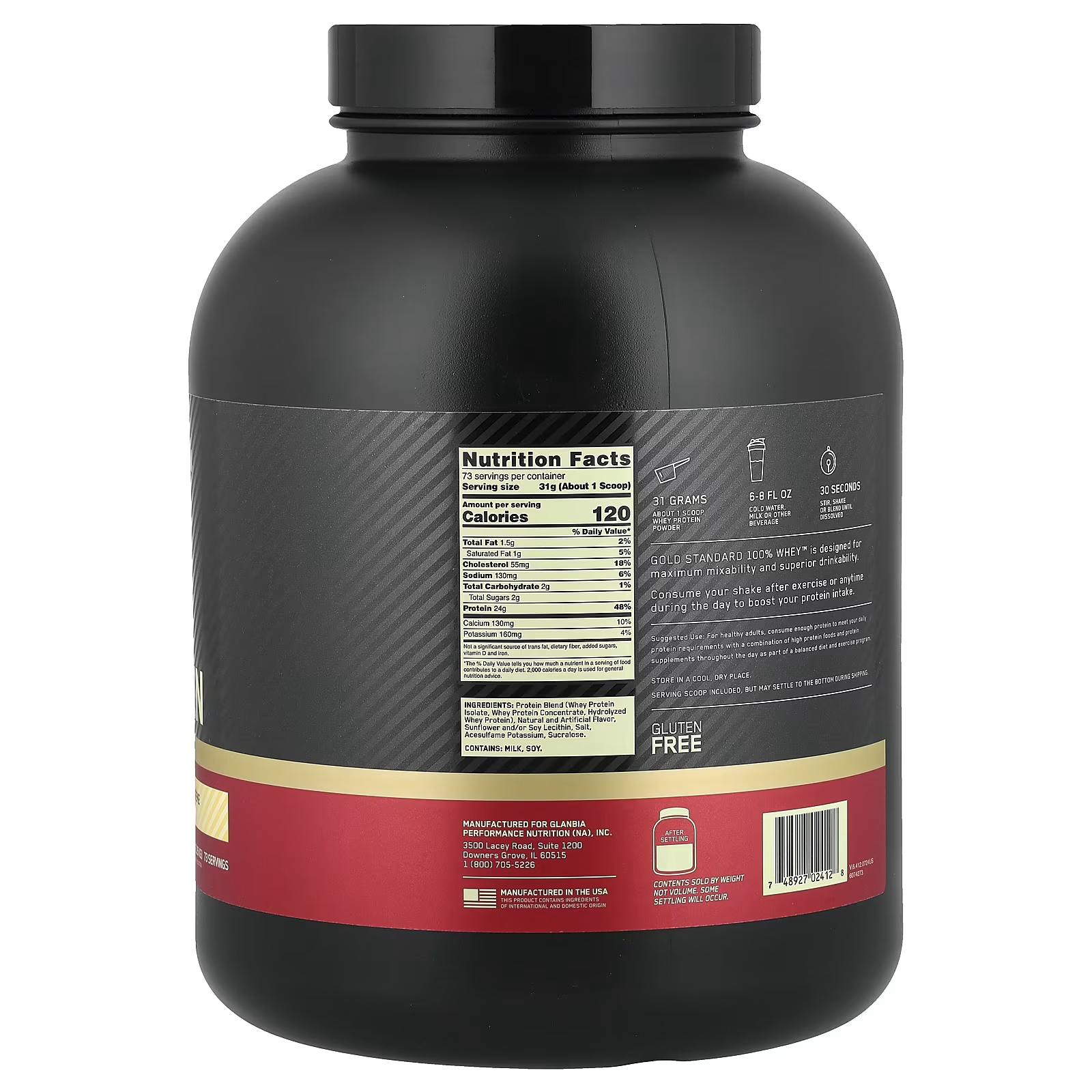
Optimum NutritionのGold Standard 100% Wheyのような定番商品は、世界的に知られていてレビュー数も多いです。商品ページでは1回あたりのタンパク質量、カロリー、糖質、成分、アレルゲン、フレーバーを確認できます。ここで大事なのは、数字だけではなく、飲み方まで想像することです。
California Gold NutritionのCreatine Monohydrateのようなクレアチン商品は、成分がシンプルで比較しやすいカテゴリです。無味タイプなら、プロテインや水、スポーツドリンクに混ぜやすく、余計な味付けを避けたい人には使いやすいです。商品ページでは1回分の量、内容量、第三者試験、ラベル、レビューを確認できます。
Shipping is where the excitement of Whatnot becomes ordinary ecommerce. The live auction is fun, the chat is lively, and winning a bid feels immediate. Then the app becomes a package moving through a carrier network, and suddenly the questions are practical: What did shipping cost? Did the seller bundle my items? When will it arrive? What happens if tracking stalls? What if the package is marked delivered but I do not have it? This Whatnot shipping review looks at those questions from a buyer’s point of view.
Whatnot’s shipping system is more structured than buying from a random livestreamer, but it is not magic. The platform can generate labels, guide sellers, choose services, and provide order tracking. Sellers still have to pack correctly, ship promptly, enter accurate weights and dimensions, and communicate when something goes wrong. Buyers still have to check totals, understand timing, inspect packages, and request help within the right windows. Shipping is not the glamorous part of Whatnot, but it is one of the biggest factors in whether the app feels trustworthy.
A strong Whatnot experience depends not only on the live auction, but on clean shipping and fulfillment after the show.
How U.S. Buyer Shipping Works
For purchases from U.S.-based sellers, Whatnot’s help center says orders ship through USPS, whether the destination is domestic or international. Buyers do not choose the USPS service manually; Whatnot automatically selects an economical option based on factors like product type, category, shipment weight, and size. That structure is useful because live buyers do not want to negotiate shipping service during every auction. It keeps checkout moving.
The tradeoff is that shipping can feel less transparent than a static listing where the shipping price is part of the listing from the beginning. During a stream, you may focus on the bid amount and pay less attention to the final landed cost. This is why small purchases can surprise buyers. A five-dollar collectible from one seller and a six-dollar accessory from another may not feel cheap after separate shipping charges. Whatnot is often best when you buy multiple items from the same seller or when the item value justifies the shipping.
Bundling and Multiple Purchases
Bundling is one of the most important shipping concepts on Whatnot. If you buy multiple items from the same seller, the platform may bundle them into one shipment, depending on timing, item details, and seller workflow. Bundling can make live shopping feel much more reasonable because the shipping cost spreads across several items. It also encourages buyers to stay in one stream longer, which is good for sellers and potentially dangerous for budgets.
Buyers should not assume every purchase will bundle perfectly. Weight, dimensions, shipping label timing, and seller settings can affect the final shipment. If bundling matters to the value of your order, pay attention before buying. Ask the seller how they handle multiple purchases. Check the order details. If something looks wrong, address it early. Shipping confusion is easier to fix before a label is generated than after the package is in transit.
Bundling can improve value, but buyers still need to watch the total landed cost.
Delivery Timing Expectations
Whatnot’s broader shipping guidance for buyers says sellers are generally asked to ship within two business days, and many domestic orders arrive within a typical one-to-two-week window. In practice, timing depends on the seller, carrier scans, weekends, holidays, category, packaging complexity, and distance. A small card order may move quickly. A bulky fashion order may take longer. International shipments can take significantly more time because customs and local delivery networks add friction.
A realistic buyer should separate seller delay from carrier delay. If the seller has not generated a label or shipped for several business days, that is a seller-side issue. If tracking shows the package moving slowly after handoff, that may be a carrier issue. If tracking is marked delivered and you do not have the package, the response window matters. Whatnot’s buyer protection policy includes package-not-received scenarios, but buyers need to follow the support process promptly.
The Seller’s Role
Whatnot sellers have more shipping responsibility than buyers may realize. They need to review shipment details, ensure weight and dimensions match the final package, generate labels, pack orders, and drop them off. Whatnot’s seller shipping documentation warns that incorrect weight, dimensions, or bundling can cause delays, returned packages, or additional postage charges. That means seller organization is not optional. It directly affects buyer experience.
For buyers, seller shipping competence is visible over time. Reviews, repeat buyers, chat comments, and your own first order all matter. If a seller sells fragile items, expensive cards, sneakers, comics, coins, or luxury goods, packing quality should be part of your evaluation. A great auction price is not great if the item arrives damaged because the seller used the wrong mailer. In collectible categories, packaging is part of trust.
What to Do When Shipping Goes Wrong
If a package is delayed, start by checking the order details and tracking. If tracking is still updating, patience may be appropriate. If there is no movement for a long period, the seller or Whatnot support may need to get involved. If the item arrives damaged, incomplete, incorrect, or not as described, document it quickly. Take photos of the packaging and item. Keep everything until the issue is resolved. Submit the request through the app rather than trying to solve it off-platform.
The reason to stay on-platform is simple: Whatnot’s buyer protection applies to platform transactions. Off-platform side deals do not get the same coverage. If a seller asks you to handle a refund, replacement, or future deal outside Whatnot, be careful. Even if the seller seems friendly, you are giving up the cleanest support path. Good sellers should be willing to resolve legitimate issues through the official system.
Shipping Cost Strategy for Buyers
Check the total cost before judging whether an auction win is actually a deal.
Buy multiple items from one trusted seller when bundling makes sense.
Avoid very low-value impulse purchases from many different sellers unless you accept the shipping cost.
Inspect packages quickly after delivery so protection windows do not expire.
Keep packaging until you are sure there is no damage or missing-item issue.
Shipping Strategy for Sellers
Prepare packing supplies before the show starts, not after orders pile up.
Group inventory in a way that makes post-show sorting easy.
Review weights and dimensions before generating labels.
Protect condition-sensitive items with category-appropriate packaging.
Ship consistently enough that buyers see you as reliable, not just entertaining.
Final Verdict
Whatnot shipping is good enough to support a serious marketplace, but it depends heavily on seller execution and buyer awareness. The platform provides structure: USPS shipping for U.S. sellers, automated service selection, order tracking, seller tools, and buyer protection paths. That is far better than informal livestream selling. But shipping cost, bundling, packing quality, and delivery timing can still shape the final value of every purchase.
My advice is to treat shipping as part of the bid. Do not celebrate a low auction win until you know the total. Favor sellers who pack well and ship reliably. Open packages quickly. Use support promptly when something is truly wrong. If you shop this way, Whatnot shipping becomes manageable. Ignore it, and the app can feel much more expensive than the bid button made it seem.
Suppose you win three low-priced items from three different sellers: a $6 card, an $8 pin, and a $10 vintage patch. Each feels cheap in the moment. But if each order carries its own shipping and tax, the final cost may be closer to a much more expensive shopping session. Now imagine buying three items from one seller in the same show, where bundling applies and packaging is efficient. The bid prices may be similar, but the delivered value can be very different. This is why Whatnot buyers should think in total order cost, not winning bid cost.
The same logic applies to sellers. A show filled with very low-dollar items may create activity, but it also creates packing work. If every order is tiny and separate, the seller’s time can disappear into sorting and labels. Strong sellers structure shows so buyers have reasons to bundle: related lots, category runs, themed drops, and clear shipping communication. Good shipping economics help both sides. Buyers get better value, and sellers spend less time managing scattered micro-orders.
When to Contact Support
Not every slow package is a support case. Tracking can pause. Weekends can add time. Weather, holidays, customs, and carrier backlogs can delay delivery. But buyers should watch for patterns that deserve action: no label after a reasonable seller handling period, no tracking movement for an extended time, a package marked delivered but missing, obvious damage, incorrect items, or missing pieces from a bundle. The earlier you document the issue, the easier it is for support to understand what happened.
A good support request is factual. Include the order number, photos, screenshots if relevant, packaging photos, and a short explanation. Avoid emotional essays. The goal is to show what was purchased, what arrived or did not arrive, and why it falls under the relevant policy. If the seller is responsive, they may help resolve the issue. If not, the platform record matters. Keep the conversation in the app so there is a clear history.
Packaging Standards by Category
Trading cards should be protected from bending, moisture, and corner damage.
Comics need boards, bags, and rigid mailers or boxes when value warrants it.
Sneakers should be protected so boxes and shoes do not arrive crushed.
Coins and jewelry need small-item security so pieces cannot slip out or rub together.
Vintage clothing should be cleanly folded, protected from moisture, and described accurately before shipping.
What Good Sellers Do Differently
The best Whatnot sellers make shipping feel boring, which is exactly what buyers want after an exciting auction. They sort orders immediately, label bins, verify bundles, use packing slips when helpful, and know which items require stronger packaging. They do not improvise every package from scratch. They build a system. Buyers may never see that system, but they feel it when orders arrive correctly.
That is why shipping should be part of your seller evaluation. A seller with slightly higher prices but excellent fulfillment may be a better value than a cheaper seller whose packages create anxiety. On Whatnot, trust is not only created during the stream. It is confirmed when the package arrives.
My Practical Shipping Verdict
The most satisfied Whatnot buyers are usually the ones who treat shipping as part of the purchase decision before they bid. They know whether they are buying one item for fun or building a bundled order with a seller they trust. They understand that a low winning bid can become average after shipping, and they do not blame the platform for math they could have checked at checkout. This mindset makes the app calmer.
The most successful sellers treat shipping as a reputation system. Every package is a review waiting to happen. A buyer who receives a clean, protected, accurate order is more likely to return to the next stream. A buyer who receives a sloppy package remembers the disappointment longer than the auction excitement. In live commerce, fulfillment is not backstage work. It is part of the show.
For buyers: think delivered cost, not bid cost.
For sellers: pack like the second purchase depends on the first delivery.
For both sides: solve shipping problems inside Whatnot so the record stays clear.
One final habit helps: after each purchase, ask whether you would still consider the price fair if shipping were displayed as part of the bid. If the answer is no, the auction was not as good as it felt. This single question prevents many disappointing small orders.