



For years, my desktop was a digital landfill. Not just cluttered, but genuinely overwhelming. As a freelance content strategist, my work involves a constant influx of documents: client briefs, research papers, image assets, meeting notes, project plans, invoices, and a seemingly endless stream of screenshots. Each new project meant another dozen files, and my habit was simply to save everything to the desktop for “quick access.” The irony, of course, was that quick access quickly devolved into no access at all, or at least, access that required an archaeological dig every single time I needed something specific. My desktop, a sprawling 27-inch monitor, would often host upwards of 150-200 icons. It wasn’t just files; it was application shortcuts for various SEO tools, writing apps, design software, communication platforms, and a half-dozen browser profiles. The sheer visual noise was a constant drain on my mental energy, a subtle but persistent hum of anxiety that started the moment I booted up my PC each morning.
I tried everything to manage the chaos, or so I thought. I’d have periodic “desktop clean-up” sessions, usually late on a Sunday evening, where I’d drag everything into a single folder aptly named “Desktop Old” or “To Sort.” This would last for about three days before the gravitational pull of convenience would reassert itself, and new files would once again begin their inexorable march across the pristine background. I even experimented with a hyper-organized folder structure within my Documents folder, creating sub-folders for each client, then sub-sub-folders for each project phase. While this worked well for archived files, it did nothing for the active, in-progress documents that I needed open and accessible throughout the day. Pinning applications to the taskbar helped with shortcuts, but it couldn’t solve the problem of transient files or project-specific documents that were only relevant for a few weeks. The breaking point arrived during a particularly intense period where I was juggling three simultaneous client launches. I spent nearly an hour one morning just trying to locate a specific brand guideline PDF that I knew was “somewhere” on my desktop, digging through layers of half-finished blog posts and forgotten marketing assets. That hour, I realized, was billable time I was effectively throwing away, and the stress it caused was completely unnecessary. It was a clear sign that my ad-hoc system, or lack thereof, was no longer sustainable.
I was fed up. That evening, instead of mindlessly scrolling, I opened Google and typed in “how to organize desktop windows 10 productivity.” I scrolled through countless forum posts, tech blogs, and YouTube videos. Many suggested manual methods I’d already tried, or third-party launchers that felt like overkill. Then, I stumbled upon an article that mentioned Stardock, a company I vaguely remembered from years ago for their desktop customization tools. The article highlighted a product called Fences. The website itself was clean, professional, and immediately conveyed the core promise: “Automatically organize your desktop apps, files, and folders.” My first impression was a mix of hope and skepticism. Could it really be that simple? The screenshots showed desktops that looked impossibly tidy, with shaded, labeled boxes containing neatly arranged icons. It looked almost too good to be true, like a marketing dream, but the sheer frustration of my current situation pushed me past any reservations. They offered a free trial, and honestly, at that point, I would have paid upfront just for the promise of relief. I downloaded it instantly, driven by the desperate hope that this Fences review would one day be me writing about my salvation.
The onboarding experience was surprisingly quick and intuitive. After installation, Fences immediately scanned my existing desktop and, to my astonishment, offered to create several pre-defined “fences” based on common file types and application categories. It suggested grouping all my documents into one fence, all my programs into another, and even created a “New Icons” fence for anything new that appeared. I accepted the suggestions, figuring it was a good starting point. Within seconds, my chaotic desktop transformed. What had been a sprawling mess of individual icons coalesced into a handful of shaded, semi-transparent rectangles, each labeled clearly. It was like watching a digital tidying-up fairy wave a magic wand over my screen. The initial arrangement wasn’t perfect, of course; some things were miscategorized, and I had specific ideas for my own custom groupings. But the foundation was there.
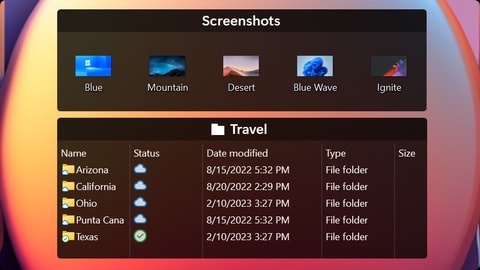
My first real output, if you could call it that, was the sheer visual clarity. Instead of scanning a hundred individual icons, I now had five or six distinct areas to look at. I immediately started customizing. I dragged and dropped icons between fences, created new fences for specific client projects, and even made one for “Temporary Downloads” that I knew I’d need to process later. I loved that I could resize the fences, change their colors and transparency, and even roll them up into a compact title bar when not in use, effectively hiding their contents until I hovered over them or clicked. This “roll-up” feature was a revelation. It meant I could have all my project-specific files visible when I needed them, but then collapse them down to tiny labels when I wanted a distraction-free workspace. The ability to double-click an empty desktop area to instantly hide all fences was another immediate win for focus. I remember testing this out, working on a complex strategy document, and when I needed to clear my head, a quick double-click rendered my desktop completely blank except for my wallpaper. The peace it brought was almost palpable.
In my daily workflow, Fences has become an indispensable part of my routine. Every morning, after my coffee, I boot up my PC to a desktop that is organized and calm. My main fences are: “Current Projects” (for active client work, organized by client), “Tools & Apps” (for quick access to my most used software), “Reference & Research” (for ongoing learning materials and industry reports), “Inbox” (for new downloads and transient files), and “Personal” (for non-work related shortcuts). The automation rules are where Fences truly shines for me. I’ve set up rules so that any new screenshot automatically goes into a “Screenshots” fence, any new document from a specific client folder automatically appears in that client’s project fence, and all new downloads land in my “Inbox.” This means I rarely have to manually sort new items; they just appear where they’re supposed to be. It saves me a solid 15-20 minutes each day that I used to spend dragging files around or, more often, just letting them pile up.
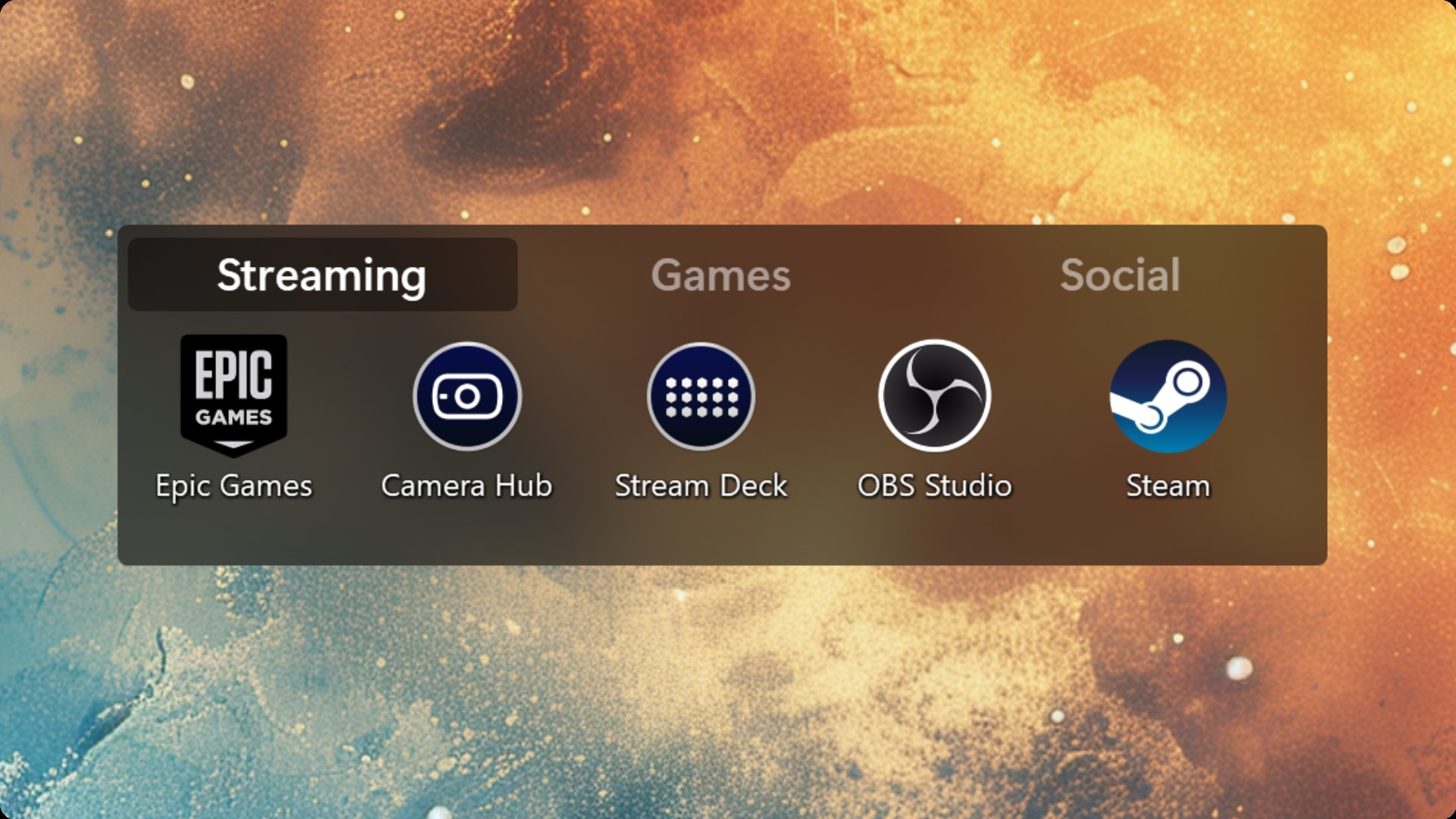
What Fences does exceptionally well is manage the inflow of new content and provide context-specific organization. The Folder Portals feature, for instance, has been a major productivity booster. I have a main client projects folder deep within my cloud storage, but I use a Folder Portal to mirror the current project subfolder directly onto my desktop. This means I’m not just seeing shortcuts; I’m seeing the actual contents of that folder, live, on my desktop. It’s incredibly convenient for rapidly accessing files without navigating through multiple explorer windows. The “Peek” feature, activated by Winkey + Space, also allows me to bring all my fences to the forefront of any active window, which is fantastic for quickly grabbing a file or launching an app without minimizing everything. However, it’s not entirely without its quirks. While the automation rules are powerful, they can sometimes be a little too eager. I’ve had instances where a file I wanted to keep on the desktop temporarily for a very specific reason was whisked away into a default “Documents” fence before I was ready. It’s easily retrieved, but it requires a quick mental adjustment to remember it’s not gone, just moved. Also, while the customization options for fence appearance are extensive, I sometimes wish for even more granular control over text size or icon spacing within the fences themselves, beyond the general sizing options. Compared to my old process of endless searching and mental overhead, Fences has been a huge improvement in both time saved and, more importantly, mental clarity. I estimate it cuts down my daily “desktop management” time by about 75%, allowing me to focus on actual work.
There’s one thing that occasionally annoys me about Fences, and that’s the occasional visual glitch after a major Windows update. Sometimes, a fence might briefly disappear or reappear in a slightly different position, requiring a quick restart of the application or a minor tweak to reset it. It’s infrequent, but when it happens, it’s a small disruption in an otherwise smooth experience. The pricing, for a perpetual license, feels entirely justified for the value it provides to my professional life. Considering the amount of time and mental energy it saves me daily, it paid for itself within the first month. There are still situations where I resort to the old way, especially when I need to perform complex file operations like batch renaming or moving large directories of files. For those tasks, File Explorer remains the most efficient tool, and I’ll open it directly. But for quick access to my active work, for keeping my digital workspace tidy and focused, Fences has completely reshaped how I interact with my computer. I’m currently experimenting with creating a “Gaming” fence for my leisure time, as my Steam library seems to generate its own unique brand of desktop clutter.
Additional workflow notes before choosing Fences 6
The most important thing to understand about Fences is that it is not really a decoration tool. It is a habit tool. The official positioning is about organizing apps, files, and folders on the Windows desktop, but the real buying question is whether your desktop is currently acting like a temporary inbox. If everything lands there and stays there, a folder alone usually does not solve the problem. You need a visible structure that keeps current work, reference items, downloads, and shortcuts from becoming one flat pile.
That is where Fences is most convincing. It gives the desktop a system without forcing you to abandon the desktop. People who already use File Explorer perfectly may not need it. People who constantly save screenshots, documents, installers, project folders, and client files to the desktop probably will understand the appeal immediately. The benefit is not that the desktop looks nicer for five minutes. The benefit is that the next file has a place to go, and that makes the next work session less messy.
There is also a setup cost. Fences works best when the groups reflect real behavior, not ideal behavior. A buyer should not create fifteen perfect boxes on day one. A better first setup is simple: active work, reference, downloads, shortcuts, and archive. After a week, the categories become obvious. That patient setup is the difference between a tool that sticks and a tool that becomes another layer of clutter.
For anyone comparing desktop organizers, Fences is strongest when the goal is daily Windows organization rather than cloud storage, note-taking, or task management. It does not replace those tools. It sits closer to the messy point where files actually hit the screen. If your desktop is the place where work starts and stalls, take a look at the current Fences 6 options and decide whether the structure is worth adding to your Windows routine.
One final detail is worth calling out: Fences works best when it is treated as a system you revisit, not a one-time cleanup. After the first week, the useful categories become clearer because you can see where new files naturally land. That makes the tool more durable than a simple desktop sweep. If your Windows desktop keeps becoming messy again after every cleanup, that repeat pattern is exactly the kind of problem Fences is built to reduce.