



For years, I operated in a state of low-grade, persistent frustration that I didn’t even realize was solvable. As a freelance graphic designer and content creator, my setup involves a powerful workstation driving three high-resolution monitors – two 4K displays flanking a primary ultrawide. I juggle multiple applications simultaneously: Adobe Creative Suite (Photoshop, Illustrator, After Effects), video editing software like Premiere Pro, various project management tools, communication platforms, and often a browser with dozens of tabs open for research or client feedback. My work involves intricate detail, pixel-perfect adjustments, and frequent screen-sharing for client reviews or tutorial videos. The problem, insidious and seemingly trivial, was my mouse cursor. It was constantly getting lost. Against the backdrop of complex UIs, dark mode themes, busy artboards, or during rapid transitions between screens, that small, default Windows arrow would simply vanish. I’d find myself wiggling the mouse frantically, sometimes for several seconds, just to locate where my pointer was. This wasn’t just a minor annoyance; it was a constant drain on my focus, a disruption to my flow, and a source of unprofessional fumbling during live streams and recorded tutorials.
I had tried the built-in Windows accessibility options, of course. I’d cranked up the cursor size to absurd levels, making it a giant, blocky monstrosity that obscured what I was trying to click. I experimented with the high-contrast color schemes, turning my cursor into a garish magenta or lime green outline. While these crude adjustments did help with visibility to some extent, they introduced new problems. The oversized cursor felt clumsy and imprecise for design work, and the bright, unnatural colors looked jarring and unprofessional, especially when recording content for my audience. It was like trying to fix a leaky faucet with duct tape – functional, but ugly and temporary. I even looked into some free, open-source cursor packs online, but they were often buggy, came with questionable installers, or offered designs that were either too childish, too resource-intensive, or simply failed to address the core visibility issue in a professional context. Every time I had to re-record a tutorial segment because I couldn’t quickly point out an interface element, or when a client on a video call asked “where’s your mouse?” during a screen share, it chipped away at my patience and confidence. The breaking point arrived during a particularly high-stakes live design session. I was demonstrating a new technique in After Effects, a software notorious for its dense interface. For a solid 20 seconds, I couldn’t find my cursor amidst the layers and timelines, leading to a frustrating pause and a flurry of “Where’s the cursor?!” comments in the chat. That night, I knew I needed a real solution.
My search began in earnest after that embarrassing live stream. I wasn’t just looking for “custom cursors” anymore; I was specifically typing in phrases like “professional mouse cursor visibility for designers,” “animated cursors for screen recording,” or “stop losing mouse cursor on multiple monitors.” It was during one of these deep dives, probably late at night when deadlines were looming and my eyes were strained, that I stumbled upon a forum thread discussing desktop customization tools. Stardock products came up frequently, and that’s how I first heard about CursorFX. The official website looked clean and professional, a stark contrast to the sketchy freeware sites I’d encountered. It highlighted features like custom animations, special effects, and the ability to create your own cursors from PNG files. My first impression was a mix of curiosity and skepticism. Could a cursor really make that much of a difference? It seemed almost too simple a solution for such a pervasive problem. However, the promise of thousands of cursors from a community site, and the general reputation of Stardock, made it seem like a legitimate option. The frustration from my recent live stream was still fresh, so I decided to download the trial and give it a shot. I had nothing to lose but a few minutes of my time, and potentially, a lot of future frustration. This CursorFX review would begin with a leap of faith.
The onboarding experience was surprisingly straightforward. Installation was quick, and upon launching CursorFX, I was greeted with an intuitive interface that immediately presented a gallery of pre-installed cursors. No complex settings menus or obscure configurations to wade through. The first thing I did was browse through the “Apply” section, where I could preview various cursor designs. I chose one that was slightly larger than the default, high-contrast, and had a subtle, shimmering animation. Clicking “Apply” instantly changed my cursor. The immediate difference was palpable. My cursor, no longer a phantom, now had a distinct presence on my screen, even against busy backdrops. The subtle animation wasn’t distracting but served as a visual beacon, drawing my eye to its location without effort. It felt like a weight had been lifted, though I hadn’t realized how heavy it was until it was gone.
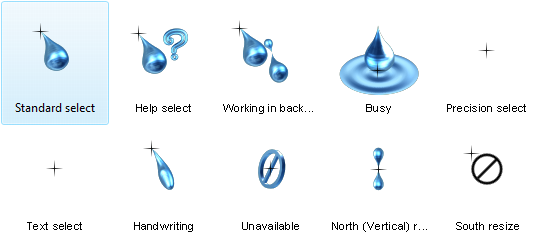
My first real output with CursorFX wasn’t just applying a pre-made design; it was diving into the customization options. The software allows you to tweak size, color, drop shadow, and even add motion trails and sound effects. I started by taking one of the high-contrast cursors and adjusting its color to a vibrant, but not garish, cyan – a color I rarely use in my design work, ensuring it would stand out against most of my palettes. Then I experimented with a short, subtle motion trail, just enough to make it traceable during fast movements without leaving a distracting streak across the screen. The real surprise came when I discovered the “Create” feature, which allowed me to import my own .PNG files. I took my brand’s logo, cropped it down to a suitable size, and within minutes, I had a custom cursor with my brand mark as the pointer, complete with a gentle glow effect I’d added in the software. This wasn’t just about visibility anymore; it was about professional branding, about making my digital presence feel cohesive. The immediate reaction was pure satisfaction. The cursor was usable immediately, required no heavy editing of the design itself, and felt perfectly integrated. I even set up a specific profile for my live streams – a slightly larger, more animated version of my branded cursor – and tested it out during a quick screen recording. The difference was night and day; my audience could effortlessly follow my mouse movements, and I didn’t once lose track of it.
Now, CursorFX has become an integral part of my daily and weekly workflow. I’ve created several distinct cursor profiles for different tasks. For general design work and client meetings, I use a subtle, branded cursor with a gentle glow that maintains a professional aesthetic while ensuring visibility. When I’m working on intricate pixel-level adjustments in Photoshop, I switch to a smaller, more precise cursor with no animation, which allows me to maintain accuracy without visual distraction. But where it truly shines is during my content creation process. For recording tutorials, demonstrating software features, or live streaming my design sessions, I activate a profile specifically designed for maximum visibility: a slightly larger, high-contrast cursor with a distinct, but not overwhelming, animated trail. This setup has cut down my video editing time significantly. I used to spend an embarrassing amount of time in post-production, adding highlights or annotations to my cursor path because it was so hard to follow during the original recording. Now, with a clearly visible, animated cursor, my audience can track every movement without me having to add artificial indicators. This alone saves me at least 30-45 minutes per tutorial video, which adds up to several hours a week given my content schedule.
What CursorFX does exceptionally well is its blend of ease of use and powerful customization. Applying a new cursor is literally a one-click process, making it incredibly simple to switch between profiles on the fly. The depth of customization, from adjusting basic visual attributes like size and color to adding complex animations and importing custom graphics, means I can tailor my cursor to virtually any professional need or aesthetic preference. The integration with WinCustomize.com, offering thousands of community-created cursors, also provides a fantastic starting point for inspiration or quick solutions. However, it’s not without its quirks. One limitation I’ve found is the lack of an intelligent profile switching mechanism. I wish CursorFX could automatically detect which application is in focus and switch to a pre-assigned cursor profile. For example, when I open Premiere Pro, it would automatically switch to my video editing cursor; when I open OBS for streaming, it would switch to my streaming cursor. As it stands, I have to manually select the profile from the system tray icon, which, while quick, is still an extra step that occasionally breaks my flow. It’s a minor friction point in an otherwise smooth experience. Compared to my old process of constantly losing my cursor, resorting to crude Windows accessibility settings, or fumbling with unreliable freeware, CursorFX offers a level of polish, stability, and professional utility that those methods simply could not provide. The quality difference in my screen recordings is stark, and the time saved in post-production is a tangible benefit that directly impacts my bottom line.

There are a few things that have genuinely annoyed me about CursorFX, mostly minor but worth mentioning. As I touched on, the manual profile switching is probably the biggest one. It’s not a deal-breaker, but in an era of increasingly intelligent software, it feels like a missed opportunity for a feature that would elevate the user experience significantly. Another slight annoyance is the sheer volume and varied quality of cursors available on WinCustomize. While having “thousands” sounds great on paper, sifting through them to find truly professional, subtle, or well-designed cursors for a business context can be a time sink. Many are clearly designed for gaming or novelty, which is fine, but it means I often end up creating my own or heavily modifying existing ones rather than finding an immediate, perfect fit. This isn’t a flaw in the software itself, but more a consequence of a large, diverse community.
Despite these minor frustrations, I genuinely feel the pricing for CursorFX is justified for what I get out of it. For a tool that directly contributes to my efficiency, the professionalism of my content, and reduces daily frustration, the cost is a small investment. It’s not an ongoing subscription, which I appreciate; it’s a one-time purchase. The time it saves me in video editing alone, not to mention the improved client perception during screen shares, easily covers its cost many times over within a month. There are still situations where I occasionally find myself doing things the “old way,” or at least a variation of it. For instance, if I’m quickly demonstrating something on a shared screen for a client who is particularly sensitive to visual clutter, I might momentarily switch back to a very subtle, almost default-looking cursor, even if it’s harder for me to track. It’s a compromise I make for specific client preferences, but it highlights that even with the best tools, human interaction and specific situational demands sometimes dictate a deviation from the optimal workflow. I’m always experimenting with new ways to refine my cursor profiles, perhaps creating an even more minimal one for those specific client scenarios, to see if I can truly eliminate the need for the default Windows cursor entirely.
Additional workflow notes before choosing CursorFX
CursorFX is a niche tool, but it solves a real personalization problem for the right user. The official page frames it around customizing the Windows cursor and creating your own. That sounds small until you think about how often the cursor is part of the workday. On large monitors, multi-monitor setups, demos, recordings, or visually dense desktops, the pointer can either disappear into the interface or become a useful visual anchor.
The best reason to consider CursorFX is not novelty alone. A custom cursor can make a desktop feel more intentional, and in some workflows it can make the pointer easier to follow. That can matter for screen recordings, tutorials, presentations, accessibility preferences, or simply personal taste. The caution is that cursor effects should remain readable. If the design gets too decorative, it can become harder to use than the default pointer.
CursorFX is therefore most appealing to Windows customization fans, creators who record their screens, and users who want every visible part of the desktop to match their style. It is probably not a must-have for someone who only wants productivity gains. If the cursor is one of the details you notice every day, the current CursorFX options are worth checking before you decide.