


For years, my work setup was a finely tuned machine, or at least, that’s how I liked to think of it. As a freelance project manager juggling multiple client accounts, every second counted. My desktop was a command center, not just a place to store files. I relied heavily on muscle memory, on knowing exactly where everything was with a glance or a quick key combination. This included the Start Menu and the taskbar, which, in Windows 7 and then Windows 10, were extensions of my brain. I could instantly access frequently used applications, specific folders, network drives, and even individual documents without breaking my flow. The ability to ungroup taskbar icons, to see the label for each open Word document or Excel sheet, was not a luxury; it was a fundamental necessity for maintaining context across 10-15 open windows at any given time. I didn’t just like my Start Menu; I depended on it for my livelihood.
Then came Windows 11. Initially, I was intrigued by the fresh aesthetic, the rounded corners, the promise of a more modern experience. But that intrigue quickly dissolved into frustration, then outright exasperation. The new Start Menu felt like a step backward, a simplified, almost condescending version of what I needed. It was too focused on “recommended” items I rarely cared about, pushing my pinned applications into a smaller, less accessible grid. The search function, once lightning-fast and comprehensive, now felt sluggish and cluttered with web results and advertisements, often requiring extra clicks to filter down to local files. But the biggest blow, the truly infuriating change, was the taskbar. The icons were centered by default, which I could adapt to, but the removal of ungrouping and the inability to move the taskbar to the top or sides of the screen were deal-breakers. My entire workflow, built on years of habit and efficiency, was shattered. I couldn’t quickly differentiate between multiple instances of the same application – was this the client A proposal or the client B budget spreadsheet? I had to hover, wait for a thumbnail, or click through each one, costing precious seconds that accumulated into minutes, then hours, over a demanding work week.
I tried to adapt. I really did. For a few months, I forced myself to live with the default Windows 11 experience, hoping I’d eventually adjust. I started using third-party launchers for applications, but that added another layer of complexity I didn’t want. I tried pinning more shortcuts to the desktop, which quickly became a chaotic mess. I even explored registry hacks to bring back some taskbar functionality, but those felt risky and often broke with Windows updates, leaving me scrambling. My productivity took a noticeable hit. What used to be a quick glance or a single click now involved multiple steps, breaking my concentration. I found myself getting visibly annoyed, muttering under my breath as I fumbled through open windows during critical client calls. The breaking point arrived during a particularly hectic week where I was managing a product launch, a website redesign, and a major marketing campaign simultaneously. I was constantly switching between spreadsheets, design mockups, communication tools, and project management software. Every time I needed to find a specific document or application, the Windows 11 interface felt like it was actively fighting against me, slowing me down, and adding unnecessary cognitive load. It was like driving a high-performance car with a broken steering wheel and sticky pedals. I knew there had to be a better way, a way to reclaim the control I once had over my digital workspace.
My search for a solution was born out of pure desperation. I spent an entire Saturday evening, after putting the kids to bed, trawling through tech forums, Reddit threads, and obscure blog posts. I typed every variation of “Windows 11 taskbar ungroup,” “restore classic Start Menu,” and “fix Windows 11 productivity” into search engines. That’s when I stumbled upon mentions of Stardock and their various desktop customization tools. The name Stardock itself rang a bell from my earlier PC gaming days, suggesting a long-standing presence in the software world. I navigated to their website, specifically the page for Start11. My first impression was one of relief. The site looked professional, not like some fly-by-night operation. It clearly articulated the exact problems I was facing – the inability to ungroup taskbar items, the limited Start Menu customization, the desire to move the taskbar. There weren’t any flashy, over-the-top claims, just a straightforward presentation of features designed to restore and enhance Windows UI functionality. It felt legitimate, like a company that understood the frustrations of power users. The screenshots showed exactly what I was looking for: a Windows 7-style Start Menu, a Windows 10-style Start Menu, and a taskbar that could be moved and, crucially, ungrouped. The decision to try it wasn’t a calculated one; it was an impulse driven by the sheer exhaustion of fighting my operating system. I just needed my old workflow back.
The onboarding experience for Start11 was surprisingly smooth. I downloaded the installer, ran it, and within a few minutes, I was greeted by a simple configuration wizard. It walked me through the main options: choosing a Start Menu style (Windows 7, Windows 10, or enhanced Windows 11), setting taskbar behavior, and customizing search. I opted for the Windows 7 Start Menu style immediately, as that was the layout my muscle memory craved. Then, I tackled the taskbar. The option to ungroup icons was right there, clear as day. I also moved my taskbar to the top of the screen, a personal preference I’d cultivated over years for better visual flow, especially on ultrawide monitors. The initial setup took less than ten minutes, and the changes were applied instantly. My first real “output,” if you can call it that, was simply opening a few instances of Chrome, Word, and Excel. Seeing individual icons with their labels on the taskbar, positioned at the top of my screen, was an almost emotional experience. It was like someone had handed me back a crucial limb I hadn’t realized I’d lost until it was gone.
My honest reaction was pure, unadulterated relief. The system felt right again. It was immediately usable, requiring no heavy editing or further tweaking to get to a functional state. The specific detail that surprised me the most was how seamlessly it integrated. It didn’t feel like a third-party overlay; it felt like native Windows functionality had been restored. The Start button worked exactly as expected, opening my chosen Start Menu style, and the search function, once configured, was fast and clean, prioritizing local results over web clutter. I could pin folders directly to the Start Menu, access network drives with a single click, and browse my applications in a logical, hierarchical list. The ability to restore the fully featured context menu when right-clicking on the taskbar was another subtle but significant win; it brought back options like Task Manager or cascading windows that Windows 11 had inexplicably hidden or removed. The entire desktop experience went from being a constant source of low-level irritation to a comfortable, familiar workspace. This Start11 review might sound overly enthusiastic, but for someone whose livelihood depends on an efficient computing environment, these changes were genuinely transformative.
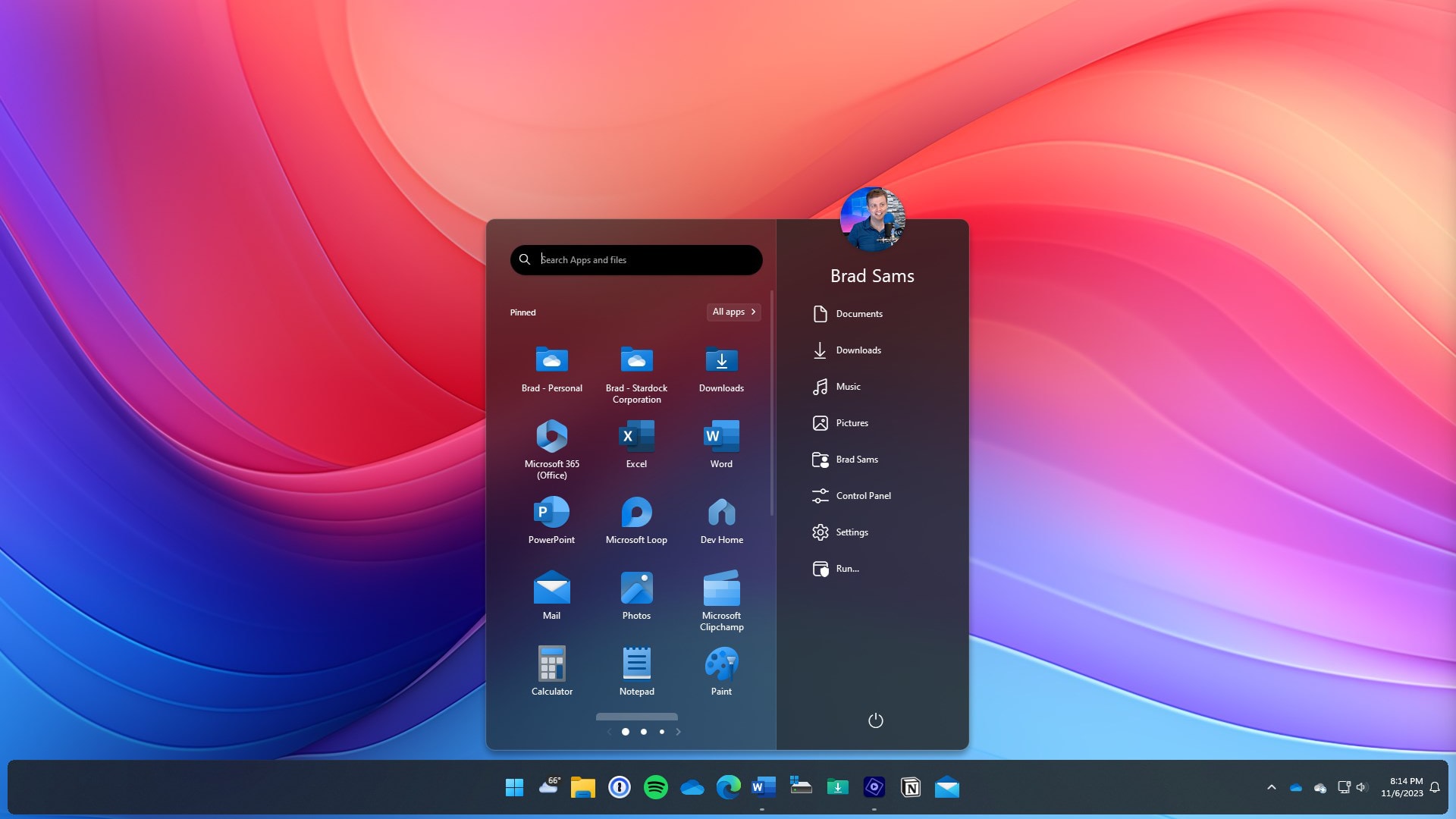
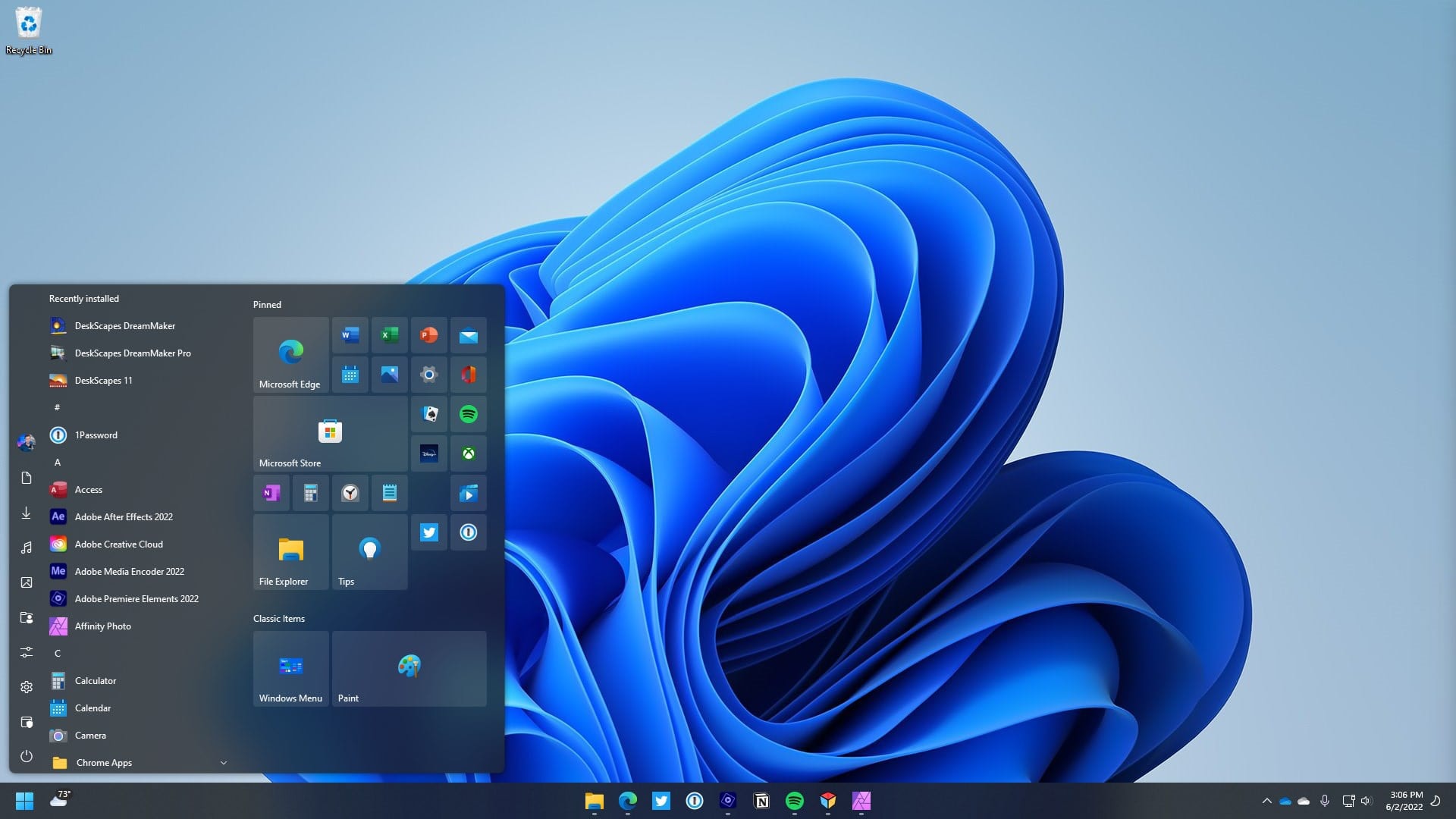
In my daily workflow now, Start11 is an invisible, yet indispensable, layer. I use the Windows 10-style Start Menu, which offers a good balance of modern tiles for quick access to frequently used apps and a classic list for everything else. My taskbar remains at the top of the screen, always ungrouped, allowing me to see every open application and document clearly. This alone saves me at least 15-20 minutes a day in context switching and searching, especially when I’m deep into a complex project with 20+ windows open. I’ve also configured the search to integrate with Everything, a lightning-fast file search utility, making finding any file or folder on my local drives instantaneous. Before Start11, I would often spend frustrating minutes digging through nested folders in File Explorer or waiting for Windows Search to finally yield the right result. Now, I hit the Start key, type a few letters, and the file is there.
What Start11 does exceptionally well is restore fundamental productivity features that Microsoft stripped away. The biggest time-saver for me is undoubtedly the ungrouped taskbar with labels. When I’m working on multiple versions of a client deliverable – say, three different PowerPoint decks for the same client, each for a different stakeholder – being able to see “Client X – Proposal V1,” “Client X – Proposal V2 – Marketing Review,” and “Client X – Proposal V3 – Final Draft” directly on the taskbar is invaluable. It eliminates the guesswork and the constant hovering. It also brings back the ability to quickly access shared network drives directly from the Start Menu, which is crucial for my collaborative work with clients and partners. My old process involved either mapping network drives every time I set up a new machine or creating desktop shortcuts, which quickly became messy. With Start11, they’re just another easily accessible item in my custom Start Menu.
However, it’s not without its quirks. While Start11 is remarkably stable, I’ve noticed that after major Windows updates, sometimes a setting might revert, or I might need to briefly restart the Start11 service to get everything back to normal. It’s a minor annoyance, perhaps once every few months, but it’s a reminder that it’s a third-party application augmenting the OS, not a native feature. Another area where I still sometimes have to do things the “old way” is with certain highly specific system settings. While Start11 gives incredible control over the Start Menu and taskbar, for deeper Windows OS configurations – like managing display settings across multiple monitors or tweaking power options – I still have to dive into the native Windows 11 Settings app. This isn’t a failing of Start11, as it’s not what it’s designed to do, but it means I still can’t completely avoid the native UI.
Before Start11, my default approach to managing my desktop was a bit of a Frankenstein’s monster. I’d have a cluttered desktop with shortcuts for frequently used files and applications, relying heavily on a combination of Windows’ built-in Quick Access in File Explorer and the Win+R run dialog for less common programs. For applications, I’d often resort to just typing the name into the Windows Search bar, only to be annoyed by the slow results and the web search integration that often pulled up Bing results instead of my local files. My taskbar was a constant source of frustration, especially when dealing with multiple documents from the same application. I remember one particularly stressful afternoon where I was trying to cross-reference data between three different Excel spreadsheets for a client report, and each time I clicked on the Excel icon, it was a lottery as to which sheet would open. I would then have to click again, wait for the thumbnail previews, and guess which one I needed. This wasn’t just inefficient; it was mentally draining. I’d often find myself taking a deep breath before diving into a complex task, knowing I’d have to battle the interface. It sounds dramatic, but the cumulative effect of these small frustrations added a significant layer of stress to my workday.
The pricing for Start11 feels entirely justified for what it delivers. Considering the amount of time it saves me – easily an hour or more a week, which translates directly into billable hours or freed-up personal time – the cost is negligible. It’s an investment in my productivity and mental well-being. The genuine annoyance, if I had to pinpoint one, isn’t with Start11 itself, but with Microsoft for creating the problem in the first place. It’s frustrating that I need a third-party tool to restore what I consider to be essential, basic functionality that existed in previous versions of Windows. It feels like paying to fix something that shouldn’t have been broken. However, given that this is the reality of Windows 11, Start11 is a necessary and highly effective solution.
I still have a couple of minor things I’m experimenting with. Start11 offers some deeper customization for search, including integration with Edge browser tabs, which I haven’t fully explored yet. My current setup is so optimized for local file search that I haven’t felt the need, but I’m curious if it could further streamline my web research workflow. I’m also planning to try out some of the more advanced taskbar floating options, just to see if a slightly different aesthetic might work better with my current monitor setup. It’s less about fixing a problem now and more about fine-tuning an already excellent experience. For now, my desktop feels like my own again, a comfortable, efficient space where the tools work for me, not against me.