



For years, my digital workspace was a battleground. As a freelance content strategist, I juggle multiple clients, each with their own brand guidelines, research materials, content calendars, and communication channels. My daily routine involved a dizzying dance between browser tabs, Word documents, project management software, image editors, and various communication apps. It wasn’t just a matter of having many windows open; it was the constant context switching, the endless Alt-Tabbing, and the frustrating search for that one specific window I needed right now. I’d often find myself with thirty or forty browser tabs open across two or three browser windows, a couple of Word documents, a PDF reference, a Slack window, and a Trello board, all scattered across my two monitors. The sheer visual noise was draining, and the mental overhead of remembering where everything was, or trying to logically arrange them, became a significant bottleneck in my productivity. I was spending valuable minutes every hour just wrangling windows, not actually creating.
I tried everything to bring order to the chaos. Virtual desktops became a temporary reprieve, allowing me to separate client A’s work from client B’s, but even within a single virtual desktop, the proliferation of individual application windows persisted. I’d stack them manually, resizing and overlapping, attempting to create some semblance of a structured workspace, only to have it dissolve the moment I needed to open a new reference or respond to an urgent message. I even experimented with tiling window managers, but they felt too rigid, too much like I was forcing my workflow into a predefined box rather than adapting to my dynamic needs. My breaking point came during a particularly intense week where I had three major content pieces due simultaneously, each requiring extensive research, writing, and stakeholder feedback. I found myself losing track of which browser window belonged to which project, accidentally closing the wrong document, and generally feeling like I was drowning in a sea of digital rectangles. That week, I probably lost an entire day’s worth of productive time just trying to keep my digital ducks in a row. Something had to give.
I remember it was late, probably past midnight, and I was still trying to untangle my desktop after a particularly brutal day. My frustration boiled over, and I started searching online for “better Windows window management,” “tabbed applications for Windows,” or “organize open programs.” I scrolled through forums, tech blogs, and Reddit threads, desperate for a solution beyond what Windows natively offered. That’s when I stumbled upon Stardock’s website, showcasing Groupy. My first impression was a mix of skepticism and hope. The concept of adding tabs to any application window seemed almost too good to be true, given my previous struggles. The landing page was clean, professional, and had clear animated GIFs demonstrating the core functionality – dragging one window onto another to create a tabbed group. It looked legitimate, not like some flimsy shareware, and the promise of effortlessly organized apps resonated deeply with my current pain. The existence of a free 30-day trial sealed the deal; there was no risk in giving it a shot. I downloaded it right then and there.
The onboarding experience was surprisingly smooth. After a quick installation, Groupy integrated itself into my system without a hitch. There wasn’t a complex setup wizard or a lengthy configuration process. It just worked. The moment I dragged my Chrome browser window onto a Word document, a new tab appeared on the Word window’s title bar, showing the Chrome icon. It was a small visual cue, but it instantly clicked. This wasn’t just a visual trick; it was a fundamental change in how I could interact with my open applications. My first real test was to create a workspace for a new client project. I opened a new instance of my web browser for research, a fresh Word document for drafting, and a specific folder in File Explorer where I kept client assets. One by one, I dragged the File Explorer onto the Word document, then the browser onto that combined group. Suddenly, I had a single, tabbed window housing all the core applications for that project.
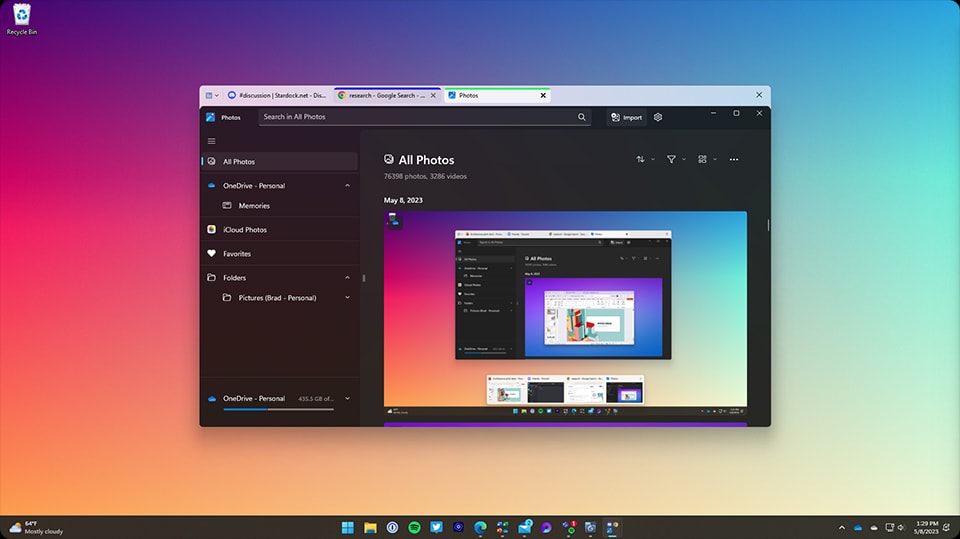
My honest reaction was one of immediate, profound relief. It wasn’t just usable; it was transformative. The ability to switch between my research, my writing, and my file management with a single click on a tab, rather than hunting through the taskbar or cycling with Alt-Tab, felt like a superpower. It immediately reduced the visual clutter and, more importantly, the mental clutter. I could focus on the task at hand, knowing all related resources were consolidated and easily accessible. A specific detail that surprised me was how seamlessly it handled different application types. I expected some compatibility issues, especially with older or less common software, but Groupy just embraced them all. Even my somewhat quirky image editing tool, which sometimes behaved oddly with other window managers, happily became a tab within a group. It felt like Windows itself had finally gained a feature I’d been craving for years. The initial setup for each group was entirely manual, but the immediate payoff was so evident that it felt like a worthwhile investment of a few seconds.
Now, Groupy is an indispensable part of my daily workflow. I have established several “master groups” that I launch almost automatically. For instance, my “Client A” group consists of a specific browser profile (with client-specific bookmarks), their project management tool (usually a web app), and a dedicated note-taking application. My “Content Creation” group often combines a browser for research, a document editor, and a thesaurus application. When I switch between projects, I simply minimize one group and maximize another. This significantly cuts down on context switching overhead. Instead of closing and reopening applications, or trying to find them amongst dozens of icons, I just switch tabs or switch groups. It’s like having multiple virtual desktops, but each desktop is a single, consolidated application window.
What Groupy does exceptionally well is consolidate all the disparate elements of a single task or project into one manageable window. For content strategy, this means I can group my competitor analysis browser tabs, my keyword research spreadsheet, and my content outline document into a single, tabbed interface. This saves me significant time – easily 30-45 minutes per day – that I used to spend searching, resizing, and reorganizing windows. Before Groupy, a typical research session for a new article would involve opening 10-15 browser tabs, then a Word document, then perhaps a Google Sheet for data, and then trying to keep them all visible or quickly accessible. Now, all those browser tabs are within one Groupy tab, the Word document is another, and the Google Sheet (opened in a dedicated browser instance) is a third. The focus it provides is invaluable.
However, Groupy is not without its minor quirks. While it generally handles automatic grouping beautifully (e.g., all instances of Chrome or File Explorer can be set to automatically group), sometimes specific applications, particularly those with custom window frames or older UI toolkits, don’t always snap into a group as cleanly. The tab might appear slightly misaligned, or the drag-and-drop might require a second attempt. It’s not a deal-breaker, but it reminds you that it’s an overlay, not a native operating system feature. Another minor point is that while it saves time in switching, the initial act of creating a group for a new, transient task still requires manual dragging. While it’s quick, there’s a slight mental overhead in deciding what to group and how. It doesn’t magically predict your grouping needs, which, of course, is an unreasonable expectation for any software.
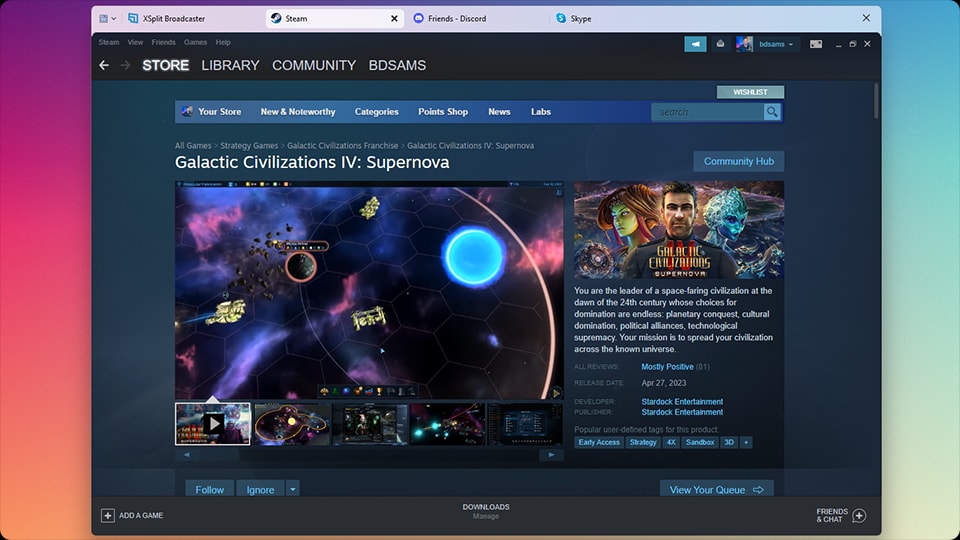
Compared to my old process of endlessly juggling individual windows, the difference is night and day. My desktop is cleaner, my mental state is calmer, and I feel more in control of my digital environment. The time saved isn’t just about clicks; it’s about reducing decision fatigue and maintaining focus. Before, I’d often open an application, get distracted by another window peeking out from behind it, and lose my train of thought. Now, when I’m in my “Client B” group, I see only the applications relevant to Client B. This enhanced focus directly translates into higher quality work and fewer errors. The cost of Groupy feels entirely justified for the productivity gains it delivers. It’s a small investment for such a significant improvement in daily workflow, especially for someone like me who lives in front of a computer screen.
There’s one thing that still occasionally gets under my skin. Sometimes, when I’m working on a highly visual task, like editing an image or creating a presentation, I still prefer to have windows side-by-side, completely un-tabbed, to maximize screen real estate for direct comparison. Groupy, by its very nature, wants to consolidate. While you can easily ungroup windows, the default inclination is to tab everything. So, for those specific tasks where I need a very precise, untabbed, side-by-side view of two applications, I still find myself temporarily disabling Groupy or simply avoiding grouping those particular windows. It’s a minor friction point, a subtle push against its core philosophy, but it’s there. It’s not a flaw, just a preference that occasionally clashes with its design.
The pricing for Groupy, especially as a standalone product, feels incredibly reasonable for the value it provides. I also know it’s part of Stardock’s Object Desktop suite, which offers a whole host of other enhancements, but for my specific problem, Groupy alone was the answer. I’ve certainly paid more for software that delivered far less impact on my daily efficiency. There was a time when I considered investing in larger, more complex project management systems, thinking that a top-down solution would tame my window chaos. But those systems often introduced their own learning curves and rigidities, and none of them addressed the fundamental issue of how applications presented themselves on my desktop. Groupy solved a very specific, yet pervasive, problem without forcing me to overhaul my entire work methodology. It simply enhanced the way I already worked.
I’m still refining my grouping strategies, especially for those highly dynamic projects that pop up unexpectedly. I’ve started experimenting with the accent coloring feature to visually differentiate groups, which helps immensely when I have several similar-looking browser tabs open across different projects. It’s a small detail, but it adds another layer of organization to an already powerful tool. My next goal is to leverage its ability to launch predetermined groups from the taskbar more consistently. I can see that saving even more time, transforming my scattered applications into instantly available, focused workspaces with a single click.
Additional workflow notes before choosing Groupy 2
Groupy 2 is easiest to understand if you think about browser tabs. Most people accept tabs in a browser because related pages should stay together. The same logic applies to Windows apps, but Windows itself does not always keep related work grouped in a way that matches the task. A proposal may involve a document, a spreadsheet, a folder, a browser window, and a notes app. Without a grouping layer, those pieces scatter across the taskbar and Alt-Tab list.
The value of Groupy is not that every app suddenly needs tabs. Some apps are better left alone. The value appears when you can group a repeatable workflow and return to it without rebuilding the context. That makes it useful for research, client work, content planning, finance admin, coding support tasks, and any job where the same cluster of windows keeps coming back. The tool is less compelling for users who live almost entirely inside one browser or one full-screen application.
The buying caution is that tabbed workflows require taste. If you group everything, the tabs become another mess. If you group by project or recurring task, the interface can feel calmer. That is the difference between using Groupy as a dumping ground and using it as a workspace organizer. For people who constantly lose the right window at the wrong time, the current Groupy 2 details are worth reviewing before deciding whether it fits your Windows habits.