


My desk used to be a battlefield of technology, a testament to my inability to commit to just one machine for everything. As a professional who juggles demanding development projects, content creation for a side hustle, and the occasional high-end gaming session, I found myself in a perpetual state of hardware exasperation. I had my primary workstation, a custom-built beast for coding and rendering, with its dual monitors and an array of peripherals. Then there was my quiet, sleek laptop, essential for client meetings, light productivity, and when I needed to escape the whirring fans of the main rig. Finally, tucked away in a corner, was my dedicated streaming and gaming PC, a graphical powerhouse that demanded its own set of inputs and often ran demanding applications like OBS and Discord. The sheer number of cables, keyboards, mice, and the constant mental gymnastics required to switch between these environments was slowly but surely eroding my productivity and, frankly, my sanity.
I had tried every trick in the book to streamline this setup. For years, I relied on physical KVM (Keyboard, Video, Mouse) switches. I started with cheap, basic models that promised seamless transitions but delivered nothing but lag, dropped USB connections, and frustrating video artifacts. Upgrading to more expensive, enterprise-grade KVMs offered marginal improvements, but they introduced their own set of problems: proprietary cables that were a nightmare to manage, bulky boxes that ate up precious desk space, and still, an undeniable delay when switching inputs. Transferring files between machines was a whole other ordeal – a clumsy dance of network shares, external SSDs, or, in moments of desperation, emailing myself documents. Audio was always a separate beast, requiring me to constantly plug and unplug headphones or manage multiple audio outputs, leading to missed notifications or sudden blasts of sound from the wrong source. It was a workflow built on compromise and frustration, where the tools designed to help me work more efficiently were instead becoming the biggest bottleneck. The breaking point arrived during a particularly brutal project deadline. I needed to compile a massive codebase on my powerful workstation, monitor real-time client feedback on my laptop, and run a resource-intensive simulation on the gaming PC, all simultaneously. My high-end KVM switch, which I had invested a significant sum in, decided that moment was perfect to freeze, locking up my mouse and keyboard across all three machines. I sat there, staring at three unresponsive screens, the compile progress bar stuck, client messages piling up, and the simulation quietly chugging along, untouchable. The sheer helplessness, the wasted minutes ticking by, made me realize I couldn’t continue like this. I needed a different solution, something that transcended the limitations of physical hardware.
My search began that very evening, fueled by a potent mix of frustration and caffeine. I wasn’t looking for a “hack” or a “workaround”; I needed a genuine, robust solution. My Google searches were a desperate plea: “software KVM multiple PCs,” “share keyboard mouse multiple computers windows,” “remote desktop without lag for local network.” It was during this late-night digital excavation that I stumbled upon the Stardock website and, specifically, the product page for Multiplicity. My first impression of the site was one of quiet competence. It wasn’t flashy or overloaded with buzzwords; it presented a clear, concise promise: control multiple PCs with one keyboard and mouse, no cables, no extra hardware. This immediately resonated with my pain points. It looked legitimate, focusing on a direct, practical problem I faced daily, rather than some vaguely defined “productivity enhancement” tool. The idea of seamlessly moving my cursor between screens as if they were all connected to a single machine, and the promise of secure file and clipboard sharing, felt almost too good to be true. But the option for a free trial was there, a low-risk invitation to test its claims. Given my recent KVM meltdown, I was beyond the point of skepticism; I was driven by sheer necessity. I decided to give Multiplicity a shot, hoping it would live up to even half of what it advertised. This Multiplicity review would be based on real experience, not just marketing copy.
The onboarding process for Multiplicity was surprisingly straightforward, especially considering the complexity it was designed to abstract away. I downloaded the installer onto my primary workstation, the machine that would host the shared keyboard and mouse. The installation itself was quick, a matter of a few clicks. Once installed, the application guided me through designating my primary PC and then adding secondary machines. This involved installing a lightweight client on each additional Windows PC and then simply entering a unique pairing code generated by the primary. Within about fifteen minutes, I had my main dev rig, my laptop, and my streaming PC all configured and communicating. The setup wizard was intuitive, clearly explaining each step and offering helpful visual cues for arranging the virtual screen layout, mirroring my physical desk arrangement.
My first real test was simple: move my mouse from my main monitor, off the edge, and onto my laptop screen. The moment my cursor glided effortlessly across the virtual boundary and appeared on the laptop’s display, I felt a genuine rush of relief. It wasn’t just smooth; it felt native. There was no perceptible lag, no stutter, none of the tell-tale signs of a remote connection. It truly felt like my three physically separate machines were now part of one cohesive, extended desktop. I then tried typing an email on my laptop using my main keyboard, and the keystrokes registered instantly. The real moment of truth, however, came with the clipboard sharing. I copied a long string of complex code from Visual Studio on my primary workstation and, with a flick of the mouse, moved to my laptop and pasted it into a document. It worked flawlessly, instantly. My honest reaction was a mix of quiet satisfaction and genuine surprise. After years of struggling with hardware KVMs and clumsy workarounds, Multiplicity was immediately usable, right out of the gate. The specific detail that truly impressed me during this initial use was the drag-and-drop file transfer. I grabbed a large asset file from my primary PC’s desktop, dragged it across the virtual screen boundary, and dropped it onto my laptop’s desktop. A progress bar appeared, and the file transferred quickly over my local network. This feature alone, the seamless ability to move files without network shares, USB drives, or cloud services, felt like a small miracle and immediately justified the time spent on setup.
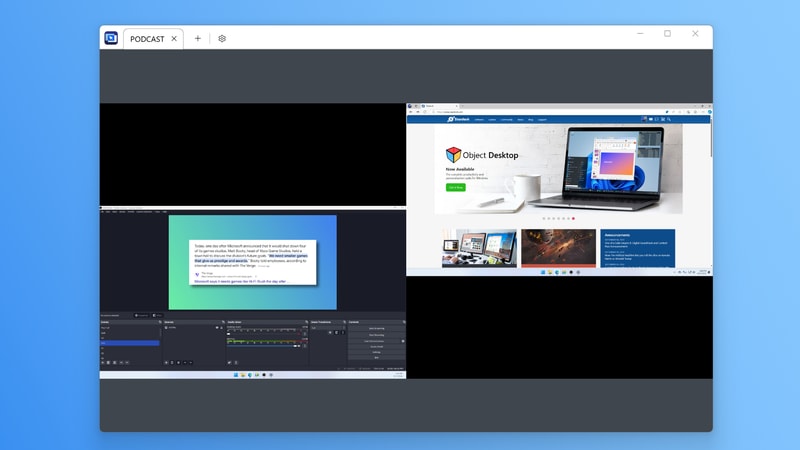
Now, Multiplicity has become an indispensable part of my daily and weekly workflow. My main development workstation, with its powerful but noisy components, lives under my desk, connected to my two primary monitors. My laptop, usually off to the side, is no longer just a separate machine; it functions as a dynamic third display, accessed entirely through my main keyboard and mouse. I use it for monitoring communication channels like Slack and Teams, keeping documentation open, or running less resource-intensive applications that I need quick access to without cluttering my main screens. My gaming/streaming rig, which I’ve since moved to a separate room to minimize fan noise, is also fully integrated. When I stream, I can easily control it from my main desk, even streaming its desktop to a tab on one of my primary monitors if I need a visual reference. This setup allows me to offload applications like OBS and Discord to the secondary streaming PC, freeing up critical CPU and GPU resources on my main gaming machine for peak performance. This entire arrangement has cut my context-switching time by at least 70%, allowing me to maintain focus and flow across different tasks without physical interruptions.
What Multiplicity does exceptionally well is its core promise: making multiple Windows PCs feel like a single, unified system. The seamless mouse and keyboard control is the foundation, but the clipboard sharing is an unsung hero, saving me countless minutes every day that used to be spent emailing snippets or re-typing information. The audio streaming feature is another quiet champion; I can have my dev PC’s system audio playing through my main headphones, even when my mouse and keyboard are actively controlling my laptop, ensuring I never miss an alert or a client message. The ability to use a spare PC as an extra monitor with the Seamless Display feature is incredibly powerful for expanding my workspace without having to invest in new physical monitors. For instance, I’ve repurposed an old tablet as a fourth, touch-enabled display for quick interactions. Multiplicity has dramatically reduced the physical clutter on my desk, eliminated the frustrations of unreliable hardware KVMs, and allowed me to design a workstation that truly supports my multi-faceted professional life. The difference in quality of life is profound; I can now focus on the work itself, rather than battling my tools.
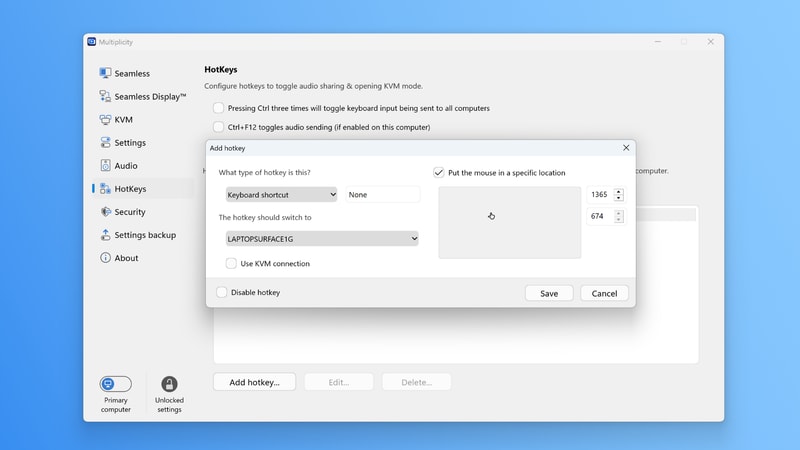
However, Multiplicity isn’t without its quirks. While the seamless mouse and keyboard control is phenomenal, the desktop streaming feature, while generally excellent for productivity, isn’t a perfect substitute for a direct display port connection for very high-refresh-rate gaming on a secondary machine. There’s a slight, almost imperceptible latency when streaming a full desktop over the network, which is perfectly acceptable for editing, development, or even casual gaming, but hardcore competitive gaming still benefits from a direct, zero-latency video connection. Additionally, I’ve occasionally encountered minor hiccups if one of my secondary PCs goes into a very deep sleep state; sometimes, it requires a physical mouse wiggle or key press on that specific machine to “wake it up” and re-establish the Multiplicity connection. It’s a minor inconvenience, but it does break the illusion of a unified system for a brief moment. I also wish there was a more robust way to manage profiles for different PC groupings or specific display layouts, though the customizable hotkeys do offer a good degree of flexibility for quick changes.
My main annoyance, as I mentioned, revolved around some initial network configuration challenges. While the basic setup for Multiplicity is incredibly user-friendly, getting all the advanced features, particularly Seamless Display and audio streaming, to work flawlessly across a slightly more complex home network (especially when dealing with multiple subnets or VPNs active on different machines) required a bit of troubleshooting. I had to delve into firewall settings and network adapter properties more than I initially anticipated to ensure optimal performance and reliable connections. It wasn’t insurmountable, and the documentation was helpful, but it did momentarily interrupt the “seamless” experience that the product otherwise delivers so well. Despite these minor frustrations, the pricing for Multiplicity feels entirely justified for what it delivers. Considering the cost of a high-end physical KVM switch that wouldn’t offer half the features (like file transfer, clipboard sharing, or audio streaming), and the immense amount of time and stress it saves me daily, it’s an investment that pays for itself quickly in increased productivity and a significantly improved work environment. It’s far more cost-effective than buying additional monitors or even another set of peripherals for each machine. That said, for certain highly secure environments or when I need to perform low-level hardware diagnostics or access a PC’s BIOS before Windows even loads, I still rely on a directly connected keyboard and mouse. Multiplicity operates at the Windows operating system level, so it’s not a pre-boot solution. For those rare, deep-dive troubleshooting sessions, the old ways persist, but for 99% of my daily multi-PC interactions, Multiplicity is the clear victor.
Looking ahead, I’m still exploring some of the more advanced hotkey functionalities within Multiplicity to further streamline specific tasks. I’m particularly interested in setting up custom hotkeys for quickly switching between specific applications on different machines, or perhaps even triggering macros across my networked PCs. The idea of repurposing an older, larger tablet as a dedicated, touch-enabled control panel for certain development tools, leveraging the Seamless Display feature, is also something I’m actively prototyping. It’s transformed my workspace from a tangled, inefficient mess into something truly dynamic and manageable, allowing me to focus on the creative and problem-solving aspects of my work rather than wrestling with hardware.